
First, some news about the upcoming Office 365 launch, and then a tip on how to sum for a date range in Excel.
Office 365 Launch
Instead of desktop versions of Office, Microsoft is encouraging people to subscribe to an online version. If you’d like to see a preview of Office 365, you can attend Microsoft’s online launch of the Office 365 product tomorrow, Wed. Feb. 27th. There are two sessions:
- 8 AM Pacific Time
- 5 PM Pacific Time
To register, click here, and fill in the registration form: Office 365 Launch Registration
There are lots of required fields in that registration form, but you can use the check boxes at the bottom, to control what type of email you get from Microsoft, after signing up.
Sum Amounts in a Date Range
While you’re waiting for the Office 365 Launch to start, you could calculate how many units of your top product have been sold.
If you’re using Excel 2007 and later, use the SUMIFS function, and for earlier versions, use the SUMIF function.
In this example, a Start date and an End date are entered on the worksheet. Dates are in column A, and units sold are in column B.
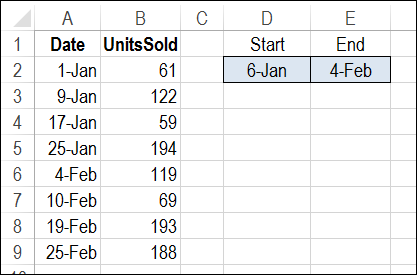
Use SUMIFS to Calculate Total for a Date Range
The SUMIFS function to calculate a total based on multiple criteria. We’ll use a SUMIFS formula to total all the units where the sales date is:
- on or after the Start date
- AND
- on or before the End date.
Here is the formula that is entered in cell D5:
=SUMIFS($B$2:$B$9,$A$2:$A$9,“>=” & $D$2, $A$2:$A$9,“<=” & $E$2)
- Range $B$2:$B$9 has the numbers that we want to sum.
- Range $A$2:$A$9 contains the sales dates.
- The first criterion, “>=” & $D$2, is the range with the value for criteria 1 (the Start date), and the operator to use with that value (greater than or equal to)
- The second criterion, “<=” & $E$2, is the range with the value for criteria 2 (the End date), and the operator to use with that value (less than or equal to)
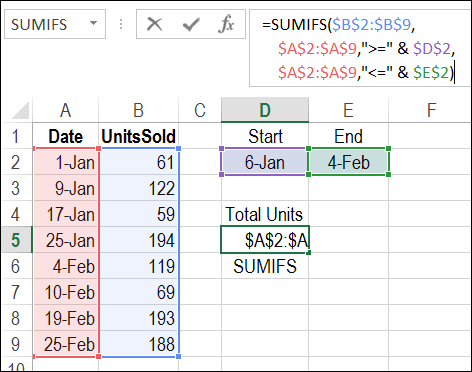
Verify the Total
In this example, the result for the selected date range is a total of 494 units sold. To verify, you can select cells B3:B6, and look at the total shown in Excel’s Status Bar.
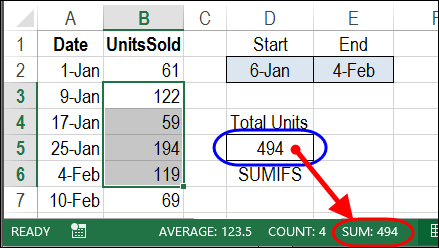
To get the total units for a different date range, change the Start date in cell D2, and/or the End date in cell E2.
Calculate Total for a Date Range with SUMIF
If you’re using Excel 2003, the SUMIFS function isn’t available, but you can calculate the total for a date range with the SUMIF function.
To see the details, and to download the sample file, visit my Contextures website: Sum Amounts in a Date Range with SUMIF
Watch the Video
To see the steps for creating a SUMIFS formula, and verifying the total, watch this short video.
____________________
Hi Debra,
I like your formula very much. My date range in column A are all months only and the months are text not dates 9i.e January, February, etc.). How can I modify the formula to use text months in column A?
This formula is most understandable and effective! Thank you!
Thanks!
Trying to add up all expenses (col D), based on date (col A.) and Category (col E.) ….here is the formula I have been using. =SUMIFS(D:D,A:A,”>=”&DATE(2017,1,1),date,”<="&DATE(2017,12,31),E:E,"Payment”)