
First, some news about the upcoming Office 365 launch, and then a tip on how to sum for a date range in Excel.
Office 365 Launch
Instead of desktop versions of Office, Microsoft is encouraging people to subscribe to an online version. If you’d like to see a preview of Office 365, you can attend Microsoft’s online launch of the Office 365 product tomorrow, Wed. Feb. 27th. There are two sessions:
- 8 AM Pacific Time
- 5 PM Pacific Time
To register, click here, and fill in the registration form: Office 365 Launch Registration
There are lots of required fields in that registration form, but you can use the check boxes at the bottom, to control what type of email you get from Microsoft, after signing up.
Sum Amounts in a Date Range
While you’re waiting for the Office 365 Launch to start, you could calculate how many units of your top product have been sold.
If you’re using Excel 2007 and later, use the SUMIFS function, and for earlier versions, use the SUMIF function.
In this example, a Start date and an End date are entered on the worksheet. Dates are in column A, and units sold are in column B.
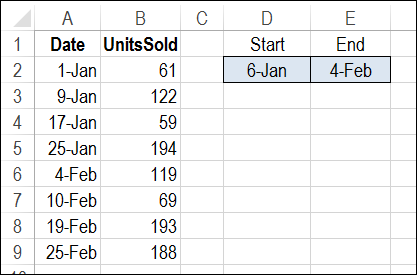
Use SUMIFS to Calculate Total for a Date Range
The SUMIFS function to calculate a total based on multiple criteria. We’ll use a SUMIFS formula to total all the units where the sales date is:
- on or after the Start date
- AND
- on or before the End date.
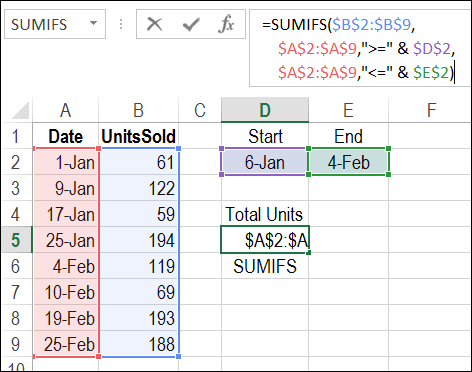
Here is the formula that is entered in cell D5:
=SUMIFS($B$2:$B$9,$A$2:$A$9,“>=” & $D$2, $A$2:$A$9,“<=” & $E$2)
- Range $B$2:$B$9 has the numbers that we want to sum.
- Range $A$2:$A$9 contains the sales dates.
- The first criterion, “>=” & $D$2, is the range with the value for criteria 1 (the Start date), and the operator to use with that value (greater than or equal to)
- The second criterion, “<=” & $E$2, is the range with the value for criteria 2 (the End date), and the operator to use with that value (less than or equal to)
Verify the Total
In this example, the result for the selected date range is a total of 494 units sold. To verify, you can select cells B3:B6, and look at the total shown in Excel’s Status Bar.
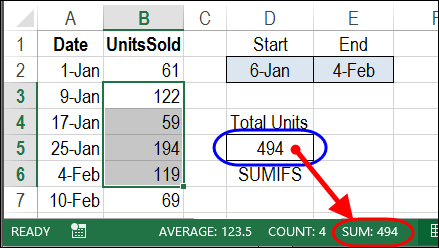
To get the total units for a different date range, change the Start date in cell D2, and/or the End date in cell E2.
Calculate Total for a Date Range with SUMIF
If you’re using Excel 2003, the SUMIFS function isn’t available, but you can calculate the total for a date range with the SUMIF function.
To see the details, and to download the sample file, visit my Contextures website: Sum Amounts in a Date Range with SUMIF
Watch the Video
To see the steps for creating a SUMIFS formula, and verifying the total, watch this short video.
____________________
Excellent solution. Many thanks
Thanks so much, this explanation was simple and exactly what I needed!
thanks! much appreciated!
@charles, you’re welcome!
=COUNTIFS(Reported_Date,”>=1/1/2015″,Reported_Date,”<=1/31/2015",STATUS,"A")
Hello! Thanks for this great post. I want to keep an excel sheet to track daily carbs, calories, fat and protein. I want extra fields beside either the first or last entry for each day that will automatically calculate daily totals based on the date, but not have to enter a start and end date. It should automatically calculate these for each entry under that date. I hope that makes sense. Is there such a function that will do this in excel so I don’t have to do each start and end date? Many thanks!
Happen to have exaclty the same problem as (found this on youtube):
Elisabeth Bradley 2 years ago
this is the first logical tutorial I’ve seen for this. Unfortunately its still not working for me. Its coming up with the #value! which i always interpreted as there are no values to add. However even when i put in values that should work, nothing comes up
I named the ranges so that I could use it as numbers get added (as a forever growing list) could this be part of the problem? does every cell need to have a value in order for the formula to work?
Thanks for any ideas!
Any ideas??? Cheers!
@Marcos, select a few of those numbers, then look in the Status bar, at the bottom right of the Excel window.
Does it show a Count, and a Numerical Count?
If those totals are different, Excel isn’t seeing them as real numbers. There are suggestions on my website, for how to fix that: http://www.contextures.com/xlDataEntry03.html