
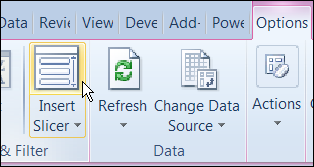
In Excel 2010, you can use Slicers to change multiple pivot tables. However, you might be working in an earlier version of Excel, or you don’t have room for Slicers on your worksheets.
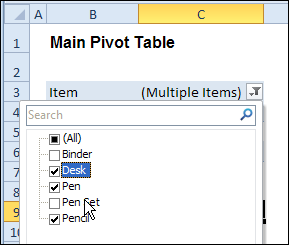
Instead of Slicers, you can use programming to update multiple pivot tables automatically. In previous posts, I’ve shown how you can select items in one pivot table’s Report Filter fields, and the Report Filter fields for pivot tables on the other worksheets will change to the same selections.
Specific Sheet and Pivot Tables
Jeff Weir has written an updated version of the code, which runs much faster than the previous version. You’ll notice the speed difference especially if you’re working with larger pivot tables.
Also, in this version of the code, you can specify:
- any sheets you DON’T want the macro to check
- any specific pivot tables that you DON’T want the macro to synchronize.
For example, only update the pivot tables on Sheet1 and Sheet2, and ignore PivotTable2 on Sheet1.
[Update: Sept 20, 2012] Jeff has made the following changes to the code:
- you can now exclude particular PivotFields, plus if you change a pagefield in any pivot, the code will not only update pagefields to the same settings in other pivots but also change rowfields too.
- added basic error handling so that ScreenUpdating and EnableEvents are restored to TRUE if anything goes wrong.
Jeff is also working on a version of the code for Excel 2010, that promises to be even faster — so stay tuned for that!
[Update: June 16, 2013] Jeff has revised the code, so it uses Slicers if the version is Excel 2010 or later.
Making Code Run Faster
In the previous version of the code, it looped through each master pivot field multiple times, to determine if each pivot item is visible or hidden. The corresponding pivot item in each secondary pivot table was then set to the same setting. The code worked, but it was very slow in larger pivot tables.
The main reason that Jeff’s code is faster is that it iterates through each master pivot field just once, so it can record only the visible items into a dictionary.
Then, for each pivot field in each secondary pivot table:
- All the pivot items are made visible
- Items that are not in the dictionary’s list are hidden.
Also, speed in Jeff’s code is increased because it:
- checks to see if.AllItemsVisible = true. If it is, no need to iterate through either the master or the secondary pivot…it just makes all pivot items in the corresponding secondary pivot fields visible. The old code looped through each pivot item
- doesn’t add items to the dictionary for checking if it has already found all the visible pivot items in the master list.
Modify the Code
If you download the sample file (see instructions below), you can copy the code to your own workbooks.
- To see the code in the sample file, go to the Sales Pivot worksheet, right-click the sheet tab, and click View Code.
- Then, to see the full code, right-click on the procedure name – SyncPivotFields – and click Definition
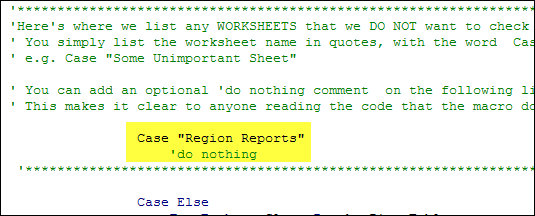
Here is where you’ll change the sheet names in the SyncPivotFields code:
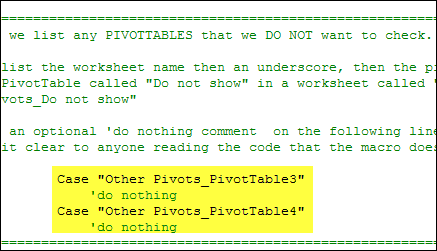
Here is the section where you’ll change the pivot table names:
Download the Sample File
To download this version of the sample file, with Jeff’s code, please visit the Sample Files page on the Contextures website.
Note: Jeff’s sample file was updated on Sept. 20, 2012, so please download the new version if you have an older copy of the file.
In the Pivot Tables section, look for: PT0029 – Change Pivot Table Fields on Specific Sheets
The file is in Excel xlsm format, zipped, and contains macros. Enable the macros when opening the file, if you want to test the code.
__________________
Eddy…can you share your workbook with me? Just dump any confidential data, or replace confidential numbers with rubbish ones. Email is weir dot jeff at gmail dot com
Otherwise, what kind of errors are you getting? Or are you getting no error at all..i.e. its just not doing anything?
Hi Jeff,
Thanks for your support. I’m not getting any error is just like you said not doing anything. I had tried creating a new file from scratch, but I always get the same result which is “nothing”. I do know it might be my lack of knowledge (puppy knowledge) and I appreciate the people like you guys who help us to improve our skills.
Anyway tonight when I’m at home I will send you my book (where do I send it?).You can send me your email here:
[email protected]
thank you guys for everything.
Hi Eddy. Note that to get the code to work, putting the code in a code module is only half the battle. You also need to put an event handler routine in each sheet module that you want the code to work on.
That is, if you have a sheet called “My cool report” and another called “Some other report” where there are some pivots that you want to be synced, then look in the right pane of the VBA editor and you should see something like this:
VBAProject (WORKBOOK NAME)
Microsoft Excel Objects
Sheet1 (My cool report)
Sheet2 (Some other report)
Double click on the line that correstponds to each sheet where you want the pivots to be synced, and insert the following event handler:
Private Sub Worksheet_PivotTableUpdate(ByVal target As PivotTable)
SyncPivotFields target
End Sub
What this does is it keeps a lookout for any pivots in the particular sheet, and if one is refreshed it stores that name in a variable called “target” and then says “hey, SyncPivotFields code…do your thing on the pivottable who’s name is in stored in this “targed” variable.
Genius!!!!
Thank you so very much.
I was missing that part. Now it works perfect.
Thanks again for everything
Hi Jeff, just to feedback. I demo’d the dashboard to my line mgr yesterday (the d’board which employed your code) and she loved it. It could have been done using formulea (in fact it was done this way until I stumbled across your code) ect but it would not have been as fast or robust. So, many thanks…… Also, I really like the way you explain to users how it works in PLAIN ENGLISH. Nice one dude
Hi Jeff – something has come up during testing. But before I go into detail here I thought that i’d email it over to you first, just in cast it “Expected” Cheers