
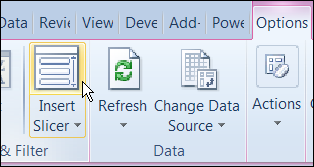
In Excel 2010, you can use Slicers to change multiple pivot tables. However, you might be working in an earlier version of Excel, or you don’t have room for Slicers on your worksheets.
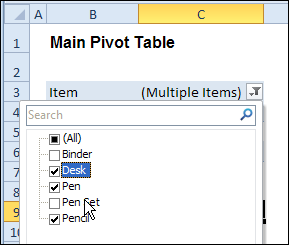
Instead of Slicers, you can use programming to update multiple pivot tables automatically. In previous posts, I’ve shown how you can select items in one pivot table’s Report Filter fields, and the Report Filter fields for pivot tables on the other worksheets will change to the same selections.
Specific Sheet and Pivot Tables
Jeff Weir has written an updated version of the code, which runs much faster than the previous version. You’ll notice the speed difference especially if you’re working with larger pivot tables.
Also, in this version of the code, you can specify:
- any sheets you DON’T want the macro to check
- any specific pivot tables that you DON’T want the macro to synchronize.
For example, only update the pivot tables on Sheet1 and Sheet2, and ignore PivotTable2 on Sheet1.
[Update: Sept 20, 2012] Jeff has made the following changes to the code:
- you can now exclude particular PivotFields, plus if you change a pagefield in any pivot, the code will not only update pagefields to the same settings in other pivots but also change rowfields too.
- added basic error handling so that ScreenUpdating and EnableEvents are restored to TRUE if anything goes wrong.
Jeff is also working on a version of the code for Excel 2010, that promises to be even faster — so stay tuned for that!
[Update: June 16, 2013] Jeff has revised the code, so it uses Slicers if the version is Excel 2010 or later.
Making Code Run Faster
In the previous version of the code, it looped through each master pivot field multiple times, to determine if each pivot item is visible or hidden. The corresponding pivot item in each secondary pivot table was then set to the same setting. The code worked, but it was very slow in larger pivot tables.
The main reason that Jeff’s code is faster is that it iterates through each master pivot field just once, so it can record only the visible items into a dictionary.
Then, for each pivot field in each secondary pivot table:
- All the pivot items are made visible
- Items that are not in the dictionary’s list are hidden.
Also, speed in Jeff’s code is increased because it:
- checks to see if.AllItemsVisible = true. If it is, no need to iterate through either the master or the secondary pivot…it just makes all pivot items in the corresponding secondary pivot fields visible. The old code looped through each pivot item
- doesn’t add items to the dictionary for checking if it has already found all the visible pivot items in the master list.
Modify the Code
If you download the sample file (see instructions below), you can copy the code to your own workbooks.
- To see the code in the sample file, go to the Sales Pivot worksheet, right-click the sheet tab, and click View Code.
- Then, to see the full code, right-click on the procedure name – SyncPivotFields – and click Definition
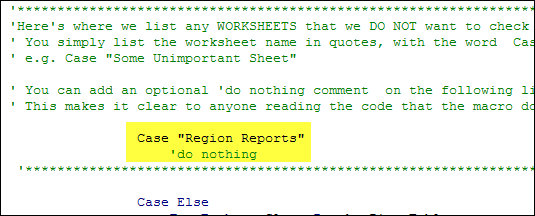
Here is where you’ll change the sheet names in the SyncPivotFields code:
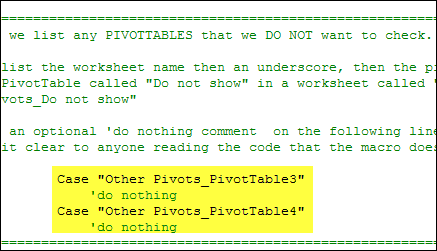
Here is the section where you’ll change the pivot table names:
Download the Sample File
To download this version of the sample file, with Jeff’s code, please visit the Sample Files page on the Contextures website.
Note: Jeff’s sample file was updated on Sept. 20, 2012, so please download the new version if you have an older copy of the file.
In the Pivot Tables section, look for: PT0029 – Change Pivot Table Fields on Specific Sheets
The file is in Excel xlsm format, zipped, and contains macros. Enable the macros when opening the file, if you want to test the code.
__________________
Hi,
I just start to use this code for a Excel file with multiple Pivot Tables in multiples worksheets. The first time I received an error within the following line: bFiltered = Not pf_Master.AllItemsVisible (Invalid procedure call or argument), the second time, I change the line to: bFiltered = Not pf_Master.CubeField.AllItemsVisible and the process continue til other point and stop again. I’m not sure why the errors, could be probably because my data source is a cube? How will be the version for OLAP Cube Pivot Tables?
Thanks.
Hi Debra,
I have the this code working, and is amazing! What I would like to do is have a drop down data validation field on my dashboard where user can select item in filter (in my case country) that will then update all the pivot table filters for country to be the same in all the PT’s that have this code running. Can you please help with the VBA code to make that happen?
Thanks,
Rick
Rick – an easy way to do this is replace that data validation dropdonn with a pivot that only has a country page field and nothing else. When the user selects a country or countries from this page field then all the other pivots will be updated accordingly.You may need to hide some rows/columns so that only the pivot page field can be accessed by the user.
Rick…also theres a comment above from sept 17 2012 where I also discuss this approach.
Thanks Jeff, after I sent email above had read thru all the comments and found what you mentioned, and works like a charm! Great code and can’t believe how fast it is, and really appreciate being able to use it. Only one thing that I will mention in case others might have same issue, was having problem with one PT not updating. I am using a page field called Area, all the PT’s are connected to SQL tables, and the Area field is spelled with uppercase “A” (ie.. “Area”) in all the ones that were working, where the one PT that wasn’t was spelled with lowercase “a” (ie..”area”). That was the only difference I could see, so sheepishly asked my SQL dev to change it to uppercase “A” for Area, after hours of scratching my head on why it wasn’t working, and it worked! Not sure if that is something that can be rectified in code, but either way, thought I would mention in case anyone else runs into same problem. Thanks again!
Rick
Hi Rick. Glad you like it. Yep, this code is pretty fast, although if you have pivots with tens of thousands of items in them, it will take a while. THat said, I’m working on two approaches that will sync very large pivots nearly instantly. One uses slicers to do this (which requires Excel 2010 or later), and the other uses some very very sneaky tricks that I’m not ready to share yet, because I want to turn it into a commercial add-in.
In regards to your issue, this code can be made case insensitive very very easily. Just add this line:
dicPivotItems.CompareMode = vbTextCompare
…after this line:
Set dicPivotItems = CreateObject(“Scripting.Dictionary”)
…and that should do it. Haven’t tested it, but basically the Dictionary object that I use to check whether or not an item in one pivot exists in the other can be either case sensitive (which is the default setting) or case insensitive. So that one line should do it.
I’d be pleased if you can try it on your old data and let me know if it fixes the issue.