
In Excel 2010, you can use Slicers to change multiple pivot tables. However, you might be working in an earlier version of Excel, or you don’t have room for Slicers on your worksheets.
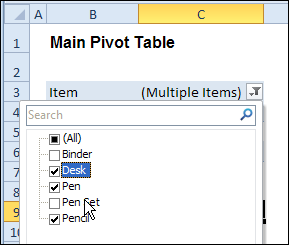
Instead of Slicers, you can use programming to update multiple pivot tables automatically. In previous posts, I’ve shown how you can select items in one pivot table’s Report Filter fields, and the Report Filter fields for pivot tables on the other worksheets will change to the same selections.
Specific Sheet and Pivot Tables
Jeff Weir has written an updated version of the code, which runs much faster than the previous version. You’ll notice the speed difference especially if you’re working with larger pivot tables.
Also, in this version of the code, you can specify:
- any sheets you DON’T want the macro to check
- any specific pivot tables that you DON’T want the macro to synchronize.
For example, only update the pivot tables on Sheet1 and Sheet2, and ignore PivotTable2 on Sheet1.
[Update: Sept 20, 2012] Jeff has made the following changes to the code:
- you can now exclude particular PivotFields, plus if you change a pagefield in any pivot, the code will not only update pagefields to the same settings in other pivots but also change rowfields too.
- added basic error handling so that ScreenUpdating and EnableEvents are restored to TRUE if anything goes wrong.
Jeff is also working on a version of the code for Excel 2010, that promises to be even faster — so stay tuned for that!
[Update: June 16, 2013] Jeff has revised the code, so it uses Slicers if the version is Excel 2010 or later.
Making Code Run Faster
In the previous version of the code, it looped through each master pivot field multiple times, to determine if each pivot item is visible or hidden. The corresponding pivot item in each secondary pivot table was then set to the same setting. The code worked, but it was very slow in larger pivot tables.
The main reason that Jeff’s code is faster is that it iterates through each master pivot field just once, so it can record only the visible items into a dictionary.
Then, for each pivot field in each secondary pivot table:
- All the pivot items are made visible
- Items that are not in the dictionary’s list are hidden.
Also, speed in Jeff’s code is increased because it:
- checks to see if.AllItemsVisible = true. If it is, no need to iterate through either the master or the secondary pivot…it just makes all pivot items in the corresponding secondary pivot fields visible. The old code looped through each pivot item
- doesn’t add items to the dictionary for checking if it has already found all the visible pivot items in the master list.
Modify the Code
If you download the sample file (see instructions below), you can copy the code to your own workbooks.
- To see the code in the sample file, go to the Sales Pivot worksheet, right-click the sheet tab, and click View Code.
- Then, to see the full code, right-click on the procedure name – SyncPivotFields – and click Definition
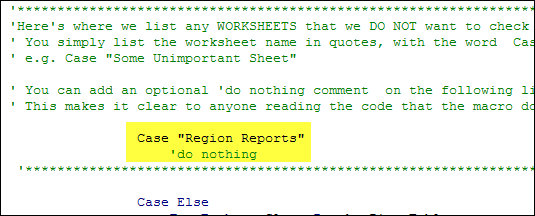
Here is where you’ll change the sheet names in the SyncPivotFields code:
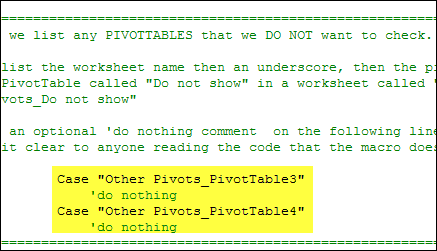
Here is the section where you’ll change the pivot table names:
Download the Sample File
To download this version of the sample file, with Jeff’s code, please visit the Sample Files page on the Contextures website.
Note: Jeff’s sample file was updated on Sept. 20, 2012, so please download the new version if you have an older copy of the file.
In the Pivot Tables section, look for: PT0029 – Change Pivot Table Fields on Specific Sheets
The file is in Excel xlsm format, zipped, and contains macros. Enable the macros when opening the file, if you want to test the code.
__________________
Hiya Jeff, Thanks for the revised version which I’ve just taken for a test drive. Wow, it’s fast, its flexible and the ‘descriptions or operating procedures are clearly written. many thanks, this code will allow me to do my job better. If I get a pay rise i’ll buy you a pint!
Darren…get your mate to buy me a pint when he’s in Wellington. In fact, with the power of your currency to mine, he can buy me several. THen we’ll skype you to show you the results!
Hello,
I used the updated code which is a wonderful thing by the way! It was exactly what I was looking for. The only thing though is when I click on Select Multiple Items checkbox for the date report filter and try selecting any dates all the date fields in the other pt’s have “blank” selected. It works great if I leave the Select Mulitple Items unchecked and choose only one item. It would be nice to have the option though to select multiple items. Any ideas?
Re-pasted code and refresh problem solved…
Great Macros, This will be very helpful for my project. Thanks for the upload.
Please forgive me but I need to ask how do I copy the Macros to another file? (I’m just beginning with Macros and I only know how to record one).
I
Eddy, there are instructions here for copying a macro to a different workbook:
http://blog.contextures.com/archives/2009/07/15/copy-excel-code-to-a-different-workbook/
@Debra Dalgleish
Thanks for the heads up, but it seems my previous post was not reflected complete. I was doing the following to copy the macros.
1.-Right click on the sheet
2.-View code
3.-Insert, click on Module
4.-Copy and paste the Macros to my file.
Anyway I have tried the method you suggested me, but it won’t work too. I’m using excel 2007 and the file I downloaded (Jeff’s file) works perfect but I can’t make it work on any other file. I do have the enable all macros option “checked” in the security options. I’m also using a Macros enable file in case you were wondering.
Any thoughts????? Am I missing something??????
Thanks in advance your support is greatly appreciated.