
There is a new sample file on the Contextures website, with a macro to change all pivot tables with one selection, when you change a report filter in one pivot table.
Change All Pivot Tables
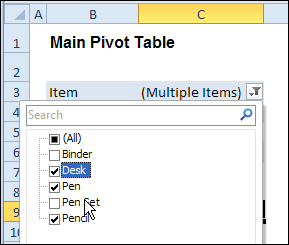
In the sample workbook, if you change the “Item” Report Filter in one pivot table, all the other pivot tables with an “Item” filter will change.
They get the same report filter settings that were in the pivot table that you changed.
Select Multiple Items
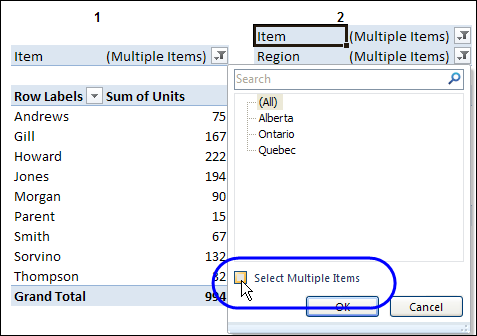
In this version of the sample file, the “Select Multiple Items” setting is also changed, to match the setting that is in the pivot table that you changed.
In the screen shot below, the Item field has the “Select Multiple Items” setting turned off. If any other pivot tables in the workbook have an “Items” filter, the “Select Multiple Items” setting for those fields will also change.
How It Works
The multiple pivot table filtering works with event programming. There is Worksheet_PivotTableUpdate code on each worksheet, and it runs when any pivot table on that worksheet is changed or refreshed.
For each report filter field, the code checks for the Select Multiple Items setting, to change all Pivot Tables with the same report filter field.
The code loops through all the worksheets in the workbook, and loops through each pivot table on each sheet.
Private Sub Worksheet_PivotTableUpdate _
  (ByVal Target As PivotTable)
Dim wsMain As Worksheet
Dim ws As Worksheet
Dim ptMain As PivotTable
Dim pt As PivotTable
Dim pfMain As PivotField
Dim pf As PivotField
Dim pi As PivotItem
Dim bMI As Boolean
On Error Resume Next
Set wsMain = ActiveSheet
Set ptMain = Target
Application.EnableEvents = False
Application.ScreenUpdating = False
For Each pfMain In ptMain.PageFields
  bMI = pfMain.EnableMultiplePageItems
  For Each ws In ThisWorkbook.Worksheets
    For Each pt In ws.PivotTables
      If ws.Name & "_" & pt <> _
          wsMain.Name & "_" & ptMain Then
        pt.ManualUpdate = True
        Set pf = pt.PivotFields(pfMain.Name)
          bMI = pfMain.EnableMultiplePageItems
          With pf
            .ClearAllFilters
            Select Case bMI
              Case False
                .CurrentPage _
                  = pfMain.CurrentPage.Value
              Case True
                .CurrentPage = "(All)"
                For Each pi In pfMain.PivotItems
                  .PivotItems(pi.Name).Visible _
                    = pi.Visible
                Next pi
                .EnableMultiplePageItems = bMI
            End Select
          End With
          bMI = False
        Set pf = Nothing
        pt.ManualUpdate = False
      End If
    Next pt
  Next ws
Next pfMain
Application.EnableEvents = True
Application.ScreenUpdating = True
End Sub
Download the Sample File
To test the Change All Pivot Tables code, you can download the sample file from the Contextures website.
On the Sample Excel Files page, in the Pivot Tables section, look for PT0025 – Change All Page Fields with Multiple Selection Settings.
The file will work in Excel 2007 or later, if you enable macros.
Watch the Video
To see the steps for copying the code into your worksheet, and an explanation of how the code works, watch this short video.
______________________
@Jeff Weir. Hi Jeff many thanks for your reply which i have just picked up @ 09:49 GMT. I’ll check out the link now and post back. Thanks one again. Looking forward to seeing a new faster approach! All the best
@Jeff – holy smoking raisens… that is some piece of coding.
May I ask,
In my case ALL of my PT’s are on the same worksheet and All have different data sourcs how should I adjust the code and set a new Mater table. Sorry to trouble you. Many thanks Darren
Hi Darren. Thanks for the feedback. If you like that, you’ll love the new approach when I post it!
You don’t need to set a ‘Master’ table…what happens is whenever you change any pivot page field on any pivot, that particular pivot becomes the Master, and all the other pivots (apart from any you specifically told the code to ignore) become ‘Slaves’. Keep the questions coming…I’m keen to make this puppy as easy for people to use as possible.
Hiya Jeff, thanks for your response. Much appreciated and for the keep the questions coming offer. This puppy has made me very excited as i’ve be trying for the last week to achieve something like this. There are snippets all over the internet (but nothing as comprehensive as this) and I have posted questions on EF dot Com. Would you mind if I link this page to my own question so others may benefit?
May I ask, can this code be ammended to update the PT’s NOT from a master table BUT from a DV list/combo box linked cell ect. If this question is beyond the relms of this Blog, link I totaly understand.
Cheers Jeff for all your help
@Darren – can you ask this question over at the other post where the code is, and i’ll answer it there. Cheers.
THANK you for this. I was able to adapt your code very quickly to serve my needs exactly. I really appreciate your help!!!!!!