
There is a new sample file on the Contextures website, with a macro to change all pivot tables with one selection, when you change a report filter in one pivot table.
Change All Pivot Tables
In the sample workbook, if you change the “Item” Report Filter in one pivot table, all the other pivot tables with an “Item” filter will change.
They get the same report filter settings that were in the pivot table that you changed.
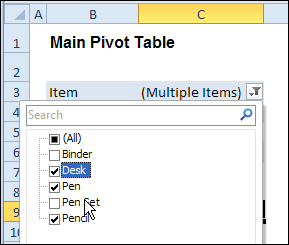
Select Multiple Items
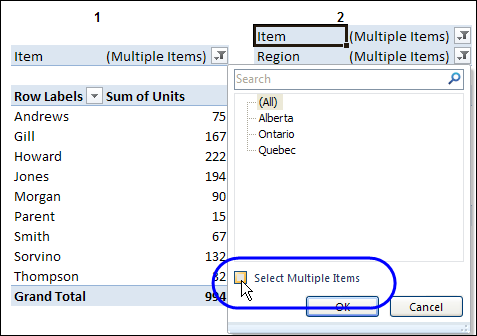
In this version of the sample file, the “Select Multiple Items” setting is also changed, to match the setting that is in the pivot table that you changed.
In the screen shot below, the Item field has the “Select Multiple Items” setting turned off. If any other pivot tables in the workbook have an “Items” filter, the “Select Multiple Items” setting for those fields will also change.
How It Works
The multiple pivot table filtering works with event programming. There is Worksheet_PivotTableUpdate code on each worksheet, and it runs when any pivot table on that worksheet is changed or refreshed.
For each report filter field, the code checks for the Select Multiple Items setting, to change all Pivot Tables with the same report filter field.
The code loops through all the worksheets in the workbook, and loops through each pivot table on each sheet.
Private Sub Worksheet_PivotTableUpdate _
  (ByVal Target As PivotTable)
Dim wsMain As Worksheet
Dim ws As Worksheet
Dim ptMain As PivotTable
Dim pt As PivotTable
Dim pfMain As PivotField
Dim pf As PivotField
Dim pi As PivotItem
Dim bMI As Boolean
On Error Resume Next
Set wsMain = ActiveSheet
Set ptMain = Target
Application.EnableEvents = False
Application.ScreenUpdating = False
For Each pfMain In ptMain.PageFields
  bMI = pfMain.EnableMultiplePageItems
  For Each ws In ThisWorkbook.Worksheets
    For Each pt In ws.PivotTables
      If ws.Name & "_" & pt <> _
          wsMain.Name & "_" & ptMain Then
        pt.ManualUpdate = True
        Set pf = pt.PivotFields(pfMain.Name)
          bMI = pfMain.EnableMultiplePageItems
          With pf
            .ClearAllFilters
            Select Case bMI
              Case False
                .CurrentPage _
                  = pfMain.CurrentPage.Value
              Case True
                .CurrentPage = "(All)"
                For Each pi In pfMain.PivotItems
                  .PivotItems(pi.Name).Visible _
                    = pi.Visible
                Next pi
                .EnableMultiplePageItems = bMI
            End Select
          End With
          bMI = False
        Set pf = Nothing
        pt.ManualUpdate = False
      End If
    Next pt
  Next ws
Next pfMain
Application.EnableEvents = True
Application.ScreenUpdating = True
End Sub
Download the Sample File
To test the Change All Pivot Tables code, you can download the sample file from the Contextures website.
On the Sample Excel Files page, in the Pivot Tables section, look for PT0025 – Change All Page Fields with Multiple Selection Settings.
The file will work in Excel 2007 or later, if you enable macros.
Watch the Video
To see the steps for copying the code into your worksheet, and an explanation of how the code works, watch this short video.
______________________
Hi great code works a treat. There is one issue I am encountering with speed. I have a macro which sets the filter defaults to make it easy for users. However I have plenty of pivot tables in the workbook so it takes a while to scroll through all of them. However there is only a couple of pivot tables that have the field I want to change, therefore is there a way I could tell the code to only look through the worksheets that have the pivot tables. So for example only run this code for worksheet, 1 2, 3 and 4 and exclude worksheets 5-16?
@Ryan…if you’re using Excel 2010, then as per my comment above you can use slicer to address multiple selected pivottables directly , and because they address only the desired pivotfields in each pivottable directly, you don’t have to iterate through each field in each pivot on each sheet (which as you’ve found can take a heck of a lot of time if you’ve got pivots with a couple of hundred thousand items in them.)
Thanks jeff. I do use excel 2010 on my local pc which as you say only affects the selected tables, however our clients only have excel 2007 so I can’t use slicers when deploying to a client server which is why I am interested to know whether it is possible to use this code but only for a select few worksheets
Hi Ryan. It is, and I’ve tried to post code here a couple of times but for some reason my comment doesn’t show. I’ll try and post it here again, but if it doesn’t show, you can email me on weir dot jeff at gmail dot com and I can email you a file back.
Hello all,
This code and blog are great and very helpful.
I have the exact same problem as both guys above. I too would really appreciate it if there could be a solution to this problem.
Thanks for sharing your knowledge
John…what’s the problem you have? THe last two posts above are for different issues. Is it speed? If so, Try the updated version of the code at http://blog.contextures.com/archives/2012/08/28/update-specific-pivot-tables-automatically/
And if you have excel 2010 or later you can use slicers, which are even faster.
Hi Debra. One potential bottleneck in the above code you’ve posted is that it effectively iterates through each master pivotfield multiple times, in order to a) determine whether each pivotitem is visible or hidden, so that the corresponding pivot item in each slave pivottable can be set to the same setting. In my experience, iterating through pivot items is very very slow compared to iterating through an array, or adding things to a dictionary.
Given this, for large numbers of pivottables and/or with large numbers of pivotitems it would be much faster to iterate through each master pivotfield just once so that we can record only those items that are visible into a ‘lookup’ array or dictionary.
Then you can then iterate through every corresponding slave pivotfield (after making all items visible) and hide just those items that are not in that pre-populated master list. The difference being that we only have to do a ‘slow’ iteration through that master pivotfield once, and on subsequent ‘passes’ we can do a much faster iteration through an array or dictionary that contains a potentially much smaller subset of items (i.e. only those that are visible)
I’ve got some code half built that does this. Furthermore it checks the slave pivotfield against the master list in a very economical manner that I think would make even Charles Williams whoop out loud.
I’ll complete it as soon as I can, and post it here.
@Jeff, thanks, and this code is probably 8-10 years old, so it’s time for an update.
Hi Debra, Excellent blog btw. Very helpful. May I ask if this would be possible if the pivot tables all had different data sources? Ie, I have a report wherby there are 6 PT’s on one sheet, each have there own source. However, I would the user to only have to choose the fiter value once. I tried using a combo box but to no avail. Do you have any pointers? Many thanks. Darren
@Darren…yep, this code should do it. Even better, head on over to http://blog.contextures.com/archives/2012/08/28/update-specific-pivot-tables-automatically/ and you’ll find an updated approach I wrote that Debra posted. Note that I’ve since found an even faster approach that I’m still in the process of punching up, and will submit to Debra in due course.