
There is a new sample file on the Contextures website, with a macro to change all pivot tables with one selection, when you change a report filter in one pivot table.
Change All Pivot Tables
In the sample workbook, if you change the “Item” Report Filter in one pivot table, all the other pivot tables with an “Item” filter will change.
They get the same report filter settings that were in the pivot table that you changed.
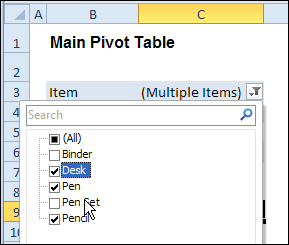
Select Multiple Items
In this version of the sample file, the “Select Multiple Items” setting is also changed, to match the setting that is in the pivot table that you changed.
In the screen shot below, the Item field has the “Select Multiple Items” setting turned off. If any other pivot tables in the workbook have an “Items” filter, the “Select Multiple Items” setting for those fields will also change.
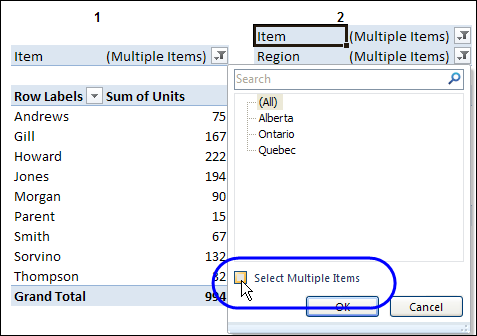
How It Works
The multiple pivot table filtering works with event programming. There is Worksheet_PivotTableUpdate code on each worksheet, and it runs when any pivot table on that worksheet is changed or refreshed.
For each report filter field, the code checks for the Select Multiple Items setting, to change all Pivot Tables with the same report filter field.
The code loops through all the worksheets in the workbook, and loops through each pivot table on each sheet.
Private Sub Worksheet_PivotTableUpdate _
  (ByVal Target As PivotTable)
Dim wsMain As Worksheet
Dim ws As Worksheet
Dim ptMain As PivotTable
Dim pt As PivotTable
Dim pfMain As PivotField
Dim pf As PivotField
Dim pi As PivotItem
Dim bMI As Boolean
On Error Resume Next
Set wsMain = ActiveSheet
Set ptMain = Target
Application.EnableEvents = False
Application.ScreenUpdating = False
For Each pfMain In ptMain.PageFields
  bMI = pfMain.EnableMultiplePageItems
  For Each ws In ThisWorkbook.Worksheets
    For Each pt In ws.PivotTables
      If ws.Name & "_" & pt <> _
          wsMain.Name & "_" & ptMain Then
        pt.ManualUpdate = True
        Set pf = pt.PivotFields(pfMain.Name)
          bMI = pfMain.EnableMultiplePageItems
          With pf
            .ClearAllFilters
            Select Case bMI
              Case False
                .CurrentPage _
                  = pfMain.CurrentPage.Value
              Case True
                .CurrentPage = "(All)"
                For Each pi In pfMain.PivotItems
                  .PivotItems(pi.Name).Visible _
                    = pi.Visible
                Next pi
                .EnableMultiplePageItems = bMI
            End Select
          End With
          bMI = False
        Set pf = Nothing
        pt.ManualUpdate = False
      End If
    Next pt
  Next ws
Next pfMain
Application.EnableEvents = True
Application.ScreenUpdating = True
End Sub
Download the Sample File
To test the Change All Pivot Tables code, you can download the sample file from the Contextures website.
On the Sample Excel Files page, in the Pivot Tables section, look for PT0025 – Change All Page Fields with Multiple Selection Settings.
The file will work in Excel 2007 or later, if you enable macros.
Watch the Video
To see the steps for copying the code into your worksheet, and an explanation of how the code works, watch this short video.
______________________
Hi Jeff, I’m using Excel 2007. I’m running pivots off a massive data base that is the input from a consumer survey. There are questions that are 1 to 10 ratings. I have created dozens of pivot tables for which the desired filter is 8,9 and 10 out of ten(showing a high rating for the particular question). I cut and paste the code as provided here, and when I do multiple selections, it just sets everything to nine. I’m afraid I can’t show you what I’m doing because the data I am working with is confidential, so I suppose I am on my own….thanks anyway…
Hello Debra,
Truly great work, top notch! Thanks so much for sharing! I have one question and I almost feel bad asking it… I feel like I’m asking too much. I was wondering if there was a way I can get a selection in one page field to change another distinct page field. Example, changing page field “Month” to January will change page field “Quarter” to Q1. I’m not sure if this is just a pipe dream but in any case thank you for the code you’ve already provided and thanks for your time.
Hi Alex,
I’ve put a sample file on my Contextures website that might help you. In the file, when you change a Month, the applicable quarter shows. If you select a quarter, the Months field changes to “All”.
Report Filter VBA
Thanks so much Debra!
Hello,
I have a 6 pivot tables ( 6 tabs ) that are all built from the same data set. In fact, I built the first pivot table with the max number of columns, than just copied it to the new tabs and got rid of the columns I did not want in that particular tab ( so I can eventually build a chart in said tab ). Anyway, there are 4 filter fields. I followed the directions in your video as precisely as possible, but no matter what I do, changing one of the filter fields does not impact the other pivot tables. Do I need to “turn on” something in Excel, maybe? Or maybe the fact that I have 4 different filter fields is causing a problem? I copied your code precisely from the downloaded example SS. I am not a VB expert, so I might be missing something simple. Thanks.
@Robert…I’ve had some issues in the past with pivot table code that inexplicably treats numbers as text. Maybe that’s what’s going on. I got around the problem in the end. If you can strip all but a few lines from your data source and make them commercially unsensitive, then feel free to email it to me at weir dot jeff at gmail dot com and I’ll take a look.
@Tony…can you post your workbook somewhere with dummy non-sensitive info or email it to me at the above address…happy to take a look.
@Jeff: How/where do you want to to submit it? It is just a SS to track my weight and related items, so nothing really sensitive. I guess I can change the numbers, or reduce the data set, rather easily. What is bugging me is that I followed the directions in the video precisely. Anyway, thanks for your help.
Hi Tony, email it to me at weir dot jeff at gmail dot com and I’ll take a look and see if I can work out why it’s not working for you. Regards, Jeff
@Tony. Got your workbook, and it works fine on my machine on Excel 2010.
Some possible reason for why this runs on my 2010 version but not on your system:
1. maybe it’s a compatability issue that is being hidden from you because of the “On Error Resume Next” statement at the top of each procedure. this statement tell Excel to ignore any errors, and just keep trundling through teh code. Can you comment out that ‘On Error Resume Next’ statement, (i.e. put an apostrophe ‘ in front of it) and run the code, and see what happens?
2. Or maybe your machine doesn’t let you run macros? Can you check that your macro setting is NOT set to “Disable all macros without notification”? See http://www.dummies.com/how-to/content/how-to-set-the-macro-security-level-in-excel-2007.html
@Debra…Is the “On Error Resume Next” statement tackling a particular scenario?
Thanks Jeff. I started looking at option 2 and that is when I noticed the warning bar up top about macros being disabled. I guess I am not used to looking at Excel documents with macros, because I never noticed that before. Anyway, I just have to enable it whenever I go into this spreadsheet. This is fine – better to be paranoid and secure, then get hurt by some macro I am not even aware of. Thanks again.
No problem…glad you got it sorted. That warning bar is very easy to miss.