
There is a new sample file on the Contextures website, with a macro to change all pivot tables with one selection, when you change a report filter in one pivot table.
Change All Pivot Tables
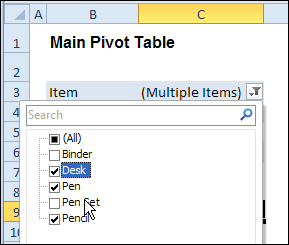
In the sample workbook, if you change the “Item” Report Filter in one pivot table, all the other pivot tables with an “Item” filter will change.
They get the same report filter settings that were in the pivot table that you changed.
Select Multiple Items
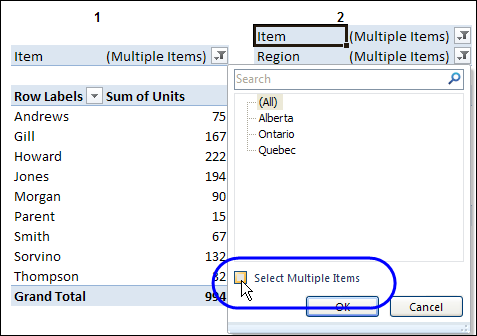
In this version of the sample file, the “Select Multiple Items” setting is also changed, to match the setting that is in the pivot table that you changed.
In the screen shot below, the Item field has the “Select Multiple Items” setting turned off. If any other pivot tables in the workbook have an “Items” filter, the “Select Multiple Items” setting for those fields will also change.
How It Works
The multiple pivot table filtering works with event programming. There is Worksheet_PivotTableUpdate code on each worksheet, and it runs when any pivot table on that worksheet is changed or refreshed.
For each report filter field, the code checks for the Select Multiple Items setting, to change all Pivot Tables with the same report filter field.
The code loops through all the worksheets in the workbook, and loops through each pivot table on each sheet.
Private Sub Worksheet_PivotTableUpdate _
  (ByVal Target As PivotTable)
Dim wsMain As Worksheet
Dim ws As Worksheet
Dim ptMain As PivotTable
Dim pt As PivotTable
Dim pfMain As PivotField
Dim pf As PivotField
Dim pi As PivotItem
Dim bMI As Boolean
On Error Resume Next
Set wsMain = ActiveSheet
Set ptMain = Target
Application.EnableEvents = False
Application.ScreenUpdating = False
For Each pfMain In ptMain.PageFields
  bMI = pfMain.EnableMultiplePageItems
  For Each ws In ThisWorkbook.Worksheets
    For Each pt In ws.PivotTables
      If ws.Name & "_" & pt <> _
          wsMain.Name & "_" & ptMain Then
        pt.ManualUpdate = True
        Set pf = pt.PivotFields(pfMain.Name)
          bMI = pfMain.EnableMultiplePageItems
          With pf
            .ClearAllFilters
            Select Case bMI
              Case False
                .CurrentPage _
                  = pfMain.CurrentPage.Value
              Case True
                .CurrentPage = "(All)"
                For Each pi In pfMain.PivotItems
                  .PivotItems(pi.Name).Visible _
                    = pi.Visible
                Next pi
                .EnableMultiplePageItems = bMI
            End Select
          End With
          bMI = False
        Set pf = Nothing
        pt.ManualUpdate = False
      End If
    Next pt
  Next ws
Next pfMain
Application.EnableEvents = True
Application.ScreenUpdating = True
End Sub
Download the Sample File
To test the Change All Pivot Tables code, you can download the sample file from the Contextures website.
On the Sample Excel Files page, in the Pivot Tables section, look for PT0025 – Change All Page Fields with Multiple Selection Settings.
The file will work in Excel 2007 or later, if you enable macros.
Watch the Video
To see the steps for copying the code into your worksheet, and an explanation of how the code works, watch this short video.
______________________
Hi Debra,
I agree, this is nice. I have a comment and a question.
Comment (for Excel 2010, for sure): for those who don’t like double-clicking on a cell of a pivot table and having the data behind that value pop up in a new worksheet: This can be turned off. If you right-click the pivot table and select “PivotTable Options”, then go to the “Data” tab, there is an option you can uncheck titled “Enable show details”. When this box is unchecked, the new worksheet will not pop up with the underlying data.
Question: I have been looking for code to alter the actual “report filters” in several pivot tables at once. Say that I have your workbook of data and I want to add “Date” to the report filters for all pivot tables at once. How would you do that? The way it stands now, I would have to go from one pivot table to the next and add “Date” to the report filter. So, Essentially, I want to be able to format all of my pivot tables’ report filters identically.
thanks!
If you’ve got excel 2010 you might know about slicers, which effectively let you do the same thing without all that looping, and without any VBA whatsoever.
On the downside,
1. slicers can take up quite a bit of screen real-estate (although if you have the Microsoft PowerPivot addin installed, they are much improved). But you can always add a slicer somewhere where users don’t see them, and add a smaller listbox or similar where users can select the same subset of things that appear in that oversize slicer.
2. slicers only work with pivots that share the same pivot cache. But you can always add a hidden slicer for each pivot cache, and keep them synchronized where appropriate with VBA.
Which brings us to the upside: slicers address your pivotfields directly. That is, you don’t have to iterate through each field in each pivot on each sheet – which can take a heck of a lot of time if you’ve got pivots with a couple of hundred thousand items in them.
thanks! I had heard of slicers before but hadn’t explored them yet. It took me a little to figure out how to get it to work with all my pivot tables. But it works great, and without VBA.
Trying desparately to get this coding to work, but mine keeps doing something funny. I have many pivot tables on the same worksheet and they are set to be filtered by the same data item. This data item selectiosn consists of the numbers 1 through 10, which along with the ‘all’ gives eleven choices for the filtering item. When I put in the code and do not use the ‘select multiple items’ option, I can handily update the filter items on all pivot tables just by adjusting one. However, when I set it to ‘select multiple items’ (which is what I want), the weirdest thing happens; all pivot tables set to ‘9’ except the the table on which I made the change. I have no idea why it chooses ‘9’ (it always does no matter what selection I make on the active pivot table). Any ideas why this is happening?
I have a report which has multiple pivot tables and pivot charts. I have set up a separate pivot table at the top with a number of filters (Month, Group etc) which are to filter all pivots tables and charts in the report. The macro works great with fields when they are in the ‘Filter’ section of a pivot table or chart. However I also want it to filter the fields of the tables if they appear in the ‘Row Labels’ section, which only seems to work if the report filter (at top of page) has ‘select multiple items’ enabled. However more often than not I only require to select one at a time – therefore would you be able to make this work if the field appears in the row label, no matter whether the overall report filter has multiple items enabled or disabled?
@Robert…I tried the code on a sample dataset that uses numbers, and it works fine for me. What version of Excel are you using? If 2010, using Slicers is an alternate (and simpler) approach. If using another version, can you post a sample file somewhere so I can take a look?
Debra,
This was really helpful..
Thanks,
DeXTeR