
There is a new sample file on the Contextures website, with a macro to change all pivot tables with one selection, when you change a report filter in one pivot table.
Change All Pivot Tables
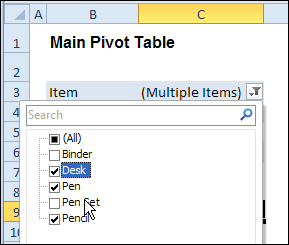
In the sample workbook, if you change the “Item” Report Filter in one pivot table, all the other pivot tables with an “Item” filter will change.
They get the same report filter settings that were in the pivot table that you changed.
Select Multiple Items
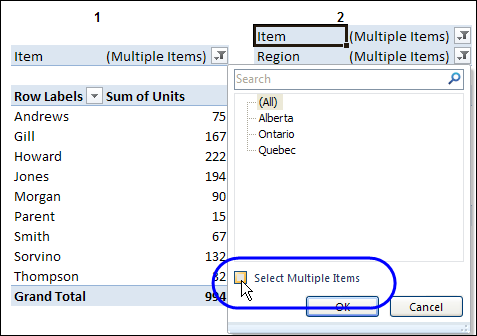
In this version of the sample file, the “Select Multiple Items” setting is also changed, to match the setting that is in the pivot table that you changed.
In the screen shot below, the Item field has the “Select Multiple Items” setting turned off. If any other pivot tables in the workbook have an “Items” filter, the “Select Multiple Items” setting for those fields will also change.
How It Works
The multiple pivot table filtering works with event programming. There is Worksheet_PivotTableUpdate code on each worksheet, and it runs when any pivot table on that worksheet is changed or refreshed.
For each report filter field, the code checks for the Select Multiple Items setting, to change all Pivot Tables with the same report filter field.
The code loops through all the worksheets in the workbook, and loops through each pivot table on each sheet.
Private Sub Worksheet_PivotTableUpdate _
  (ByVal Target As PivotTable)
Dim wsMain As Worksheet
Dim ws As Worksheet
Dim ptMain As PivotTable
Dim pt As PivotTable
Dim pfMain As PivotField
Dim pf As PivotField
Dim pi As PivotItem
Dim bMI As Boolean
On Error Resume Next
Set wsMain = ActiveSheet
Set ptMain = Target
Application.EnableEvents = False
Application.ScreenUpdating = False
For Each pfMain In ptMain.PageFields
  bMI = pfMain.EnableMultiplePageItems
  For Each ws In ThisWorkbook.Worksheets
    For Each pt In ws.PivotTables
      If ws.Name & "_" & pt <> _
          wsMain.Name & "_" & ptMain Then
        pt.ManualUpdate = True
        Set pf = pt.PivotFields(pfMain.Name)
          bMI = pfMain.EnableMultiplePageItems
          With pf
            .ClearAllFilters
            Select Case bMI
              Case False
                .CurrentPage _
                  = pfMain.CurrentPage.Value
              Case True
                .CurrentPage = "(All)"
                For Each pi In pfMain.PivotItems
                  .PivotItems(pi.Name).Visible _
                    = pi.Visible
                Next pi
                .EnableMultiplePageItems = bMI
            End Select
          End With
          bMI = False
        Set pf = Nothing
        pt.ManualUpdate = False
      End If
    Next pt
  Next ws
Next pfMain
Application.EnableEvents = True
Application.ScreenUpdating = True
End Sub
Download the Sample File
To test the Change All Pivot Tables code, you can download the sample file from the Contextures website.
On the Sample Excel Files page, in the Pivot Tables section, look for PT0025 – Change All Page Fields with Multiple Selection Settings.
The file will work in Excel 2007 or later, if you enable macros.
Watch the Video
To see the steps for copying the code into your worksheet, and an explanation of how the code works, watch this short video.
______________________
Hi Doug
Thanks for this very enlightening info. I have a question for you, I have tried your code and it works well if you want to change the pivot filters on ALL sheets in the workbook. However I want to change the filters on all pivot tables ONLY in one sheet and leave the pivot tables on the other sheets unaffected. I tried manipulating your code but I made no progress. Do you have any suggestions on how to do this?
Thanks in advance!
Sorry, Debra! not Doug 🙁
And the answer is ABOVE. Sorry and thanks again!
Hi Debra,
Thanks for the tutorial.
If ws.Name & “_” & pt wsMain.Name & “_” & ptMain Then
This particular line, I would like to know why is there a need to compare the names of the main and other worksheets plus the “_” & pt
Hi Debra (All),
Did anyone ever work out how to resolve the chart formatting problem for Excel 2010, similar to Bretts post on January 9, 2013 at 2:15 pm. I have a primary (clustered column) and secondary axis (line with markers) that defaults the designs and colours back to default.
I have also tried removing pf.ManualUpdate = True/False from the code with no success.
Ben.
Thanks Debra Dalgleish for your original code and Alastair Bishop for your reworked code.
@Alastair Bishop, your code is exactly what I am looking for as it maintains the pivot chart formatting, however it has some peculiar results.
I have a consolidated pivot table (i.e. SourcePivotTable in SourceWorksheet) to determine all available periods (e.g. 201501, 201502, etc.) across 4 worksheets and separate pivot tables for each worksheet where the periods originated from.
If I select multiple categories (i.e. Periods) in the SourcePivotTable it selects the corresponding periods in the 4 pivot tables, even if that category doesn’t exist (perfect). However, in some instances if I select an individual category, it selects the correct category in some of the pivots and not in others (weird).
I would appreciate any assistance if possible!
Ben.
Thank you so much this helped me a lot.
Imane from France
This code works well but Excel crashes after clicking on Refresh Pivot Table?
Did anyone else had this problem?
Could you help please ?