
There is a new sample file on the Contextures website, with a macro to change all pivot tables with one selection, when you change a report filter in one pivot table.
Change All Pivot Tables
In the sample workbook, if you change the “Item” Report Filter in one pivot table, all the other pivot tables with an “Item” filter will change.
They get the same report filter settings that were in the pivot table that you changed.
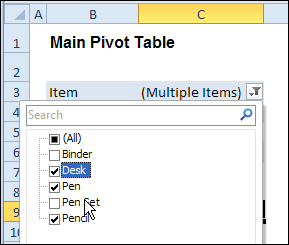
Select Multiple Items
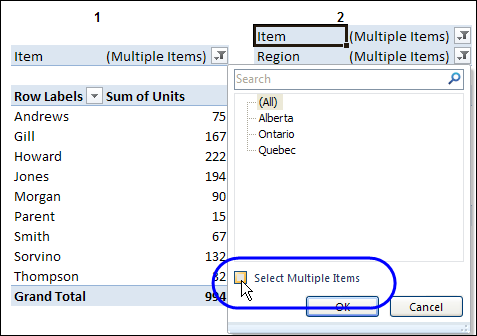
In this version of the sample file, the “Select Multiple Items” setting is also changed, to match the setting that is in the pivot table that you changed.
In the screen shot below, the Item field has the “Select Multiple Items” setting turned off. If any other pivot tables in the workbook have an “Items” filter, the “Select Multiple Items” setting for those fields will also change.
How It Works
The multiple pivot table filtering works with event programming. There is Worksheet_PivotTableUpdate code on each worksheet, and it runs when any pivot table on that worksheet is changed or refreshed.
For each report filter field, the code checks for the Select Multiple Items setting, to change all Pivot Tables with the same report filter field.
The code loops through all the worksheets in the workbook, and loops through each pivot table on each sheet.
Private Sub Worksheet_PivotTableUpdate _
  (ByVal Target As PivotTable)
Dim wsMain As Worksheet
Dim ws As Worksheet
Dim ptMain As PivotTable
Dim pt As PivotTable
Dim pfMain As PivotField
Dim pf As PivotField
Dim pi As PivotItem
Dim bMI As Boolean
On Error Resume Next
Set wsMain = ActiveSheet
Set ptMain = Target
Application.EnableEvents = False
Application.ScreenUpdating = False
For Each pfMain In ptMain.PageFields
  bMI = pfMain.EnableMultiplePageItems
  For Each ws In ThisWorkbook.Worksheets
    For Each pt In ws.PivotTables
      If ws.Name & "_" & pt <> _
          wsMain.Name & "_" & ptMain Then
        pt.ManualUpdate = True
        Set pf = pt.PivotFields(pfMain.Name)
          bMI = pfMain.EnableMultiplePageItems
          With pf
            .ClearAllFilters
            Select Case bMI
              Case False
                .CurrentPage _
                  = pfMain.CurrentPage.Value
              Case True
                .CurrentPage = "(All)"
                For Each pi In pfMain.PivotItems
                  .PivotItems(pi.Name).Visible _
                    = pi.Visible
                Next pi
                .EnableMultiplePageItems = bMI
            End Select
          End With
          bMI = False
        Set pf = Nothing
        pt.ManualUpdate = False
      End If
    Next pt
  Next ws
Next pfMain
Application.EnableEvents = True
Application.ScreenUpdating = True
End Sub
Download the Sample File
To test the Change All Pivot Tables code, you can download the sample file from the Contextures website.
On the Sample Excel Files page, in the Pivot Tables section, look for PT0025 – Change All Page Fields with Multiple Selection Settings.
The file will work in Excel 2007 or later, if you enable macros.
Watch the Video
To see the steps for copying the code into your worksheet, and an explanation of how the code works, watch this short video.
______________________
Hi. Thanks for this code. Works great! I am not very familiar with VBA so this post was very helpful. I was wondering on thing. Is there a way to make this work if I password protect the sheet? When I use the code now and password protect the sheet, all the filters on the second pivot table go to (ALL). Let me know! Thanks!
THIS IS AMAZING, thank you so much… This is going to save so much time. Just one small bug(I know its cheeky to ask).
Can this code be modified for pivot tables that have two data sets under the ‘report filer’. In my example, I have ‘WEEK’ and ‘PRODUCT’ as ‘Report Filters’. The code works perfect for changing the week, all pivot tables update within the workbook, but if I want to change the ‘Product’ of one Pivot table, all Pivot tables then change. I only want this code to update the week number, not the product?
Again, I know I should be grateful with the information, but any additional support would be amazing 🙂
Hi Debra
Firstly, thank you very much for this helpful code. It solved a problem for me perfectly.
I re-wrote the code from scratch to better understand it, and along the way I made a few changes. The alternative version is below, and hopefully it might be helpful for someone.
Main changes:
* Tweaked to enable calling with both a Worksheet and a PivotTable, which means you can hook in to the Workbook_SheetPivotTableUpdate event rather than having to add code to every worksheet you create.
* Split the code into separate Subs, which should make it easier if anyone wants to affect just a subset of pivot tables, or even a subset of pivot fields.
* Removed
On Error Resume Nextand replaced it with slightly more robust error checking. This solved some problems I was having with the original version.* Tweaked the code to affect only PageFields on both the “source” and “destination” pivot tables. Not sure if this was the original intention?
* Changed the nesting of the loops: in my version it’s worksheet/pivot table/pivot field
* Removed
pf.ManualUpdate = True/False: this resolved a problem with losing chart formatting, and removing the lines didn’t seem to cause any problems.This works well for me in Excel 2007, but I haven’t tested it in other versions. I hope it’s useful to someone.
Code to call routine – placed in ThisWorkbook module
Option Explicit

Private Sub Workbook_SheetPivotTableUpdate(ByVal Sh As Object, _

    ByVal Target As PivotTable)

    UpdatePivotTables Sh, Target

End Sub
Main routine – placed in a separate module, or in the ThisWorkbook module
Option Explicit Public Sub UpdatePivotTables(ByVal SourceWorksheet As Worksheet, _ ByVal SourcePivotTable As PivotTable) ' Updates page field filter criteria ' on all pivot tables in the current workbook ' to match those chosen in ' SourcePivotTable on SourceWorksheet On Error GoTo ExitSub Dim ThisWorksheet As Worksheet Dim ThisPivotTable As PivotTable Application.ScreenUpdating = False Application.EnableEvents = False ' Otherwise we'll get a never-ending cascade of pivot table updates! For Each ThisWorksheet In ThisWorkbook.Worksheets If ThisWorksheet.Type = xlWorksheet Then ' Don't try to process Chart sheets, etc. For Each ThisPivotTable In ThisWorksheet.PivotTables If (ThisWorksheet.Name <> SourceWorksheet.Name) _ Or (ThisPivotTable.Name <> SourcePivotTable.Name) Then ' Skip the source pivot table SyncPivotTable SourcePivotTable, ThisPivotTable End If Next ThisPivotTable End If Next ThisWorksheet ExitSub: ' These lines should always be executed, 'to ensure Excel is left in a usable state Application.EnableEvents = True Application.ScreenUpdating = True End Sub Public Function SyncPivotTable(SourcePivotTable As PivotTable, _ DestinationPivotTable As PivotTable) ' Synchronises page field filters between ' SourcePivotTable and DestinationPivotTable Dim SourcePivotField As PivotField For Each SourcePivotField In SourcePivotTable.PageFields If PivotFieldExists(DestinationPivotTable.PageFields, _ SourcePivotField.Name) Then SyncPivotField SourcePivotField, _ DestinationPivotTable.PageFields(SourcePivotField.Name) End If Next SourcePivotField End Function Public Function SyncPivotField(SourcePivotField As PivotField, _ DestinationPivotField As PivotField) ' Synchronises filter items between ' SourcePivotField and DestinationPivotField Dim SourcePivotItem As PivotItem With DestinationPivotField .ClearAllFilters If SourcePivotField.EnableMultiplePageItems Then .EnableMultiplePageItems = True .CurrentPage = "(All)" For Each SourcePivotItem In SourcePivotField.PivotItems If PivotItemExists(.PivotItems, SourcePivotItem.Name) Then _ .PivotItems(SourcePivotItem.Name).Visible = _ SourcePivotItem.Visible Next SourcePivotItem Else .EnableMultiplePageItems = False .CurrentPage = SourcePivotField.CurrentPage.Value End If End With End Function Private Function PivotFieldExists(MyPivotFields As PivotFields, _ PivotFieldName As String) As Boolean ' Returns True if PivotFieldName exists in ' MyPivotFields, False otherwise Dim Temp As Variant On Error Resume Next Temp = MyPivotFields(PivotFieldName) PivotFieldExists = (Err = 0) End Function Private Function PivotItemExists(MyPivotItems As PivotItems, _ PivotItemName As String) As Boolean ' Returns True if PivotItemName exists in ' MyPivotItems, False otherwise Dim Temp As Variant On Error Resume Next Temp = MyPivotItems(PivotItemName) PivotItemExists = (Err = 0) End FunctionThanks Alastair!
You’re welcome Debra.
I noticed an error has crept into the code above. The following line:
If (ThisWorksheet.Name = SourceWorksheet.Name) Or (ThisPivotTable.Name = SourcePivotTable.Name) Thenshould read:
If (ThisWorksheet.Name SourceWorksheet.Name) Or (ThisPivotTable.Name SourcePivotTable.Name) ThenIn other words, the “equals” should be “not equals”.
And now I see how the error crept in! The less than/greater than signs are being stripped out! Let me try again:
If (ThisWorksheet.Name <> SourceWorksheet.Name) Or (ThisPivotTable.Name <> SourcePivotTable.Name) ThenThanks Alastair, and I’ve fixed the code in your original comment.
Hi Alastair Bishop,
Please see my comment below;
http://blog.contextures.com/archives/2012/01/03/change-all-pivot-tables-with-one-selection/#comment-218960
Any assistance would be greatly appreciated!
Ben
Outstanding, this worked so easily. Thank you so much for sharing!
Hi Debra,
Thanks for this code – it has been extremely useful!
Can I go tweak this to not treat ptmain as the Target but instead a fixed Pivot Table?
The macro I am currently using updates my 8 pivot tables’ filters to be equal to whatever value is in a cell on my sheet. I had to define 8 different Pivot Tables and Pivot Fields, and then write out code to change each one individually which is cumbersome and undoubtedly slows my sheet down.
I want to leverage your macro so that when I change the value in my cell it updates only one of my PivotTables (which would be assigned to ptmain) and then your macro would detect a change to ptmain and kick in, hence updating the remaining 7 pivots.
Any help on this would be really appreciated!
Many thanks
Steve
Steve – one way you can do this fairly easily is by setting up a new PivotTable that masquerades as a Data Validation Dropdown, and putting the fields you want to sync into the Filters pane as per my post at http://dailydoseofexcel.com/archives/2014/08/16/sync-pivots-from-dropdown/. Let’s call it the ‘Master’ pivot. When users make changes to the master, the other pivots get updated. Because the master only has fields in the filters pane, it looks like a series of data validation boxes instead of a traditional PivotTable, but easily triggers Debra’s code.
If your PivotTables are big – or if you have many of them – then if users are only going to be choosing one item from each dropdown it will be much more efficient if you were to use an amended version of Debra’s code that gets triggered by a Worksheet_Change event than the PivotTable_Update event, because you could feed in the actual PivotField name that a user just changed, and have the code sync just that field across all the PivotTables concerned. Debra’s code above syncs all fields even though just one of them changed, and this can take some time on big PivotTables. That’s because Excel VBA doesn’t give the user much information regarding users’ interaction with PivotTables. You only get access to what’s called a PivotTable_Update event that tells you ‘Hey, this particular PivotTable had some kind of change made to it’ but it doesn’t tell you the nature of the change. And if that change was actually due to a user filtering it, the event doesn’t tell you what particular field was filtered – it only tells you that something changed in regards to PivotTable X. So you’re forced to sync ALL PivotFields any time any kind of change was made to that PivotTable, even if a user didn’t change a PivotField filter of interest. Even if they didn’t change any PivotField filter at all.
But following my approach above, and using a variation of the more efficient approach outlined at http://blog.contextures.com/archives/2013/06/18/update-multiple-pivot-tables-20130618/ – means you can correctly identify the particular PivotField that changed, and then sync the other PivotTables with just that field.
I also happen to be working on some revised code that will intelligently works out whether the PivotTable_Update event was caused by a user filtering the Pivot, and then my code tries to work out by process of elimination which particular field got changed. My next step is to work on the macro that helps a user set this up on any workbook they want just by clicking a ‘SyncPivot’ icon in the ribbon and then following instructions. Ultimately this is going to be bundled into a commercial add-in, but I need some beta testers so flick me an email on [email protected] if you want to try it out.
I’m quite late to the party on this, but I just wanted to send the biggest and most heart-felt “thank you” that I possibly can over the internet. This code and the subsequent edit for a single worksheet have made portions of my job so much easier and I cannot thank you enough.
@Billy, you’re welcome, and thanks for letting me know that it helped!