
There is a new sample file on the Contextures website, with a macro to change all pivot tables with one selection, when you change a report filter in one pivot table.
Change All Pivot Tables
In the sample workbook, if you change the “Item” Report Filter in one pivot table, all the other pivot tables with an “Item” filter will change.
They get the same report filter settings that were in the pivot table that you changed.
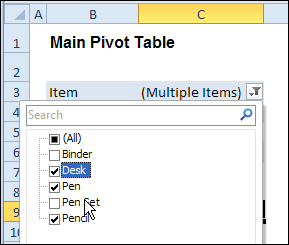
Select Multiple Items
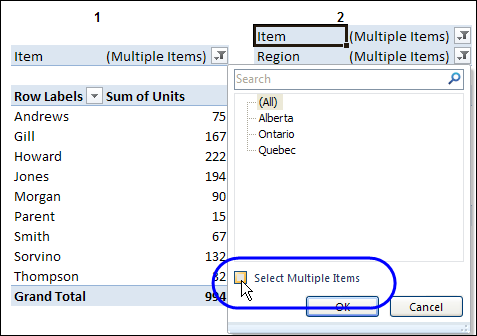
In this version of the sample file, the “Select Multiple Items” setting is also changed, to match the setting that is in the pivot table that you changed.
In the screen shot below, the Item field has the “Select Multiple Items” setting turned off. If any other pivot tables in the workbook have an “Items” filter, the “Select Multiple Items” setting for those fields will also change.
How It Works
The multiple pivot table filtering works with event programming. There is Worksheet_PivotTableUpdate code on each worksheet, and it runs when any pivot table on that worksheet is changed or refreshed.
For each report filter field, the code checks for the Select Multiple Items setting, to change all Pivot Tables with the same report filter field.
The code loops through all the worksheets in the workbook, and loops through each pivot table on each sheet.
Private Sub Worksheet_PivotTableUpdate _
  (ByVal Target As PivotTable)
Dim wsMain As Worksheet
Dim ws As Worksheet
Dim ptMain As PivotTable
Dim pt As PivotTable
Dim pfMain As PivotField
Dim pf As PivotField
Dim pi As PivotItem
Dim bMI As Boolean
On Error Resume Next
Set wsMain = ActiveSheet
Set ptMain = Target
Application.EnableEvents = False
Application.ScreenUpdating = False
For Each pfMain In ptMain.PageFields
  bMI = pfMain.EnableMultiplePageItems
  For Each ws In ThisWorkbook.Worksheets
    For Each pt In ws.PivotTables
      If ws.Name & "_" & pt <> _
          wsMain.Name & "_" & ptMain Then
        pt.ManualUpdate = True
        Set pf = pt.PivotFields(pfMain.Name)
          bMI = pfMain.EnableMultiplePageItems
          With pf
            .ClearAllFilters
            Select Case bMI
              Case False
                .CurrentPage _
                  = pfMain.CurrentPage.Value
              Case True
                .CurrentPage = "(All)"
                For Each pi In pfMain.PivotItems
                  .PivotItems(pi.Name).Visible _
                    = pi.Visible
                Next pi
                .EnableMultiplePageItems = bMI
            End Select
          End With
          bMI = False
        Set pf = Nothing
        pt.ManualUpdate = False
      End If
    Next pt
  Next ws
Next pfMain
Application.EnableEvents = True
Application.ScreenUpdating = True
End Sub
Download the Sample File
To test the Change All Pivot Tables code, you can download the sample file from the Contextures website.
On the Sample Excel Files page, in the Pivot Tables section, look for PT0025 – Change All Page Fields with Multiple Selection Settings.
The file will work in Excel 2007 or later, if you enable macros.
Watch the Video
To see the steps for copying the code into your worksheet, and an explanation of how the code works, watch this short video.
______________________
I have multiple pivot table on same sheet, and filtering with two criteria, Date and Department, the above code changing both Date and Department, is there is any way you can change the code, which only auto change “Date”.
Thanks
Fantastic! this code helps me a lot but only have one issue, I have six pivot tables on one sheet with three filers, There is any way I can only add above code to change only single filter. right now if I use above code its change all the filers. Thanks
Thanks a lot for this code! It took me forever to find a way to filter several pivot tables with different caches at once. I also wanted to have a slicer in a different sheet to filter those pivot tables and that did not work until I’d deleted the line ” .ClearAllFilters. ” . I have no idea how that changes things, however it works !
Thanks for sharing that solution — it might help someone else too!
I was thrilled when I first found this, but it seems the code doesn’t work for me.
I basicly have two pivot tables from different sources (using powerpivot). Does this not work if the pivot table data comes from OLAP/powerpivot ?
Hi there,
I am attempting to implement this code but I’m running into issues.
I have 6 pivot tables on the same spreadsheet. 4 are from one data source and 2 are from another.
They have a field in common that I would like to leverage as a filter but I’m struggling to do this using the VBA code above.
Unfortunately, there is no good way to re-stage the data to make it happen.
Any tips on how to use this code with pivot tables from 2 different data sources?
Thank you!!!
John
I’m so happy for you guys posting this code, as this is something that I have been working on for days now, and I finally got your code to work for me – except in one case.
I have two different data sets:
1. All the available item numbers of items in stock
2. All the item numbers that actually have been used
Data set 1 has more item numbers than data set 2. If I filter on some specific items and use your method of applying multiple filter selections, I get more items than I want. I understand why it is happening (because all the filters are first cleared and only the ones found are being reapplied, as there are more items in set 1, I get all those extras as well) however, is there a different method that would exclude all and then only include those that are visible?
@JP
I was having similar issues. I am using slicers to do the filtering and I am finding that if I create the slicer from the pivot table that has the data set with the most numbers, it works properly.