
There is a new sample file on the Contextures website, with a macro to change all pivot tables with one selection, when you change a report filter in one pivot table.
Change All Pivot Tables
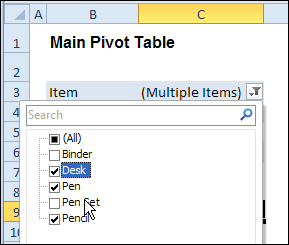
In the sample workbook, if you change the “Item” Report Filter in one pivot table, all the other pivot tables with an “Item” filter will change.
They get the same report filter settings that were in the pivot table that you changed.
Select Multiple Items
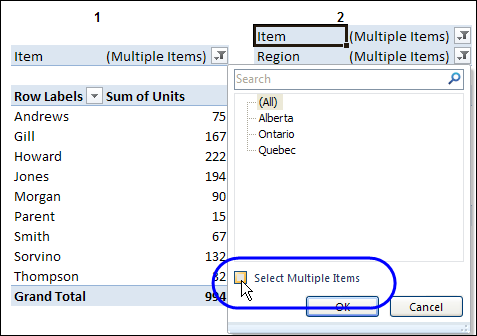
In this version of the sample file, the “Select Multiple Items” setting is also changed, to match the setting that is in the pivot table that you changed.
In the screen shot below, the Item field has the “Select Multiple Items” setting turned off. If any other pivot tables in the workbook have an “Items” filter, the “Select Multiple Items” setting for those fields will also change.
How It Works
The multiple pivot table filtering works with event programming. There is Worksheet_PivotTableUpdate code on each worksheet, and it runs when any pivot table on that worksheet is changed or refreshed.
For each report filter field, the code checks for the Select Multiple Items setting, to change all Pivot Tables with the same report filter field.
The code loops through all the worksheets in the workbook, and loops through each pivot table on each sheet.
Private Sub Worksheet_PivotTableUpdate _
  (ByVal Target As PivotTable)
Dim wsMain As Worksheet
Dim ws As Worksheet
Dim ptMain As PivotTable
Dim pt As PivotTable
Dim pfMain As PivotField
Dim pf As PivotField
Dim pi As PivotItem
Dim bMI As Boolean
On Error Resume Next
Set wsMain = ActiveSheet
Set ptMain = Target
Application.EnableEvents = False
Application.ScreenUpdating = False
For Each pfMain In ptMain.PageFields
  bMI = pfMain.EnableMultiplePageItems
  For Each ws In ThisWorkbook.Worksheets
    For Each pt In ws.PivotTables
      If ws.Name & "_" & pt <> _
          wsMain.Name & "_" & ptMain Then
        pt.ManualUpdate = True
        Set pf = pt.PivotFields(pfMain.Name)
          bMI = pfMain.EnableMultiplePageItems
          With pf
            .ClearAllFilters
            Select Case bMI
              Case False
                .CurrentPage _
                  = pfMain.CurrentPage.Value
              Case True
                .CurrentPage = "(All)"
                For Each pi In pfMain.PivotItems
                  .PivotItems(pi.Name).Visible _
                    = pi.Visible
                Next pi
                .EnableMultiplePageItems = bMI
            End Select
          End With
          bMI = False
        Set pf = Nothing
        pt.ManualUpdate = False
      End If
    Next pt
  Next ws
Next pfMain
Application.EnableEvents = True
Application.ScreenUpdating = True
End Sub
Download the Sample File
To test the Change All Pivot Tables code, you can download the sample file from the Contextures website.
On the Sample Excel Files page, in the Pivot Tables section, look for PT0025 – Change All Page Fields with Multiple Selection Settings.
The file will work in Excel 2007 or later, if you enable macros.
Watch the Video
To see the steps for copying the code into your worksheet, and an explanation of how the code works, watch this short video.
______________________
I have only one sheet, multiple Pivot Tables with multiple filters, this code works good only when i choose one item.
Could you please tell which correction should i do to make this code work one multiple item selection too ?
I will really appreciate your help
Imane From France.
Hi Debra,
I am great admire of yours! May I ask u a quick question. I need to link one main slicer to many other slicer from different tables and different sources. So the idea is to click on a topic on the main slicer, which topic or label is present on the other slicer, then other slicer are activated as well.
Thank you for your help a lot.
Best,
Arben
Hi All
Thought I’d contribute with a version based on the original concept, but using the Workbook event
Private Sub Workbook_SheetPivotTableUpdate(ByVal Sh As Object, ByVal Target As PivotTable)
‘Synchronise all Workbook PivotTable PageFields to Source PivotTable
Dim wsSource As Worksheet
Dim ptSource As PivotTable
Dim pfSource As PivotField
Dim piSource As PivotItem
Dim ws As Worksheet
Dim pt As PivotTable
Dim pf As PivotField
On Error Resume Next
Application.EnableEvents = False
Application.ScreenUpdating = False
Set wsSource = Sh
Set ptSource = Target
For Each ws In ThisWorkbook.Worksheets
For Each pt In ws.PivotTables
If (ws.Name wsSource.Name) Or (pt.Name ptSource.Name) Then
For Each pfSource In ptSource.PageFields
Set pf = pt.PivotFields(pfSource.Name)
pf.EnableMultiplePageItems = pfSource.EnableMultiplePageItems
Select Case pf.EnableMultiplePageItems
Case False
pf.CurrentPage = pfSource.CurrentPage.Value
Case True
For Each piSource In pfSource.PivotItems
pf.PivotItems(piSource.Name).Visible = piSource.Visible
Next piSource
End Select
Set pf = Nothing
Next pfSource
End If
Next pt
Next ws
Application.EnableEvents = True
Application.ScreenUpdating = True
End Sub
Debra,
This is an amazing tool! I’m a complete novice with this, but was able to use your script to effectively tie different sources together…. buuuuuut, I was wondering if there is a way to make this work with PivotTables built off of a PowerPivot. Basically, I have a data set in my file, and then three other pivot tables connecting to different PowerPivots saved on a SharePoint website. These data sets are HUGE, so I have to connect to them through data connections on SharePoint. Is there a way to get this script to affect both the pivot tables connected to the data set saved in my file, and the pivot tables connected to the outside data source?
Great script!
I used to to easily allow me to easily create 40 versions of the same file with a different “MDA” selected across about 50 sheets for each version. I then use another script I pieced together from other helpful people to create a PDF and email it to the chosen “MDA.” The problem is that (1) each of the 40 files needs to refresh the same data from the SQL server and (2) any changes I make to the file need to be made 40 times. I would like to change your script to change all the tables in the document with the “MDA” field to one name. I will then insert it into the script below, putting it below the refresh statements and above the create/email PDF statements. Then I will copy that portion 40 times. Issues: Your script goes in the sheets, but the other script is a module. How do I tell your script the change all the “MDA” fields to my selected value. I have included the version of your script I am currently using and the create/email PDF script below.
**** Here is the module I want to insert your script into ***********
Sub CDO_Mail_Small_Text()
Dim iMsg As Object
Dim iConf As Object
Dim strbody As String
Dim Flds As Variant
Dim FileName As String
Application.EnableEvents = False
Application.Calculation = xlCalculationManual
Application.ScreenUpdating = False
Application.DisplayStatusBar = False
ActiveSheet.DisplayPageBreaks = False
ActiveWorkbook.RefreshAll
DoEvents
Application.Calculation = xlCalculationAutomatic
Application.ScreenUpdating = True
Application.DisplayStatusBar = True
ActiveSheet.DisplayPageBreaks = True
Application.EnableEvents = True
‘ ******thought I would put version of your script here*******
FileName = RDB_Create_PDF(Source:=Range(“A1:n44″), _
FixedFilePathName:=”S:\AnesthesiaQA\Dashboards\Publication\B.pdf”, _
OverwriteIfFileExist:=True, _
OpenPDFAfterPublish:=False)
Set iMsg = CreateObject(“CDO.Message”)
Set iConf = CreateObject(“CDO.Configuration”)
iConf.Load -1 ‘ CDO Source Defaults
Set Flds = iConf.Fields
With Flds
.Item(“http://schemas.microsoft.com/cdo/configuration/sendusing”) = 2
.Item(“http://schemas.microsoft.com/cdo/configuration/smtpserver”) _
= “owa.hospitalXXX.edu”
.Item(“http://schemas.microsoft.com/cdo/configuration/smtpserverport”) = 25
.Update
End With
strbody = “Anesthesiologists and CRNAs,” & vbNewLine & vbNewLine & _
“Attached is the Monthly QA Dashboard” & vbNewLine & _
“There is a department version and one specific to your patients. Please see me if you have any questions,” & vbNewLine & _
“DoctorB” & vbNewLine & _
“”
With iMsg
Set .Configuration = iConf
.To = “[email protected]”
.CC = “”
.BCC = “”
.From = “””Dr. B”” ”
.Subject = “Monthly Anesthesia Dashboard”
.TextBody = strbody
.AddAttachment “S:\AnesthesiaQA\Dashboards\Publication\B.pdf”
.AddAttachment “S:\AnesthesiaQA\Dashboards\Publication\Dashboard.pdf”
.Send
End With
Kill (“S:\AnesthesiaQA\Dashboards\Publication\B.pdf”)
‘Kill (“S:\AnesthesiaQA\Dashboards\Publication\Dashboard.pdf”)
‘ **** This is where I would copy and paste the 40 times your script followed by email/createPDF for each “MDA”*************
ActiveWorkbook.Close savechanges:=True
Application.Quit
End Sub
******** Here is the version of your script I currently have in my document on sheet1 and on ThisWorkbook **********
Option Explicit
Private Sub Worksheet_PivotTableUpdate(ByVal Target As PivotTable)
Dim wsMain As Worksheet
Dim ws As Worksheet
Dim ptMain As PivotTable
Dim pt As PivotTable
Dim pfMain As PivotField
Dim pf As PivotField
Dim pi As PivotItem
Dim bMI As Boolean
On Error Resume Next
Set wsMain = ActiveSheet
Set ptMain = Target
Application.EnableEvents = False
Application.ScreenUpdating = False
For Each pfMain In ptMain.PageFields
bMI = pfMain.EnableMultiplePageItems
For Each ws In ThisWorkbook.Worksheets
For Each pt In ws.PivotTables
If ws.Name & “_” & pt wsMain.Name & “_” & ptMain Then
pt.ManualUpdate = True
Set pf = pt.PivotFields(pfMain.Name)
bMI = pfMain.EnableMultiplePageItems
With pf
.ClearAllFilters
Select Case bMI
Case False
.CurrentPage = pfMain.CurrentPage.Value
Case True
.CurrentPage = “(All)”
For Each pi In pfMain.PivotItems
.PivotItems(pi.Name).Visible = pi.Visible
Next pi
.EnableMultiplePageItems = bMI
End Select
End With
bMI = False
Set pf = Nothing
pt.ManualUpdate = False
End If
Next pt
Next ws
Next pfMain
Application.EnableEvents = True
Application.ScreenUpdating = True
End Sub
Very good post. I’m experiencing some of these issues as well..