
There is a new sample file on the Contextures website, with a macro to change all pivot tables with one selection, when you change a report filter in one pivot table.
Change All Pivot Tables
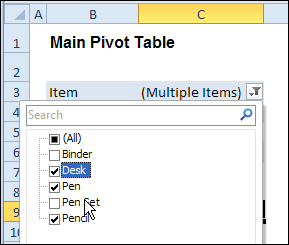
In the sample workbook, if you change the “Item” Report Filter in one pivot table, all the other pivot tables with an “Item” filter will change.
They get the same report filter settings that were in the pivot table that you changed.
Select Multiple Items
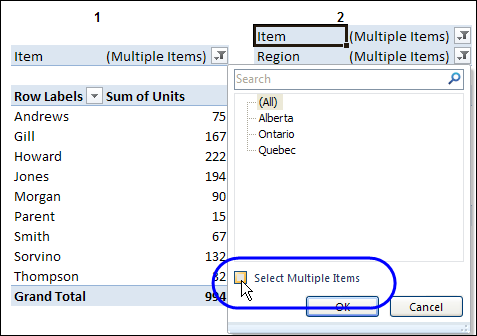
In this version of the sample file, the “Select Multiple Items” setting is also changed, to match the setting that is in the pivot table that you changed.
In the screen shot below, the Item field has the “Select Multiple Items” setting turned off. If any other pivot tables in the workbook have an “Items” filter, the “Select Multiple Items” setting for those fields will also change.
How It Works
The multiple pivot table filtering works with event programming. There is Worksheet_PivotTableUpdate code on each worksheet, and it runs when any pivot table on that worksheet is changed or refreshed.
For each report filter field, the code checks for the Select Multiple Items setting, to change all Pivot Tables with the same report filter field.
The code loops through all the worksheets in the workbook, and loops through each pivot table on each sheet.
Private Sub Worksheet_PivotTableUpdate _
  (ByVal Target As PivotTable)
Dim wsMain As Worksheet
Dim ws As Worksheet
Dim ptMain As PivotTable
Dim pt As PivotTable
Dim pfMain As PivotField
Dim pf As PivotField
Dim pi As PivotItem
Dim bMI As Boolean
On Error Resume Next
Set wsMain = ActiveSheet
Set ptMain = Target
Application.EnableEvents = False
Application.ScreenUpdating = False
For Each pfMain In ptMain.PageFields
  bMI = pfMain.EnableMultiplePageItems
  For Each ws In ThisWorkbook.Worksheets
    For Each pt In ws.PivotTables
      If ws.Name & "_" & pt <> _
          wsMain.Name & "_" & ptMain Then
        pt.ManualUpdate = True
        Set pf = pt.PivotFields(pfMain.Name)
          bMI = pfMain.EnableMultiplePageItems
          With pf
            .ClearAllFilters
            Select Case bMI
              Case False
                .CurrentPage _
                  = pfMain.CurrentPage.Value
              Case True
                .CurrentPage = "(All)"
                For Each pi In pfMain.PivotItems
                  .PivotItems(pi.Name).Visible _
                    = pi.Visible
                Next pi
                .EnableMultiplePageItems = bMI
            End Select
          End With
          bMI = False
        Set pf = Nothing
        pt.ManualUpdate = False
      End If
    Next pt
  Next ws
Next pfMain
Application.EnableEvents = True
Application.ScreenUpdating = True
End Sub
Download the Sample File
To test the Change All Pivot Tables code, you can download the sample file from the Contextures website.
On the Sample Excel Files page, in the Pivot Tables section, look for PT0025 – Change All Page Fields with Multiple Selection Settings.
The file will work in Excel 2007 or later, if you enable macros.
Watch the Video
To see the steps for copying the code into your worksheet, and an explanation of how the code works, watch this short video.
______________________
Hi there is there a way to apply this to all tables (autofilter) instead of pivot tables?
Thanks a ton for any help 🙂
SD
I must say that I love this code. However I ran into a small problem when I had cells with in my pivottables that are empty. I do have a few of empty cells since information isnt needed in all fields when its filled into the source.
The error code is 13 and its this line that causes it: If pi_Master.Visible Then ‘add any visible pivotitems to our master list
I also got another error, which I dont know the reason to. its error 91 and its caused by this line: Set slrField = sc.Slicers.Add(ActiveSheet). If I understand it correct its some variable that its missed to define. I belive this is due to my misstake, when setting up the excel sheets.
/T
Torbjorn – I take it you are using my code posted at http://blog.contextures.com/archives/2013/06/18/update-multiple-pivot-tables-20130618/ ?
If so, then you may well get this error message in the case that you use slicers in your workbook. I’m aware of this issue, and am recoding that routine so that it doesn’t error out in that case. I’m also planning to address the other issue you mention.
Flick me an email at [email protected] so I have your return email address, and I’ll send the amended code to you when I’m finished redeveloping it.
I am such a newbie and WAY over my head – but always have found help on this board. This routine is one that I need, however as another macro is creating a series of Pivot Tables a single targeted tab named REPORT, I need to understand how to modify the code so that it can be called up from the same module. From my existing Code, I am using: Call Control
Nothing errors – but nothing happens after I edit a field entry. Based on an question and reply in on this blog, I have removed reference to the “For Each ws..” and “Next ws” lines, then changed the first few lines to the following:
For Each pfMain In ptMain.PageFields
bMI = pfMain.EnableMultiplePageItems
For Each pt In wsMain.PivotTables
If pt ptMain Then
pt.ManualUpdate = True
The code I am using follows; what am I doing wrong??
Sub Control()
Dim wsMain As Worksheet
Dim ws As Worksheet
Dim ptMain As PivotTable
Dim pt As PivotTable
Dim pfMain As PivotField
Dim pf As PivotField
Dim pi As PivotItem
Dim bMI As Boolean
On Error Resume Next
Set wsMain = ActiveSheet
Set ptMain = Target
‘Application.EnableEvents = False
‘Application.ScreenUpdating = False
For Each pfMain In ptMain.PageFields
bMI = pfMain.EnableMultiplePageItems
For Each pt In wsMain.PivotTables
If pt ptMain Then
pt.ManualUpdate = True
Set pf = pt.PivotFields(pfMain.Name)
bMI = pfMain.EnableMultiplePageItems
With pf
.ClearAllFilters
Select Case bMI
Case False
.CurrentPage = pfMain.CurrentPage.Value
Case True
.CurrentPage = “(All)”
For Each pi In pfMain.PivotItems
.PivotItems(pi.Name).Visible = pi.Visible
Next pi
.EnableMultiplePageItems = bMI
End Select
End With
bMI = False
Set pf = Nothing
pt.ManualUpdate = False
End If
Next pt
Next pfMain
‘Application.EnableEvents = True
‘Application.ScreenUpdating = True
End Sub
I was able to modify a good portion of the code in the “SyncPivotsAnyVersion” function to work with OLAP data cubes. You can still specify worksheets and pivot tables to exclude, but it does not have the ability to exclude pivot fields. Also, it only syncs the page fields (which i believe are all the fields that are in the report filter section of the pivot table). I’m fairly new to VBA so take my code below for what it is and know that it’s likely not the best method. I usually don’t post on sites like this but it seemed like there were a lot of people struggling with this.
Option Explicit
Sub SyncPivotsAnyVersion(Target)
‘ Revised by Lars, November 2013 to work with OLAP cubes
‘ Originally Downloadeded from http://www.contextures.com
‘ Revised code by Jeff Weir, June 2013
‘ Contact [email protected] or [email protected]
‘
‘ Description: Select an item in a pivot table’s page fields, and
‘ page fields for other pivot tables in workbook will
‘ change to the same Item.This macro sets whatever is selected in the
‘ In the code, you can specify
‘ * any worksheets to be ignored; and
‘ * any pivot tables to be ignored.
‘
Dim pt_Master As PivotTable
Dim ws As Worksheet
Dim pt As PivotTable
Dim pf As PivotField
‘CPL stands for CurrentPageList
Dim bCPL As Boolean ‘This boolean gets used to tell the loop when to exit
Dim CPL_Numbers_Array() As Long ‘This array lists the number if items in the CurrentPageList for each PivotField
Dim CPL_String As String ‘This string will contain all items in the CurrentPageList
‘and those items will be separated by semicolons
Dim CPL_String_Array As Variant ‘This array contains all items in the CurrentPageList
Dim varExcludePivots As Variant
Dim varExcludeSheets As Variant
Dim varTest As Variant
Dim lng As Long
Dim strExclusions As String
Dim bDoNothing As Boolean
Dim i As Integer
Dim J As Integer
‘Set to false to prevent Excel event handlers from being called
Application.EnableEvents = False
Application.ScreenUpdating = False
Set pt_Master = Target
ReDim Preserve CPL_Numbers_Array(pt_Master.PageFields.Count – 1)
‘specify any WorkSheets that you DON’T want to check
‘in section marked with ‘*******
‘specify any PivotTables that you DON’T want to change (but that are in WorkSheets that you DO want to check)
‘in section marked with ‘=======
‘**********************************************************************************
‘ Here’s where we list any WorkSheets that we want the code to skip
‘ We simply list them below like so (without the apostrophe ‘ at the front):
‘ strExclusions = strExclusions & “PUT WORKSHEET NAME HERE;”
‘ For this particular example, we will tell Excel to only ignore the
‘ worksheets called ‘Region Reports’, ‘Pivot Data’, and ‘MyLinks’
strExclusions = strExclusions & “Notes;”
strExclusions = strExclusions & “Summary;”
‘**********************************************************************************
If strExclusions = “” Then strExclusions = “;”
varExcludeSheets = Split(strExclusions, “;”)
strExclusions = “”
‘———————————————————————————–
‘ Here’s where we list any PivotTables that we want the code to skip.
‘ We simply list them below like so (without the apostrophe ‘ at the front):
‘ strExclusions = strExclusions & “WORKSHEET NAME_PIVOTTABLE NAME;”
‘ Say we want to ignore PivotTable 1 on a sheet called Pivots as well as
‘ as ignore PivotTable 6 on a sheet called Graphs.
‘ We simply list them like this
‘ strExclusions = strExclusions & “Pivots_PivotTable 1;”
‘ strExclusions = strExclusions & “Graphs_PivotTable 6;”
‘ For this particular example, we will tell Excel to ignore PivotTable3 on
‘ the Other Pivots sheet
strExclusions = strExclusions & “Other Pivots_PivotTable3;”
‘————————————————————————————-
If strExclusions = “” Then strExclusions = “;”
varExcludePivots = Split(strExclusions, “;”)
strExclusions = “”
‘ Check if Master Pivot Table is either:
‘ 1. one PivotTables that we want the code to skip
‘ 2. in a worksheet that we want to skip
‘ If it is, we do nothing
varTest = Application.Match(pt_Master.Parent.Name & “_” & pt_Master.Name, varExcludePivots, 0)
If Not IsError(varTest) Then bDoNothing = True
varTest = Application.Match(pt_Master.Parent.Name, varExcludeSheets, 0)
If Not IsError(varTest) Then bDoNothing = True
If Not bDoNothing Then
‘ Add the master pivot to the list of pivots to exclude
lng = UBound(varExcludePivots) + 1
ReDim Preserve varExcludePivots(1 To lng)
varExcludePivots(lng) = Target.Parent.Name & “_” & Target.Name
For Each pf In pt_Master.PageFields
bCPL = False
i = 0
‘This is the CPL_Loop
Do
‘Since we can’t count the CurrentPageList, we have to iterate
‘through it and use the Error handler to handle runtime errors
On Error GoTo Err1:
If CPL_String = “” Then
CPL_String = pf.CurrentPageList(i + 1)
Else
CPL_String = CPL_String & “;” & pf.CurrentPageList(i + 1)
End If
i = i + 1
CPL_Loop:
Loop Until bCPL
CPL_Numbers_Array(pf.CubeField.Position – 1) = i
Next pf
CPL_String_Array = Split(CPL_String, “;”)
For Each ws In ThisWorkbook.Worksheets
‘Check to see if worksheet is listed in the “Excluded Worksheets” list
varTest = Application.Match(ws.Name, varExcludeSheets, 0)
If IsError(varTest) Then
‘It’s not in the list, so go ahead
For Each pt In ws.PivotTables
‘Check to see if PivotTabe is listed in the “Excluded Pivots” list
varTest = Application.Match(ws.Name & “_” & pt.Name, varExcludePivots, 0)
If IsError(varTest) Then
‘It’s not in the list, so go ahead
pt.ManualUpdate = True
‘Iterate through each PageField and set the items to those
‘items selected in same PageField of pt_Master
i = 0
For Each pf In pt.PageFields
If CPL_Numbers_Array(pf.CubeField.Position – 1) = 1 Then
With pf
.AddPageItem CPL_String_Array(i), True
i = i + 1
End With
Else
J = 1
With pf
.AddPageItem CPL_String_Array(i), True
i = i + 1
Do
.AddPageItem CPL_String_Array(i)
i = i + 1
J = J + 1
Loop Until J = CPL_Numbers_Array(pf.CubeField.Position – 1)
CPL_Loop2:
End With
End If ‘If CPL_Numbers_Array(pf.CubeField.Position – 1) = 1 Then
Next pf
End If ‘If IsError(varTest) Then *Excluded pivot table check
pt.ManualUpdate = False
Next pt
End If ‘If IsError(varTest) Then *Excluded worksheet check
Next ws
End If ‘ If Not bDoNothing Then
Application.EnableEvents = True
Application.ScreenUpdating = True
Exit Sub
Err1:
If Err.Number = 9 Then
bCPL = True
‘Returns to the CPL_Loop label in the above code
Resume CPL_Loop:
End If
If Err.Number = 1004 Then
‘Returns to the CPL_Loop2 label in the above code
Resume CPL_Loop2:
End If
MsgBox Err.Description, vbCritical, “Whoops, something went wrong…”
Application.EnableEvents = True
Application.ScreenUpdating = True
End Sub
I found out today that the code I posted only works if all the pivot tables page fields have the “Select Muliple Items” checkbox checked. Otherwise the CurrentPageList will show up as “” and my iteration through the page fields does not work
Debra.
This macro works perfect…..I love it but i will like to make one adjustment. i am using it on an excel sheet that has multiple pivot tables in multiple work books. Using your sample, I will like to change filter Region on the page and it updates in all the pivot tables, but i will also like my user to change item, date or employee on one pivot table without affecting other pivot tables…..Regeion is the ONLY filter i want to affect ALL the pivot tables in all tabs…..