
Do you sometimes need to fix numbers with trailing minus signs, after you import data into Excel? I don’t run into this problem too often, but I usually fix them with the Text to Columns feature.
Text To Columns
Here’s how I fix the numbers in Text To Columns:
- Select the column that contains the trailing minus signs
- On the Excel Ribbon’s Data tab, click Text to Columns.
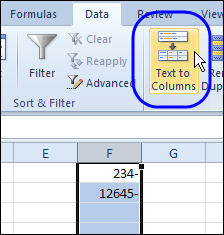
- Click the Next button in Steps 1 and 2.
- In Step 3, click the Advanced button.
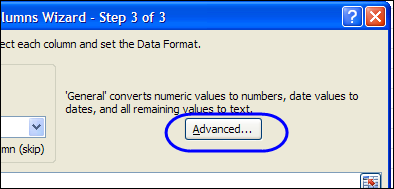
- Add a check mark to the option, “Trailing Minus for Negative Numbers”
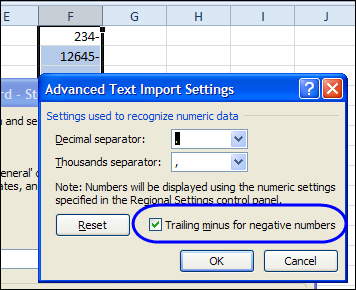
- Click OK, and then click Finish.
The minus signs are magically moved to the front of the numbers, and they’ll calculate correctly if you include them in formulas.
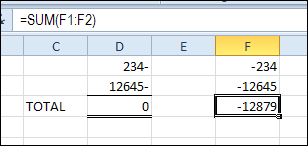
Fix Trailing Minus Signs With a Formula
If you need to fix trailing minus signs frequently, you might prefer a formula solution. With a formula, the numbers are fixed without your manual intervention, as soon as the data is pasted into the worksheet.
Thanks to Bob Ryan, from Simply Learning Excel, who sent this formula to fix imported numbers with trailing minus signs.
- In this example, the first number with a trailing minus sign is in cell A1
- Select cell B1, and enter this formula:
- =IF(RIGHT(A1,1)=”-“,-VALUE(LEFT(A1,LEN(A1)-1)),VALUE(A1))
- Copy the formula down to the last row of data.
In the formula, the RIGHT function returns the last character in cell A1.
If that character is a minus sign, the VALUE function returns the number value to the left of the trailing minus sign.
The minus sign before the VALUE function changes the value to a negative amount.
How Do You Fix Trailing Minus Signs?
Do you use another solution for trailing minus signs? There is a Trailing Minus Signs macro on the Contextures website, if you want to automate the fix.
Here is another way…
=1*MID(“-“&A1,2-(RIGHT(A1)=”-“),LEN(A1))
I also have a shorter macro (faster too, I think) than the one whose link you posted…
Sub FixTrailingNumbers() Dim Col As Range For Each Col In ActiveSheet.UsedRange.Columns Col.TextToColumns Col, TrailingMinusNumbers:=True Next End SubMaybe to be “safe”, I should expand the active For..Next code line so we don’t accidentally process any text cells containing delimiters from a previous use of the TextToColumns functionality…
Sub FixTrailingNumbers() Dim Col As Range For Each Col In ActiveSheet.UsedRange.Columns Col.TextToColumns Col, xlFixedWidth, FieldInfo:=Array(0, 1), TrailingMinusNumbers:=True Next End SubI feel like an idiot here… sorry, but I need to add one more code line to my macro to protect against there being an empty column within the UsedRange…
Sub FixTrailingNumbers() Dim Col As Range On Error Resume Next For Each Col In ActiveSheet.UsedRange.Columns Col.TextToColumns Col, xlFixedWidth, FieldInfo:=Array(0, 1), TrailingMinusNumbers:=True Next End SubAny suggestions how to work with a negative time format in a Data table –> sum average in a Pivot-Table –> Pivot chart of a Normal distribution curve.
Example: Pivot-chart with an average time deviation from 0 (Planned start – Actual start) with roughly -02:00 to +02:00 boundaries (00:10 intervalls).
1. First I tired with a negative time format but learned it did not work.
2. Then I tried the old 1904 date system under settings – not nice for the rest of the sheet.
3. Then I tried to format positive values to time format and negative was left as a formatted two digit negative number.
4. I then summariesed the data in a Pivottable.
5. I then tried to convert to a) format then b) convert to text in the table before the displaying the data in a Pivot chart. I used a ;;; cell-formula but the Chart failed (surpricingly both in 2003 and 2010) to read the negative time formatting.
That’s when I then gave up and left the problem to an Qlikview expert.
I still hope I missed something.
Still another way
=MAX(A1,-SUBSTITUTE(A1,”-“,””))