
In an Excel workbook, you might have some sheets that you don’t need to see all the time. Instead of manually hiding or showing the sheets, you can use Excel VBA to automatically hide or show them. In this example we’ll hide Excel sheet when cell changes.
Choose a Country
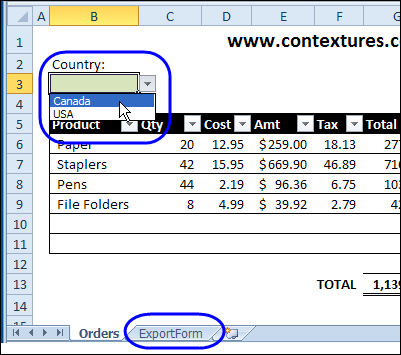
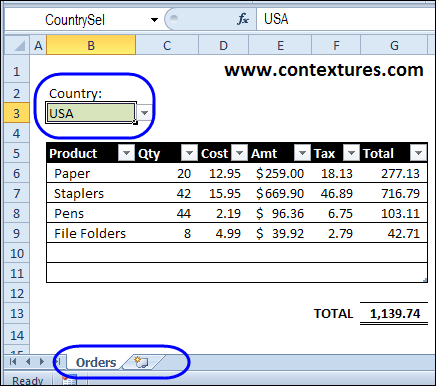
This workbook has an order sheet, and there is a country selector at the top of the sheet. If Canada is selected, we need to print the ExportForm sheet, as well as the Orders sheet.
Set Up the Orders Sheet
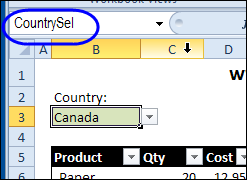
On the Orders sheet, the Country drop down list is created with Excel data validation. Then, that cell was named as CountrySel.
Hide and Unhide the Sheet
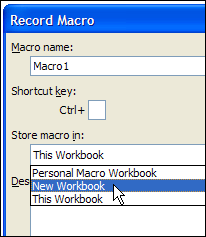
We’ll be adding some Excel VBA code to hide and unhide the ExportForm sheet. To see what the code should look like, you can turn on the Excel macro recorder, store the macro in a new workbook, and click OK.
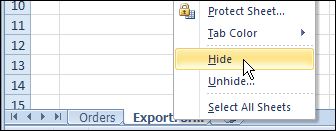
Then, right click on the ExportForm sheet tab, and click Hide.
To see the sheet again, click on the Orders sheet tab, and click Unhide. In the Unhide dialog box, click on the ExportForm sheet name, and click OK.
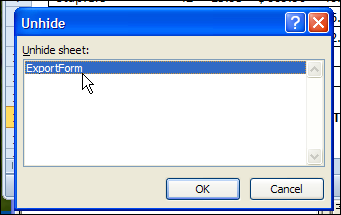
Turn off the macro recorder, and press Alt+F11, to open the Excel Visual Basic Editor.
In the modules for your new workbook, you should find the recorded code, that looks similar to the code shown below.
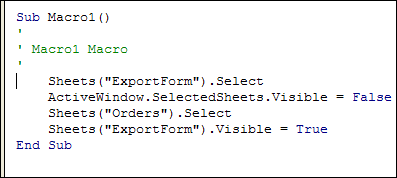
This shows that we can set the sheet’s Visible property to True or False, to show or hide the sheet.
Now that you’ve seen the syntax, you can close the workbook where you recorded the show/hide macro, without saving it, and return to the Orders workbook in Excel.
Automate the Sheet Hiding Code
To make the Excel VBA code run automatically, we’ll use the Worksheet_Change event, on the Orders sheet.
- Right-click on the Orders sheet tab, and click View Code
- In the code window, select Worksheet, from the Object drop down list, at the top left.
- From the Procedures drop down list, select Change
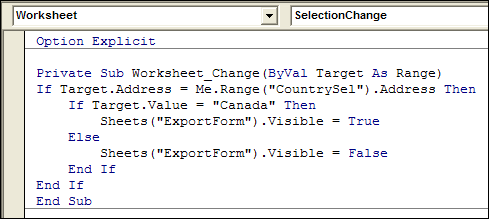
- Where the cursor is flashing, add the code shown below. The code will check the address of the cell that was changed, and show the ExportForm sheet if Canada is selected.
Private Sub Worksheet_Change(ByVal Target As Range)
If Target.Address = Me.Range("CountrySel").Address Then
    If Target.Value = "Canada" Then
        Sheets("ExportForm").Visible = True
    Else
        Sheets("ExportForm").Visible = False
    End If
End If
End Sub
The finished code will look like the procedure shown in the screen shot below.
Test the Sheet Hiding Code
Back in Excel, select a country name from the drop down list, and the ExportForm sheet should show or hide automatically.
____________
Thanks, Debra.
1) How do you pass the name of the sheets as variables declared in the UI via the Name Manager, instead of fixed values in the VBA itself?
In your example, that would be to replace “ExportForm” by a variable somewhere in a sheet, with this variable containing the name of the sheet.
2) Same question for the value to compare to.
In your example, that would be to replace “Canada” by a variable somewhere in a sheet, with this variable containing the value “Canada”.
In advance, thank you!
@BizJack, you could use something like this:
Private Sub Worksheet_Change(ByVal Target As Range) Dim Country As String Dim ShtName As String Country = ThisWorkbook.Names("rngCountry").RefersToRange.Value ShtName = ThisWorkbook.Names("rngSheet").RefersToRange.Value If Target.Address = Me.Range("CountrySel").Address Then Sheets(ShtName).Visible = Target.Value = Country End If End SubThank you!
🙂
Hi,
I’m new at this, only been using VBA since Nov 14.
I’m trying to hide sheets that are not required based on the information found in 1 cell. The info in this cell come from another macro. There are multiple answer that it can be. I don’t need it to be named Private as only my team will be using it, its just to speed up our manual process we currently using.
I have tried many different codes that work nicely on 1 name but when I duplicate the code for all 22 answers I get errors. The one below works best but its based on the Username not the cell name.
Sub Machines()
Excel UserName
[E22] = Application.UserName
Windows UserName
WinUser = Environ(“MACHINE”)
MsgBox “Application Username: ” & OfficeUserName & Chr$(10) _
& “Windows Username: ” & WinUser
End Sub
Sub Private_Auto_Unhide_FMC_1()
‘ This macro unhides sheets when the user set below opens the workbook
‘ It is a Private Sub to prevent it being listed with other macros
On Error Resume Next
‘ First sheet to be made visible
Do
If Application.UserName = “FMC 1” Then Worksheets(“FMC’s & SCH’s (Stamped”).Visible = True
End If
End Sub
Sub Private_Auto_Hide_FMC_1()
‘ This macro ensures the sheets are hidden when any user closes the workbook
On Error Resume Next
‘ Hide worksheet 1
Worksheets(“TM’s (Rolled)”).Visible = xlSheetVeryHidden
‘ Hide worksheet 2
Worksheets(“Lines 40, 41 & 42 (Rolled)”).Visible = xlSheetVeryHidden
‘ Hide worksheet 3
Worksheets(“L40, L41 & L42 (Rolled) Offline”).Visible = xlSheetVeryHidden
End Sub
Regards
Tony
Tony, you could use Select Case to check the UserName, and list all the names that should result in the sheet being visible.
For example:
' First sheet to be made visible Select Case Application.UserName Case "FMC 1", "ABC", "Test", "Tony" Worksheets("Sheet2").Visible = True Case Else Worksheets("Sheet2").Visible = False End SelectMany thanks,
I’ll try this today.
Regards
Tony