
Well, maybe it’s not incredible, but after all these years of using Excel, I stumbled upon its shrinking font feature. Did you know about it? If not, keep reading to see how the shrinking Excel font feature works.
Shrinking Excel Font
If you’ve ever had a worksheet where changing the font size had no effect, this might solve the mystery. It could be caused by the shrinking Excel font feature
Report Headings
Picture, if you will, a report with headings of various lengths, like this example with month headings, shown below. The columns are wide enough to fit the numbers, but some columns are wider, to fit the column heading.
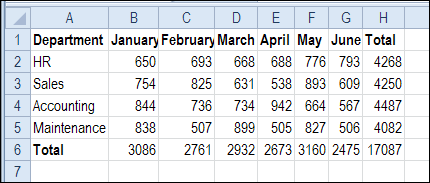
You can waste a lot of time, fiddling with the column widths, so the heading text appears. For single word headings like these, the Wrap Text settings isn’t any help.
You can leave some columns wider, or adjust the heading font size, to fit more text in the cells.
Shrink the Font
And here’s where today’s discovery of the font shrinking feature comes to the rescue. Instead of adjusting the font size manually, you can get Excel to make the adjustment for you.
- In this example, we’ll select the heading cells – A1:H1
- Then, on the Ribbon’s Home tab, click the Dialog Launcher for the Alignment group.
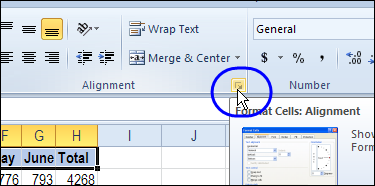
- In the Format Cells dialog box, the Alignment tab should be selected.
- At the bottom of that tab, in the Text Control section, add a check mark to Shrink to Fit
- Finally, click OK, to apply the formatting and close the dialog box.
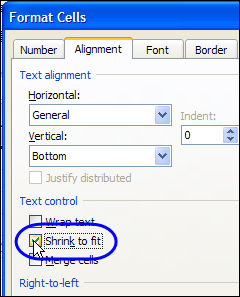
Note: If you turn on the Wrap Text feature, the Shrink to Fit option is disabled.
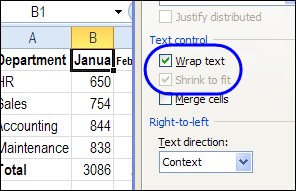
Font Size Changes Automatically
With the Shrink to Fit setting turned on, Excel will automatically reduce the font size in those cells, to fit the cell contents within the available column width.
In the screen shot below, you can see that some of the heading cells, like January and February, have changed to a smaller font size, so their full text fits in the cell.
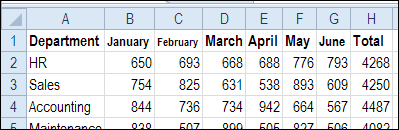
In the example shown above, I think that the headings look odd, in all different sizes. In this case, it might be better to turn off the Shrink to Fit setting, and just use a smaller size font.
Adjust the Column Width
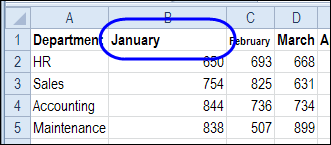
After the Shrink to Fit setting is turned on in a column, if you change the column width, the font size for the formatted cells will magically readjust, to fit the new width.
However, the maximum font size will be the selected font size for the cell.
So, if a cell’s font is set to 11 pt, and you make the column really wide, the font will stay at 11 pt.
Confusing Font Sizes
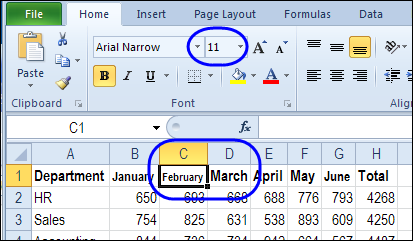
It’s interesting that the font size shown in the Ribbon doesn’t change, even if the heading changes to a tiny font size.
In the screen shot below, the February and March headings both show as 11 pt, but they’re displayed in different sizes on the worksheet.
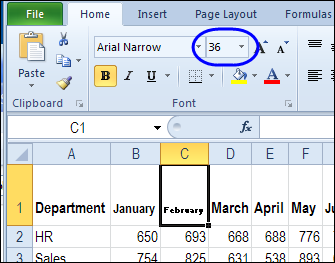
When the font size is reduced, selecting a larger font size on the Ribbon doesn’t have any effect. For example, if you choose a 36 pt font for the February heading, it stays the same tiny size.
However, the larger font does affect the row height, even if the displayed font doesn’t change.
When to Use Shrink to Fit
What would be a good scenario for using this sometimes confusing formatting feature?
Stand-Alone Headings
The Shrink to Fit setting might work better for stand-alone headings, where there are no adjacent cells to compare.
Large and Small Numbers
Another place to use the Shrink to Fit feature is in a column of numbers, where there are a few numbers that are much larger than the others.
If the column is sized for the smaller numbers, the larger numbers will be shown as number signs. To see the large numbers, without making the column wider, you’d need to point to a cell, and see its full number in the pop-up tool tip.
Instead of doing that, you could apply the Shrink to Fit setting to the number column. Then, the large numbers would be shown in full, in a smaller font size.
Note: The large numbers won’t line up properly with the other numbers, so keep that limitation in mind!
Long and Short Descriptions
Or, you could apply the Shrink to Fit setting in a list with product information. For example, that list might have one column with product descriptions.
Some descriptions are short, and others are twice as long. The long descriptions overflow into the next column, so the product descriptions are cut off and difficult to read.
If you apply the Shrink to Fit setting to the product description column, Excel will adjust the font size as needed, to make each description fit within its cell.
That makes it easy to read the complete product descriptions, without having to manually adjust the column width, or resize the text.
Check That Setting
So, if can’t figure out why a cell’s font size won’t change, check that Shrink to Fit setting. And if a co-worker has a workbook with this problem, you can be the office hero by solving it.
You can find more Excel formatting tips on my Contextures site.
_______________
Thanks for the Shrink to Fit tips, and glad to hear that I’m not the only one who had never noticed this setting!
Wow, that’s pretty amazing. I’ve never used that feature. Who new?
I stumbled across this trying to find how to fit everything on a spreadsheet. I have tried to minimize the font and also changing the shrink to fit and I printed on landscape.My problem is the spreadsheet prints in 2 sections and the 2nd section that doesn’t fit prints after the first I guess. I’d hate to tape it to the 1st section. I guess its too wide, but I tried everything to get it on one paper. The number of papers is ot the problem its the width thats the problem.
I am inserting Doulos IPA symbols into my excel spreadsheet cells. When i do, the font shrinks (in the ribbon too) from 11 to 9.5. Having to highlight text and increase the font size every time this happens is tedious. Can any of you advise me how to maintain the font size in the destination cell after inserting a symbol please?
My problem is a bit different: microscopic text. New File/Blank Workbook/zoom 75%. Looks good. Set the zoom to 50%, and the row and column labels go microscopic instead of shrinking proportionally.
yOU ARE LITERALLY GREAT MAN IN THE FIELD OF ms eXCEL. tIGER OF eXCEL.