
In an Excel workbook, you might have some sheets that you don’t need to see all the time. Instead of manually hiding or showing the sheets, you can use Excel VBA to automatically hide or show them. In this example we’ll hide Excel sheet when cell changes.
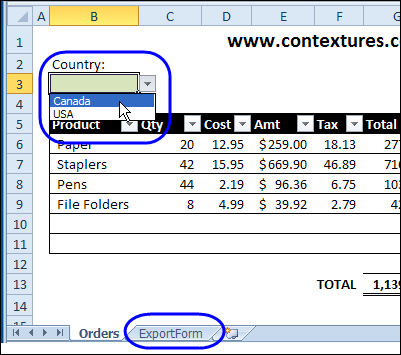
Choose a Country
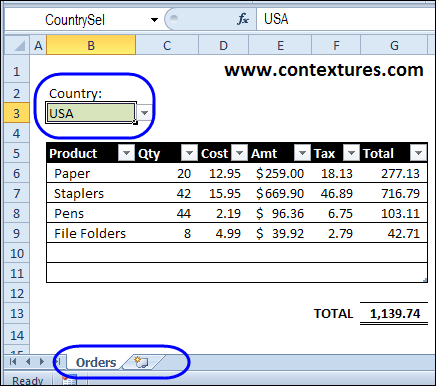
This workbook has an order sheet, and there is a country selector at the top of the sheet. If Canada is selected, we need to print the ExportForm sheet, as well as the Orders sheet.
Set Up the Orders Sheet
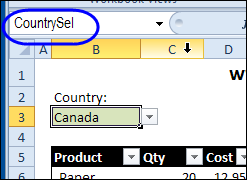
On the Orders sheet, the Country drop down list is created with Excel data validation. Then, that cell was named as CountrySel.
Hide and Unhide the Sheet
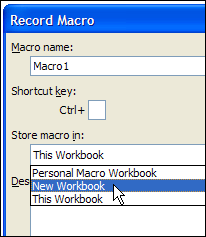
We’ll be adding some Excel VBA code to hide and unhide the ExportForm sheet. To see what the code should look like, you can turn on the Excel macro recorder, store the macro in a new workbook, and click OK.
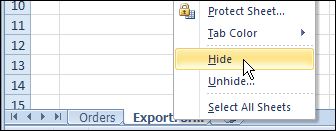
Then, right click on the ExportForm sheet tab, and click Hide.
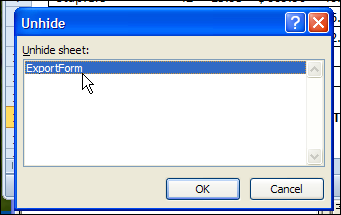
To see the sheet again, click on the Orders sheet tab, and click Unhide. In the Unhide dialog box, click on the ExportForm sheet name, and click OK.
Turn off the macro recorder, and press Alt+F11, to open the Excel Visual Basic Editor.
In the modules for your new workbook, you should find the recorded code, that looks similar to the code shown below.
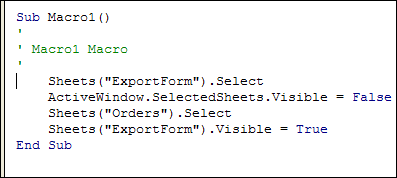
This shows that we can set the sheet’s Visible property to True or False, to show or hide the sheet.
Now that you’ve seen the syntax, you can close the workbook where you recorded the show/hide macro, without saving it, and return to the Orders workbook in Excel.
Automate the Sheet Hiding Code
To make the Excel VBA code run automatically, we’ll use the Worksheet_Change event, on the Orders sheet.
- Right-click on the Orders sheet tab, and click View Code
- In the code window, select Worksheet, from the Object drop down list, at the top left.
- From the Procedures drop down list, select Change
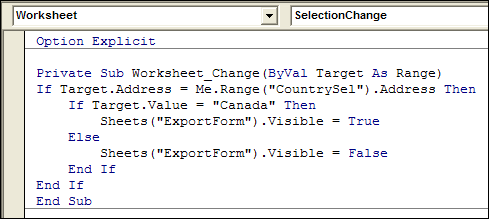
- Where the cursor is flashing, add the code shown below. The code will check the address of the cell that was changed, and show the ExportForm sheet if Canada is selected.
Private Sub Worksheet_Change(ByVal Target As Range)
If Target.Address = Me.Range("CountrySel").Address Then
    If Target.Value = "Canada" Then
        Sheets("ExportForm").Visible = True
    Else
        Sheets("ExportForm").Visible = False
    End If
End If
End Sub
The finished code will look like the procedure shown in the screen shot below.
Test the Sheet Hiding Code
Back in Excel, select a country name from the drop down list, and the ExportForm sheet should show or hide automatically.
____________
There is an Excel VBA enumeration, xlSheetVisibility, which consists of:
xlSheetHidden
Value: 0 (FALSE)
Defn: Hides the worksheet which the user can unhide via menu.
xlSheetVeryHidden
Value: 2
Defn: Hides the object so that the only way for you to make it visible again is by setting this property
to True (the user cannot make the object visible).
xlSheetVisible
Value: -1 (TRUE)
Defn: Displays the sheet.
I haven’t used them much, and have defaulted on using TRUE or FALSE for Sheets().Visibility
Has anyone – Debra? – used them and seen that xlSheetVeryHidden acts as intended?
@Eric, yes that works nicely, and I use it to hide Admin sheets (with lists, etc.) that most users shouldn’t touch. Those sheets don’t appear in the Unhide window, and can be unhidden with a macro or in the VBE.
Sub HideSheets() Dim ws As Worksheet On Error Resume Next For Each ws In ThisWorkbook.Worksheets If Left(ws.Name, 5) = “Admin” Then ws.Visible = xlSheetVeryHidden Else ws.Visible = xlSheetVisible End If Next ws Worksheets(1).Activate End Sub@Deb,
For your Worksheet_Change event code, as long as you have to evaluate:
you might has well use its results directly and shorten your code somewhat:
Private Sub Worksheet_Change(ByVal Target As Range)
  If Target.Address = Me.Range(“CountrySel”).Address Then
    Sheets(“ExportForm”).Visible = Target.Value = “Canada”
  End If
End Sub
As for the HideSheets subroutine, we can do something similar to shorten the code (although it looks a tad “sloppier” than the above code)…
Sub HideSheets() Dim ws As Worksheet On Error Resume Next For Each ws In ThisWorkbook.Worksheets ws.Visible = xlSheetVisible – 1.5 * xlSheetVeryHidden * (Left(ws, 5) = “Admin”) Next ws Worksheets(1).Activate End SubThanks Rick!
@Deb,
Not sure what happened, but there is supposed to be an equal sign between Left(ws,5) and “Admin” at the end of the statement inside the For..Next block for the HideSheet macro.
Hi,
I tried to make this work in my model but faced some problems. In my case I need to hide several sheets depending on the text in target cell which is not created by data validation (don’t know if this matters). I have three options for the target cell text (“MP”, “KP” or “SV”). The target cell uses VLOOKUP function to get the right text.
I haven’t used VBA a lot. I tried to follow instructions step by step in new workbook too but didn’t get this work either. Can you help me?
Now it works in new workbook. I found a mistake in the code. I’ll try this once again in my original model.
Here is a description of my situation:
– I have three product groups
– When I choose the right product from the drop down list, I want the reference product group to appear in a target cell (For doing this I’ve used VLOOKUP function)
– When I’ve chosen the product (from the drop down list) I want all other product group sheets to be hidden.
– If I choose another product (another product group) from the drop down list I want that product group sheets visible and other hidden
I’ve now tried this without VLOOKUP by writing the product group to target cell and I’m almost there. Each product group seems to be working one at the time but when I first write the product group name to cell and then write the other product group name WITHOUT deleting the first one, too many sheets disappears. So I need to first delete the target cell before entering the new one.
Code looks like this
Private Sub Worksheet_Change(ByVal Target As Range)
If Target.Address = Me.Range(“productgroup”).Address Then
If Target.Value = “MP” Then
Sheets(“Sheet1KP”).Visible = False
Sheets(“Sheet1SV”).Visible = False
Sheets(“Sheet2KP”).Visible = False
Sheets(“Sheet2SV”).Visible = False
Sheets(“Sheet3KP”).Visible = False
Sheets(“Sheet3SV”).Visible = False
Sheets(“Sheet4KP”).Visible = False
Sheets(“Sheet4SV”).Visible = False
ElseIf Target.Value = “KP” Then
Sheets(“Sheet1MP”).Visible = False
Sheets(“Sheet1SV”).Visible = False
Sheets(“Sheet2MP”).Visible = False
Sheets(“Sheet2SV”).Visible = False
Sheets(“Sheet3MP”).Visible = False
Sheets(“Sheet3SV”).Visible = False
Sheets(“Sheet4MP”).Visible = False
Sheets(“Sheet4SV”).Visible = False
ElseIf Target.Value = “SV” Then
Sheets(“Sheet1MP”).Visible = False
Sheets(“Sheet1KP”).Visible = False
Sheets(“Sheet2MP”).Visible = False
Sheets(“Sheet2KP”).Visible = False
Sheets(“Sheet3MP”).Visible = False
Sheets(“Sheet3KP”).Visible = False
Sheets(“Sheet4MP”).Visible = False
Sheets(“Sheet4KP”).Visible = False
Else
Sheets(“Sheet1MP”).Visible = True
Sheets(“Sheet1KP”).Visible = True
Sheets(“Sheet1SV”).Visible = True
Sheets(“Sheet2MP”).Visible = True
Sheets(“Sheet2KP”).Visible = True
Sheets(“Sheet2SV”).Visible = True
Sheets(“Sheet3MP”).Visible = True
Sheets(“Sheet3KP”).Visible = True
Sheets(“Sheet3SV”).Visible = True
Sheets(“Sheet4MP”).Visible = True
Sheets(“Sheet4KP”).Visible = True
Sheets(“Sheet4SV”).Visible = True
End If
End If
End Sub