
In Excel 2007 and Excel 2010, you can use icon sets in conditional formatting. There are built-in icon sets, and in Excel 2010 you can Customize Excel Conditional Formatting Icons, to some extent. Here’s how to do that, and a workaround to create icons on the worksheet instead.
Built-in Conditional Formatting Icons
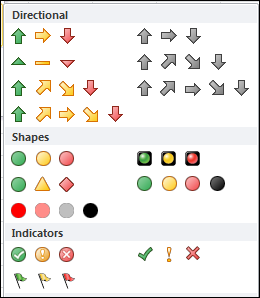
There is a good selection of built-in Excel Conditional Formatting Icon sets.
For example, use Red, Yellow and Green stoplight icons, to highlight the good, average, and poor results in your sales data.
Or, choose directional arrows, with a green Up arrow, a right-pointing yellow arrow, and a red Down arrow.
Grey Directional Arrows
There are also icon sets with grey directional arrows. Those are useful for data where an increased amount is bad, instead of good. For example, your data might show counts of part failures, or customer complaints.
- Traditionally, green means “good” or “safe”, and red means “bad” or “danger”.
- There’s no setting that lets you change the icon colours
- The neutral grey arrows would be better than using a green Up arrow, for data where Up is “bad”
Or, see the section further down, with notes on how to create your own icon set, outside of the conditional formatting settings.
Limit the Colours
Rob emailed me recently, to ask how to limit the conditional formatting icons to 2 colours only, instead of the 3 or 4 default icon colours.
I am only interested in using 1 or 2 icons (a red X for “Off” and a Green light for “On” – not interested in the Yellow light). I want these icons to be triggered by a boolean (TRUE/FALSE) in another cell.
Create Your Own Icon Set in Excel 2010
Fortunately, if you’re using Excel 2010, you aren’t limited to the default icon sets – you can create your own icon sets , by mixing and matching from the available icons. (You can’t create your own icons, unfortunately, or change the look of the built-in icons.)
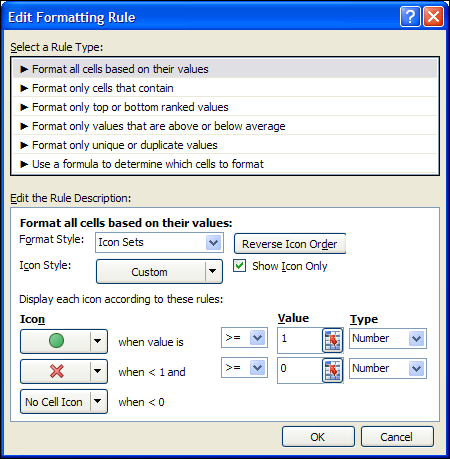
To create the icon set that Rob wants, I selected cells B2:B5, and set the following Formatting Rule.
- The Show Icon Only option is checked
- Green Circle icon when the value is greater than or equal to 1 (Number)
- Red X icon when the value is less than 1 and greater than or equal to 0 (Number)
- No Cell Icon when the value is less than 0
How It Works
In cell B2 there is a formula to multiply the value in cell A2 by 1:
=A2*1
That formula is copied down to cell B5.
- If the result in column A is TRUE, the formula result in column B is 1, and a green circle shows.
- If the result in column A is FALSE, the formula result in column B is 0, and a red X shows.

Get the Sample File
To get the Excel file, with the Create Your Own Icon Set example, go to the Conditional Formatting page on my Contextures site.
The zipped file is in xlsx format, and the file does not contain any macros.
Create Your Own Icon Set
If the built-in icon sets for conditional formatting don’t have what you need, you can create your own custom icons, outside of the conditional formatting settings.
See this Create Your Own Icon Set article, for the step-by-step details.
This workaround technique also works for earlier versions of Excel, where you can’t customize the icon sets, or in Excel versions where icon sets don’t exist
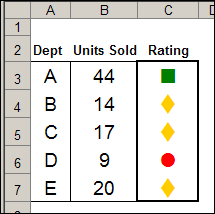
In this technique, you use the WingDings font, combined with conditional formatting, to show coloured symbols in the cell.
And if you’re still using Excel 2003, there are detailed instructions in this article: Conditional Formatting Icons in Excel 2003
_______________
Is there a way to count all the individual colors of the stoplight in a column? Green is current, red is expired, and yellow is will expire within 90 days. I need to have a total of each status.
@Sharon, the count functions don’t work on colours, but you could use COUNTIFS, and add the same criteria that you use to set the conditional formatting. There is info on COUNTIFS here:
http://www.contextures.com/xlFunctions04.html#CountifsVideo
I want a RED arrow pointing UP! ?? Is this possible?
@Joshua, you could use the technique shown here, to create your own symbols:
http://blog.contextures.com/archives/2009/04/14/conditional-formatting-icons-in-excel-2003/
There are up arrows in the Wingdings and Wingdings3 font set. On the Ribbon’s Insert table, click the Symbol command, then choose one of those fonts.
Hi,
Please help me out someone,how to set icon in excel on data column compare with another cell data.Like- I want to compare B1 cell data to A1 if it is greater than A1 then display green up arrow in B1 cell with data value and if not meet specified condition then display down red arrow in B1 cell with data value.
What if i want to change the color of the icon set. can I do that?
Hi all,
I’m wanting to put a green light icon where the a value is equal to or above a target number in the cell above it, or red light icon if it’s under.
Item Year1 Year2 Year3
TargetItem1 10 20 30
CurrentItem1 8(red) 19(red) 35(green)
TargetItem2 10 25 35
CurrentItem2 11(green) 25(green) 30(red)
etc.
Is there a way to do this directly or do I need some hidden cells?
Debra, How would I create budget vs. actual, three conditions:
1. budget > actual – green icon
2. budget = actual – yellow icon
3. budget < actual – red icon
Icons would be located in the account discription cell and would act on the budget and actual cell values.
Column B holds account descriptions
Column E holds budget values
Column F holds actual values