
This week, Glen emailed me for advice on extracting prices from a lookup table. Some products have a promotional price each month, but other products are sold at the regular price.
Pricing Lookup Table
I’m blocking email attachments these days, so I can’t show you the exact setup of Glen’s Excel worksheet.
However, a simplified version might look something like this:
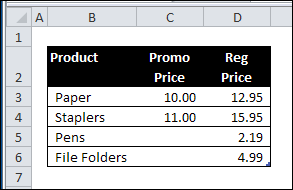
Use VLOOKUP to Find Pricing
In his email, Glen mentioned that he is using a VLOOKUP formula.
- If there is a promotional price, he wants VLOOKUP to return the value from the Promo Price column.
- If there is no promotional price, Glen wants the price from the Regular Price column.
Use IF Function
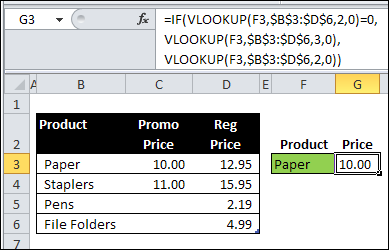
To do that, Glen could use the IF function, with VLOOKUP:
=IF(VLOOKUP(F3,$B$3:$D$6,2,0)=0,
VLOOKUP(F3,$B$3:$D$6,3,0),
VLOOKUP(F3,$B$3:$D$6,2,0))
CHOOSE the Right Price
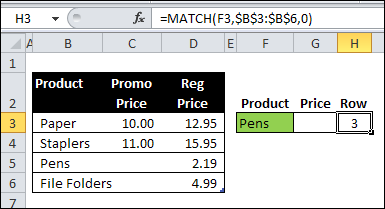
Another option is to use the MATCH function to find the row that the product is in.
In the screen shot below, the following formula is in cell H3:
=MATCH(F3,$B$3:$B$6,0)
CHOOSE and INDEX Functions
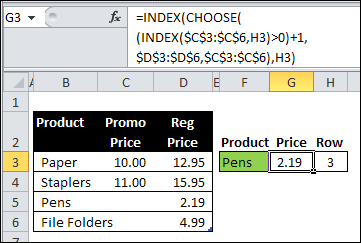
Next, in cell G3, use the CHOOSE function and the INDEX function, to get the correct price:
=INDEX(CHOOSE((INDEX($C$3:$C$6,H3)>0)+1,
$D$3:$D$6,$C$3:$C$6),H3)
How the CHOOSE Formula Works
In this example, the CHOOSE function selects the correct pricing column to use for the prices. The outer INDEX function returns the price from the selected column.
First, the inner INDEX function returns the price from the promo column, for the selected product, and we check to see if the price is greater than zero:
INDEX($C$3:$C$6,H3)>0
- If there is NO promo price, the result is FALSE (0)
- If there IS a promo price, the result is TRUE (1)
Next, we add 1 to that result, so
- FALSE=1
- TRUE=2.
CHOOSE the Range
Next, the CHOOSE function returns a reference to the selected range.
- FALSE (1) = $D$3:$D$6
- TRUE (2) = $C$3:$C$6
Finally, the first INDEX function returns a price from the selected column, in the row for the selected product.
How Would You Solve the Problem?
I’m sure there are several other ways to solve Glen’s lookup problem. What formula would you use?
________________
@Rick, in the MATCH formula, the selected product is Pens, which is in Row 3 of the lookup range.
In the first example, Paper was selected, which is in Row 1. Could that be causing the confusion?
Thanks for all the formula suggestions! This gives Glen plenty of options for his workbook.
@Deb… Yep, that was the cause of my confusion… I have to learn to read more carefully. Thanks.
[…] Excel Price Lookup: VLOOKUP or INDEX […]
FWIW, another example illustrating use of CHOOSE & VLOOKUP would be:
=LOOKUP(9.99E+307,CHOOSE({1,2},VLOOKUP($F$3,$B$3:$D$6,3,0),1/(1/VLOOKUP($F$3,$B$3:$C$6,2,0))))
as with some of the above it is assumed 0 itself is never a valid price – if it is you would adjust accordingly.
Using this approach 2 VLOOKUPs are always performed (never one nor three)
In light of the above, were we using XL2007 we could shorten the above c/o IFERROR
=IFERROR(1/(1/VLOOKUP($F$3,$B$3:$C$6,2,0)),VLOOKUP($F$3,$B$3:$D$6,3,0))
A max of 2 VLOOKUPs will be performed – only 1 where necessary
Of course if one were to reorder the columns such that Promo were listed last (rather than first) a basic LOOKUP would suffice:
=LOOKUP(9.99E+307,INDEX(($C$3:$D$6&””)+0,MATCH($F$3,$B$3:$B$6,0),0))
The above would simply establish the last number present within the appropriate row of prices.
I like Jeff Weir’s approach and just combined it with what comes natural to me: INDEX and MATCH.
=INDEX((C4:C6=””)*D4:D6+C4:C6,MATCH(F3,B4:B6,0))