
In Excel 2007, and earlier versions, you can use Excel VBA code if you want to automatically filter multiple pivot tables at the same time. That task is much easier in Excel 2010, thanks to the new Slicer feature.
See the Slicer Steps
This video shows the easy steps for connecting a slicer to multiple pivot tables, in Excel for Office 365. There are written steps below, for earlier versions.
Slicer Intro
We took a look at slicers in October, in the Excel Slicers for Halloween Horror Films blog post and Slicer intro video.
To insert a slicer for a pivot table,
- Select any cell in the pivot table.
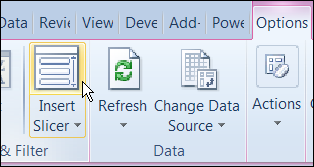
- On the Options tab of the Ribbon, click Insert Slicer.
- Check the fields for which you want to add slicers, then click OK

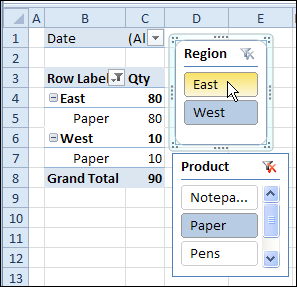
The slicers appear on the worksheet, and you can resize them and move them. Then, click on the pivot items, to filter the pivot table.
Connect Another Pivot Table
If you create multiple pivot tables from the same pivot cache, you can connect them to the same slicers, and filter all the pivot tables at the same time.
To create the Slicer connection in the second pivot table:
- Select a cell in the second pivot table
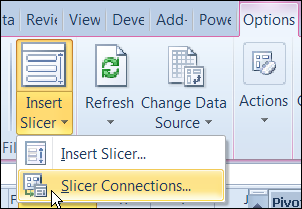
- On the Excel Ribbon’s Options tab, click Insert Slicer
- Click Slicer Connections
In the Slicer Connections window, add a check mark to each slicer.
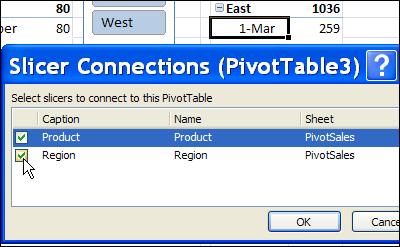
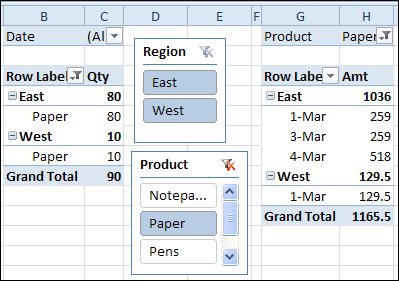
Both pivot tables are now connected to the Slicer. If you select an item in a slicer, both pivot tables will be filtered. For example, in the Product slicer below, Paper is selected, and both pivot tables show only the Paper sales.
Watch the Connected Slicers Video
To see the steps for connecting multiple pivot tables to a slicer, you can watch one of these short videos.
- The first video shows the steps in Excel 2010
- The second video shows the steps in Excel for Office 365.
Steps in Excel 2010
Steps in Excel for Office 365
________________
Having a hard time with slicers. Created many different slicers from several pivot tables. Needed to change the data source and now it says I need to disconnected all of the slicers connected to the data source before I can update the Pivot Tables. I cannot find documentation anyway explaining how I can maintain the slicers and change the data source of the Pivot Tables.
I’m having the same problem. Have to disconnect the slicers and then update pivot data source. Seems non-intuitive to being a ‘connected’ slicer.
I’ve created a pivot table and added slicers by month. Why do I have an duplicate month in the same slicer?
Hi, I wonder if I have 3 different pivot tables which get data from 3 different data set, is it possible to connect them as well. Those pivot tables have the same format and same filter. The only thing their resources are different sheets?
Thanks.
Yes you can by using VBA, check http://www.jkp-ads.com/articles/slicers04.asp for some example code I adapted as well for a report
is there a way you can refresh a pivot table when selecting a slicer
how can I automatically select all Pivot Tables to connect to slicer in just one (1) click.
e.g.
to picture this out….pls check the Slicer Connections (Pivot Table 3) as shown in the above of this site.
You see there is no way of clicking all items inside a slicer in just one (1) click. You must have to do it manually. What if I have too many pivot tables that I want to connect with or make it slave???
Please help. Thank you
Wobie: I wrote some code that does that some time back, which you can find towards the end of the following blog post:
http://dailydoseofexcel.com/archives/2014/08/16/sync-pivots-from-dropdown/