
Do you ever open an Excel workbook, and find that tragedy has struck your comments? You spent hours inserting those comments, and making them just the right size and shape. Then, for no apparent reason, everything changes. Comments are in the wrong place, and wrong size. Here’s how to fix those wandering Excel comments.
Wandering Excel Comments
This screen shot shows an example of wandering Excel comments, and incorrect comment sizes.
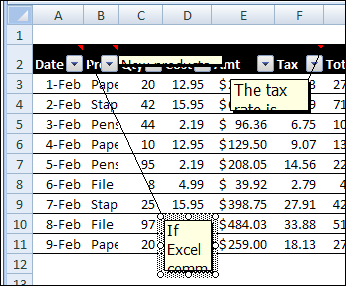
- Some comments have flattened to a thin line.
- Other comments are so small that you can barely read the first word.
- A few comments have wandered far from their cell, and the connecting line stretches across the entire window.
What a mess! Fortunately, you can quickly get things back in place, by using an Excel macro or two. Use the sample macros below, to fix wandering Excel comments, and to make them the correct size again.
Put Comments Back in Place
If your comments have slithered across the spreadsheet, you can use this macro to put them back in their parent cell.
Sub ResetComments()
Dim cmt As Comment
For Each cmt In ActiveSheet.Comments
   cmt.Shape.Top = cmt.Parent.Top + 5
   cmt.Shape.Left = _
      cmt.Parent.Offset(0, 1).Left + 5
Next
End Sub
Get Comments Back in Shape
For comments that have shrunken to thin slivers, you can use this macro to get them back to a normal size.
Sub Comments_AutoSize()
'posted by Dana DeLouis  2000-09-16
Dim MyComments As Comment
Dim lArea As Long
For Each MyComments In ActiveSheet.Comments
  With MyComments
    .Shape.TextFrame.AutoSize = True
    If .Shape.Width > 300 Then
      lArea = .Shape.Width * .Shape.Height
      .Shape.Width = 200
      ' An adjustment factor of 1.1 seems to work ok.
      .Shape.Height = (lArea / 200) * 1.1
    End If
  End With
Next ' comment
End Sub
More Excel Comment Macros
For more Excel comment macros, please visit the Excel Comment VBA page on the Contextures website.
____________
Hi,
I have used this above macro & it really works but I wanted to know a code which can be added so that it can be used in a selected range when filter is applied.
Thanks
Navneet
wow… it really works….a bigggggggggggggg thank u 🙂
Why isn’t this built in to Excel? Who wants a comment they can’t read? Thank you so much!
That’s a good question.
Inside of a separate module it could be placed in the sheet_activation or before_close event so you never have to think about it again.
Woot! Thanks for the Marcos.
THANK YOU SO MUCH. WHOEVER MADE THIS AVAILABLE IS THE BEST!
Yes, this just saved me HOURS! Thank you sooooooo much!!!!!