
This week, I’ve been working in an Excel 2007 file that has several named Excel Tables. After adding a column in one table, I copied the entire worksheet column.
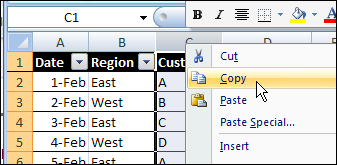
Next, I tried to paste it into another worksheet, where there was a similar table.
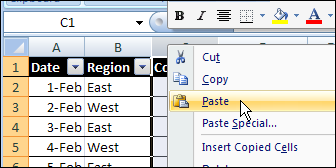
That didn’t go too well. After a few minutes of staring at the hourglass, I gave up, and closed Excel in the Task Manager.
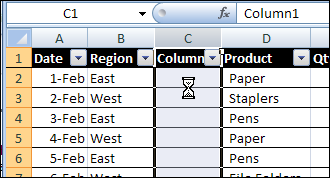
Today, I tried to repeat the column copy and paste, forgetting about the previous problem.
Sure enough, Excel crashed again. Well, technically, I guess it’s a hang, rather than a crash, but it’s still annoying.
A Smaller Named Excel Table
In a smaller workbook, with smaller tables, the copy eventually completed, but with strange results. There was a strange message in the Status Bar.

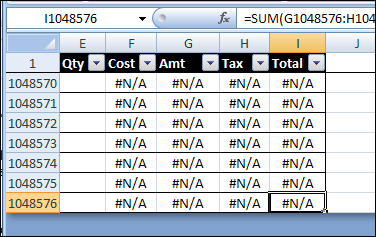
Eventually, the copy completed, but instead of the ten rows from the original table, the paste filled the entire column, so the named Excel Table ended in the last row.
Successful Copy and Paste
Instead of copying and pasting the entire column, you can copy and paste the named Excel table column.
- To select the table column, click, the top of the table heading cell, instead of the column heading button.
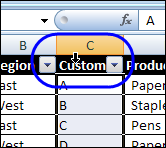
- Then, to paste into the other table, right-click the heading cell, and paste.
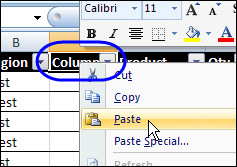
Or you can copy the cells, and paste them, instead of copying and pasting the column.
How Do You Crash Excel?
Enough about my problems! What’s your favourite way to crash/hang Excel?
________________
Validation “Gotcha”
When using VBA to create validation, we can put values in the validation object that we shouldn’t – or – leave out an important piece.
Setup: Using VBA, add VALIDATION.TYPE to 3 (xlValidateList) to a cell and either neglect to add a value to FORMULA1 or add a value that is not a comma separated list or a reference to a single column range. Save and close the workbook. When the workbook opens and the worksheet with the improper validation is displayed the workbook will crash. I have replicated this on a few different versions of XL and diffent PCs.
Counter Measure: Assuming you can get the workbook to open, goto VBA and either delete the offending validation:
.VALIDATION.DELETE-or- correct it:.VALIDATION.MODIFY xlValidateList, Formula1:="1,2"I want to know about the excel file.
My doubt is, Is it possible to crash or corrupt automatically excel file.
When we open the same file second time in future.
If this will possible please tell me the procedure.
I want to share a excel file with a colleague but for single time use.
Avis
Excel just started crashing when I click on the red X of the running userform. It has happened in the past but not for a few months. I’m wondering what change I could have made to start causing this. I just added two multipage controls to the form and moved all my other controls onto them. Could it be that? I just added a treeview control which seems to be working fine. I’m puzzled.
Create a macro:
Sub InputBox()
InputBox
End Sub
and run!
I’ve got an Access database I use to run a weekly report. My VBA coding exports a couple of queries to an Excel workbook, performs a lot of formatting, outputs the file to pdf, then uploads the Excel and pdf files to a SharePoint-linked folder. This has been running fine for years, but yesterday it started throwing an ‘Automation error–the server threw an exception’ message. I figured out that the error was due to Excel crashing at the point the coding attempted to save the final .xlsx file. I put a break point in the code to try and manually save the Excel file, but it still crashed. I tried everything I could think of (removing add-ins, opening the recovered file as an administrator, etc.); I thought I was going to have to file a ticket in the great black hole of IT. I finally realized the problem was due to the presence of a number of saved name ranges in the file. I deleted the ranges (both manually and then as part of the coding), and everything worked fine. Never mind that the past reports have all had named ranges (every week for the last 5-6 years). This week it just broke everything.
Glad you were able to get it working again, Kristen, and without IT’s help! It’s so frustrating when a long-serving process suddenly stops working, and usually at the most inconvenient time.