
In Excel 2003, and earlier versions, an AutoFilter allows only two criteria for each column. In Excel 2007 and later, you can select multiple criteria from each column in the table. See how to apply an Excel AutoFilter with multiple criteria in a range on the worksheet.
Update: Get the latest version of this workbook on my Contextures site: Filter Criteria List Macro.
AutoFilter Criteria
In Excel 2003, and earlier versions, if you wanted to filter for multiple criteria, you had to use an Advanced Filter.
To prepare for an Advanced Filter, list all the criteria on a worksheet, and then use that list (and its heading cell) as the criteria range.
In Excel 2007 and Excel 2010, the AutoFilter feature has been improved, and you can select multiple criteria in each column.
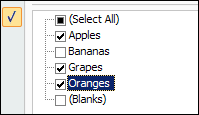
Record an AutoFilter Macro
If you record a macro while selecting criteria in Excel 2007, it will look something like this:
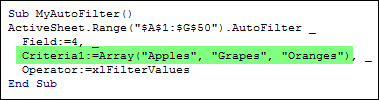
The criteria are entered as an array, showing all three items that were selected in the drop down list.
Create Your Own Array
In the Contextures mail bag this week, someone asked if it’s possible to create this type of AutoFilter criteria array from a list on the worksheet. And the answer is yes, you can!
- NOTE: This criteria list technique works for exact matches only. You can’t use wildcards in the criteria items, such as *apple*
- Using wildcards forces Excel to apply a Custom AutoFilter, “contains”, which is limited to 2 criteria.
For this example, there’s a dynamic named range — CritList — on the Lists worksheet. The items in the CritList range will be used as the AutoFilter criteria array.
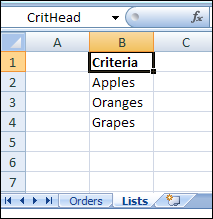
On the Orders sheet, the fourth column — Products — will be filtered using this criteria list.
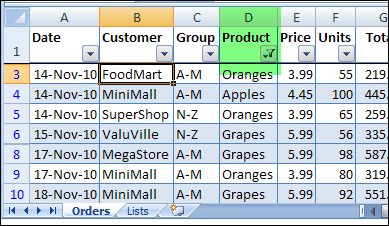
AutoFilter Code With Array
In an Excel VBA procedure, you can create a variable to store the values from the CritList named range. Define this variable as a Variant, and it will store the values as an array.
vCrit = rngCrit.Value
Then, to use this variable as the AutoFilter criteria list, transpose the array, so it’s read as a row, instead of a column. If you don’t transpose the array, only the first item would be used in the criteria array. (Or, create your worksheet list in a row, instead of a column, and you won’t have to transpose it.)
Criteria1:=Application.Transpose(vCrit)
Here’s the complete code for the AutoFilter:
Sub FilterRangeCriteria()
Dim vCrit As Variant
Dim wsO As Worksheet
Dim wsL As Worksheet
Dim rngCrit As Range
Dim rngOrders As Range
Set wsO = Worksheets("Orders")
Set wsL = Worksheets("Lists")
Set rngOrders = wsO.Range("$A$1").CurrentRegion
Set rngCrit = wsL.Range("CritList")
vCrit = rngCrit.Value
rngOrders.AutoFilter _
    Field:=4, _
    Criteria1:=Application.Transpose(vCrit), _
    Operator:=xlFilterValues
End Sub
Download the AutoFilter Array Sample File
Update: Get the latest version of this workbook on my Contextures site: Filter Criteria List Macro.
To see the sample code and the named range, download my AutoFilter Criteria Array sample file.
The file is in xlsm format, zipped, and you can enable macros when you open the file.
_________
This is very useful code. Thank You.
However, why does this fail when the named range contains more than 2 values with wildcard?
{“*oranges*”;”*apples*”;”*grapes*”}
Did you ever figure out why you can’t have 3 or more items in the array if they contain wildcards?
I have the same problem, and can find no answers.
Here is the code I am trying:
ActiveSheet.Range(“$A$3”).CurrentRegion.AutoFilter Field:=2, Criteria1:=Array(“Block*”, “Cell*”, “Grid*”), Operator:=xlFilterValues
I have also tried this:
ActiveSheet.Range(“$A$3:$A$3”).AutoFilter Field:=2, Criteria1:=Array(“Block*”, “Cell*”, “Grid*”), Operator:=xlFilterValues
@p and @Dave, if you use wildcards, the Autofilter applies a Custom Filter — contains — and that is limited to 2 criteria.
Is there a workaround for this that anyone knows of?
@Lisa, do you mean the 2 criteria limit for wildcards? If so, you could use an Advanced Filter, instead of an AutoFilter.
There are instructions on my website, that shows 1 item with wildcards — you could type as many items as you need.
Then, set up the criteria range to include the heading and all the items.
http://www.contextures.com/xladvfilter01.html#WildCard
This works perfectly, however, I have one minor problem and one question:
1. My CritList contains numbers and these do not get included in filter, how can I do this?
2. In addition to the range that I have in my CritList I want to remove the blank rows. How can I add this to my CritList?
Thanks for this code… very useful!
Steve
I find exactly the same problem as described in the post of Steven Mulvenna dated Nov. 8, 2012. So far I could not figure out how to solve it. Have you gotten any solution? Any help would just be great. Thanks in advance.
@ Steven and @Norbert,
In the criteria list, type an apostrophe at the start of each number — the filter treats them as text.
@Steven to filter for blank cells, type this in the criteria list: =””
How would you return the autofilter Criteria1 if the filter is set on a date. In Excel 2003, there is no problem. However, in 2007+, dates get grouped on year, month, date. This is quite a pain to return the Criteria1. It shows an Application-defined or Object defined error. Text values are no hassle, dates are defintely a big problem.
Never mind my query. I found a work around. To disable the dates in the AutoFilter from getting grouped, you need to go to File > Options > Advanced > Display Options For This Workbook, and make sure the Group Dates in the AutoFilter Menu is off. This will list the dates normally in the dropdown. Then Criteria1 and Criteria2 values get populated.