
Last week on the Bacon Bits blog, Mike Alexander showed how to send an email with the HYPERLINK function in Excel, complete with subject line and message.
Mike’s article showed how versatile the HYPERLINK function can be, and you also learned about Mike’s unique talent for poetry.
In the steps below, I’ll show you how to get the URL from an Excel Hyperlink.
Remove Hyperlinks
If you inherit a workbook full of hyperlinks, and you want to change those, so they just contain text, you can copy the cells, and paste them as values, in another location.
If you’re using Excel 2010, you can quickly remove hyperlinks from selected cells. (Thanks to Sam for this tip.)
- In Excel 2010, select cell(s) that contain hyperlinks
- Right click on any selected cell
- Click Remove hyperlinks
Macro to Remove Selected Hyperlinks
In any version, to remove hyperlinks in a group of selected cells, you can run a macro, like the one below.
Copy this code into a regular module in your workbook, then select the cells, and run the delHyperlinks macro.
Sub delHyperlinks()
  Selection.Hyperlinks.Delete
End Sub
Macro to Remove All Hyperlinks
You can also clear all the hyperlinks on the active worksheet (thanks Eric and Rick).
Sub RemoveHyperlinksOnActiveSheet()
'posted by Rick Rothstein
  Cells.Hyperlinks.Delete
End Sub
Extract Address from Hyperlink
If you paste hyperlinks as values, what you’re left with is the “Friendly Name.”
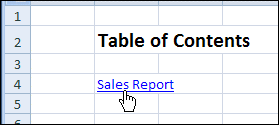
That’s the text you can see in the cell with the hyperlink, like “Sales Report” in the screen shot below.
Instead of the Friendly Name, you might want to extract the hyperlink’s location.
There’s no built-in function for that in Excel, but you can create your own User Defined Function, with a bit of VBA.
Copy the HLink code, shown below, into a regular module in your workbook.
Function HLink(rng As Range) As String
'extract URL from hyperlink
'posted by Rick Rothstein
  If rng(1).Hyperlinks.Count Then HLink = rng.Hyperlinks(1).Address
End Function
Use the HLink Function
Then, you can use the HLink function in that workbook, just like any other Excel function.
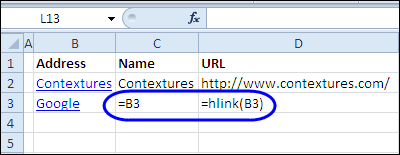
For example, to find the address for a hyperlink in cell B3, use this formula: =HLink(B3)
To extract the Friendly Name, use a simple link to the cell: =B3
Learn More About Hyperlinks
To learn more about adding and removing Hyperlinks, visit the Excel Hyperlinks and Hyperlink Function page on the Contextures website.
There are written instructions, and videos, like this one.
___________
Thanks Rick, Sam and Eric — I’ll update the blog post with the revised code examples.
This worked like a charm. I needed to refer to the YouTube video for creating the module and pasting the code, complicated by my using Excel 2003, but it took only 30 minutes and will save lots of time searching the underlying URLs copied as friendlies. Thanks to all. Good stuff!
I’m dealing with something a little different – I have links but not to websites; rather, to file share folders. I am getting a #NAME? error. Does the code need to be altered due to this difference?
I’ve just spent some thirty minutes to uncover that the fragment part of URL (the one after hash # symbol) is available through the Hyperlinks(1).SubAddress . I hope that helps.
When I use the function
If rng(1).Hyperlinks.Count Then HLink = rng.Hyperlinks(1).Address
It returns the hyperlink for the email address. However, it returns it with the “mailto:” included as part of the link.
Is there a line of code I can add to the function that only links the email address and not the “mailto:” that excel adds?
Any help is appreciated.
@Sarah,
Why not just wrap the expression with a Replace function call replacing “mailto:” if it is there…
If rng(1).Hyperlinks.Count Then HLink = Replace(rng.Hyperlinks(1).Address, “mailto:”, “”)