
Last week on the Bacon Bits blog, Mike Alexander showed how to send an email with the HYPERLINK function in Excel, complete with subject line and message.
Mike’s article showed how versatile the HYPERLINK function can be, and you also learned about Mike’s unique talent for poetry.
In the steps below, I’ll show you how to get the URL from an Excel Hyperlink.
Remove Hyperlinks
If you inherit a workbook full of hyperlinks, and you want to change those, so they just contain text, you can copy the cells, and paste them as values, in another location.
If you’re using Excel 2010, you can quickly remove hyperlinks from selected cells. (Thanks to Sam for this tip.)
- In Excel 2010, select cell(s) that contain hyperlinks
- Right click on any selected cell
- Click Remove hyperlinks
Macro to Remove Selected Hyperlinks
In any version, to remove hyperlinks in a group of selected cells, you can run a macro, like the one below.
Copy this code into a regular module in your workbook, then select the cells, and run the delHyperlinks macro.
Sub delHyperlinks()
  Selection.Hyperlinks.Delete
End Sub
Macro to Remove All Hyperlinks
You can also clear all the hyperlinks on the active worksheet (thanks Eric and Rick).
Sub RemoveHyperlinksOnActiveSheet()
'posted by Rick Rothstein
  Cells.Hyperlinks.Delete
End Sub
Extract Address from Hyperlink
If you paste hyperlinks as values, what you’re left with is the “Friendly Name.”
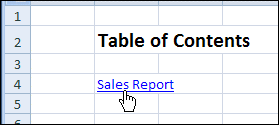
That’s the text you can see in the cell with the hyperlink, like “Sales Report” in the screen shot below.
Instead of the Friendly Name, you might want to extract the hyperlink’s location.
There’s no built-in function for that in Excel, but you can create your own User Defined Function, with a bit of VBA.
Copy the HLink code, shown below, into a regular module in your workbook.
Function HLink(rng As Range) As String
'extract URL from hyperlink
'posted by Rick Rothstein
  If rng(1).Hyperlinks.Count Then HLink = rng.Hyperlinks(1).Address
End Function
Use the HLink Function
Then, you can use the HLink function in that workbook, just like any other Excel function.
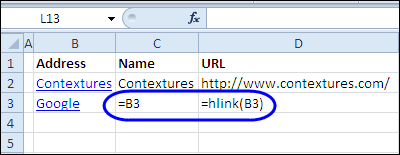
For example, to find the address for a hyperlink in cell B3, use this formula: =HLink(B3)
To extract the Friendly Name, use a simple link to the cell: =B3
Learn More About Hyperlinks
To learn more about adding and removing Hyperlinks, visit the Excel Hyperlinks and Hyperlink Function page on the Contextures website.
There are written instructions, and videos, like this one.
___________
@Deb,
I don’t think you need to use an error trap to extract the hyperlink address; I believe this one-liner will work just as well…
Function HLink(rng As Range) As StringIf rng.Hyperlinks.Count Then HLink = rng.Hyperlinks(1).Address
End Function
Note that I declared my function’s return value “As String” so that when the If statement test is False (a count of zero), the return value becomes the default for String variables, namely, the empty string… when the count is not zero (meaning there is a hyperlink), the hyperlink’s address is returned.
@Deb,
There is a minor flaw in both your blog’s HLink function and the one I just posted. If a range containing multiple cells is specified, then both of our functions will return the first hyperlink address if the range has one or more hyperlinks in it… no matter where in the range that first hyperlink happens to be. I think the most reasonable “fix” is to make our functions look at only the first cell in the specified range so that if that cell does not have a hyperlink, then the empty string is returned for the whole range. The fix is easy… we just change the rng reference to rng(1). Since your function only has one rng reference, that is the change you make whereas for my function, only the If..Then test’s rng reference needs to be change. So then, here is my revised function…
Function HLink(rng As Range) As StringIf rng(1).Hyperlinks.Count Then HLink = rng.Hyperlinks(1).Address
End Function
The Delhyperlinks is required only for Excel2007 and below.
From Excel 2010 if you select a range of Cells with hyperlinks and right click – and remove hyperlinks – this removes from the entire range
@Deb,
I think I have another one-liner for you. It appears that the following macro will do what your delHyperlinks macro does…
Sub delHyperlinks()Selection.Hyperlinks.Delete
End Sub
I’ve had a sub for removing hyperlinks in my personal.xla for a while. Here’s the main code for it:
While Application.Worksheets(Application.ActiveSheet.Name).Hyperlinks.Count > 0
Application.Worksheets(Application.ActiveSheet.Name).Hyperlinks(1).Delete
Wend
I generally don’t use a selection, and just want to remove all the links from a certain sheet, so this has worked for me. I guess you could change the application.worksheets to selection.
@Eric,
If you want to delete all the hyperlinks on the ActiveSheet, you can use this much simpler macro (modeled after the delHyperlinks macro I posted to Deb)…
Sub RemoveHyperlinksOnActiveSheet()
Cells.Hyperlinks.Delete
End Sub