
 Over at Chandoo’s Excel blog, he’s celebrating VLOOKUP week, with helpful posts like VLOOKUP Formulas Go Wild. Who knew an Excel formula could go wild?
I’ve seen many workbooks where things have run amok, but fortunately, Chandoo’s examples are much better behaved.
Excel VLOOKUP Videos
You don’t need any special equipment or fancy telescopes to do a lookup in Excel — you just need a simple formula.
In my videos below, see how to use the VLOOKUP function, and overcome its few shortcomings with other functions, like INDEX and MATCH.
Watch the VLOOKUP Videos
I’m a big fan of VLOOKUP too, and have made several Excel VLOOKUP videos that show you how to use the function in different scenarios.
First, here’s a video that shows a basic VLOOKUP formula to get the correct price from a product price lookup table.
___
Excel MATCH Function with VLOOKUP
Next, here’s a video that shows you how to use the Excel MATCH function within a VLOOKUP formula, to make it more flexible.
Approximate Match in VLOOKUP
The next video show you how to use VLOOKUP to change a student’s numeric score into a letter grade, by using the Approximate Match option.
More VLOOKUP Tips and Videos
You can head over to my Contextures website, and see more VLOOKUP function examples and videos.
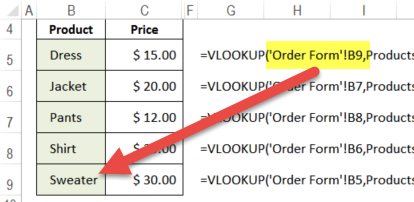
That page also has tips for troubleshooting VLOOKUP problems, like the formulas shown in the screen shot below.
After the list was sorted, the VLOOKUP formulas ended up in the wrong order, and show the wrong product prices!
Celebrate VLOOKUP Weekend
With all this information on VLOOKUP to read and watch, you won’t have to worry about planning any other weekend activities.
Chandoo’s VLOOKUP Week might end today, but you can continue celebrating, by creating your own VLOOKUP Weekend. Have fun!
____________
@Sam
Yes you’re right 🙂 I should have been more precise as I meant it can’t return an array of results for non-consequent columns:
=VLOOKUP(A1,B1:E10,{2,4,10},0)
I had a question about “$” sign in VLOOKUP. Is there any way we can customize vlookup formula so that while selecting the Range, “$” sign always populates and makes the range constant
@Patel,
No, you can’t do that, but you can assign names to your tables (XL2003: menu Insert->Name->Define… or XL2007/2010: tab Formulas->Name Manager):
MyTable =[D1:F20]
=VLOOKUP(A1,MyTable,2,0)
Sorry, I meant this:
MyTable =$D$1:$F$20]
=VLOOKUP(A1,MyTable,2,0)