
If you want to create a pivot table from data on different worksheets, you can use a Multiple Consolidation Ranges pivot table. However, that creates a pivot table with limited features and functionality.
Last year, Excel MVP Kirill Lapin (aka KL) shared his brilliant code to create a Union query and build a fully functional pivot table from data on different worksheets.
More Pivot Table Macros
Now, Kirill is back to share two more pivot table macros, and I’m sure you’ll be impressed by both of them. In today’s example, he’s written a macro to create a pivot table from multiple Excel files.
This is based on a solution that Kirill posted in one of Russian-speaking Excel forums for generating a standard pivot table from multiple workbooks (as opposed to worksheets in the same workbook).
The Report Workbook
The main file is named Report.xls, and it contains Kirill’s pivot table code, and a button that runs the macro. When you open the file, enable the macros, then click the Create Pivot button.
The Data Files
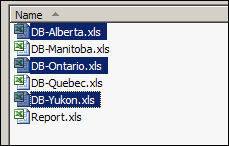
When you run Kirill’s macro, it prompts you to select one or more data files, all stored in the same folder. In this example, the files for Alberta, Ontrio and Yukon are selected.
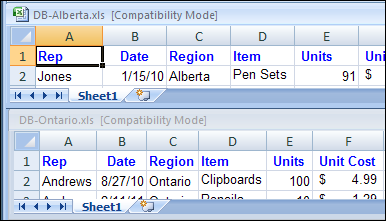
All of the data files must have the same structure, and the macro works with the data stored on Sheet1 in each file. In the screen shot below you can see Sheet1 in the Alberta and Ontario files, which have identical column headings.
The Pivot Table
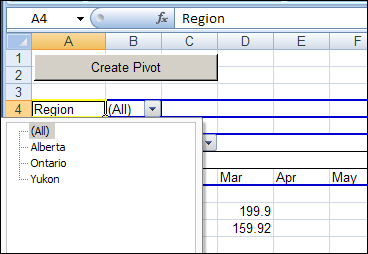
After you select the files and click Open, the macro creates a pivot table based on the data from Sheet1 in each of the selected files. Because the pivot table is based on a Union query, and not built from Multiple Consolidation Ranges, it’s a fully functioning pivot table, and you can pivot, group and filter the data, as usual.
You can also refresh the pivot table, to show the latest data in the source files, as long as those files stay in their original location.
The Union Query
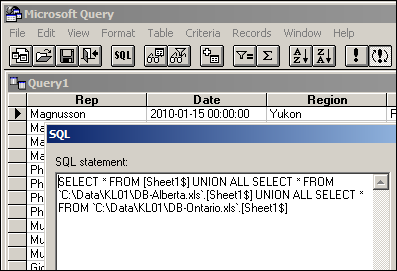
Kirill’s macro creates a Union query to combine the data from all the selected files. If you open Microsoft Query, you can see the SQL string for the Union query, and all the data from the selected workbooks.
Download the Sample File
To see Kirill’s pivot table code, you can download the Pivot Workbooks example. The zipped folder that contains the Report.xls file, and the five sample data files.
Unzip the folder, and keep all the files in the same folder. When you open the Report.xls file, enable macros to run the code.
Pivot Table Macro #2
Come back on Wednesday to see Kirill’s second pivot table macro. It’s another creative twist on creating a pivot table from data in different workbooks.
______________
Kirill,
Exactly the problem. I was using blanks or zeros to signify NULL. I have now NULLified the problem. Thanks.
Debra, excellent post !!
Kirill, great job !!
I have 2 or 3 sets of data, stored in different workbooks, all with the same structure (SMS reports).
this tool allowed me, with a litle tkweak, to combine them in a single PT, extremely useful.
I had to add a previous refresh for the selected data source files, as they are web queries, but it work smoothly.
My question, now. Is there a way I can combine multiple web queries into a single one, to use it as a unique data source for that PT?
the reports are like this_
http:///Report.asp?ReportID=170&os=Microsoft Windows XP Professional&sp=%25&CollectionID=AM000075
the only change is the Collection ID. And no, there is no way to ask the SMS admin to create a new report with multiple IDs….
Thanks !!!
Martin
hi,
two sheets combine is fine,
fyi.. i need how to find system IP NUMBER (OR) system user name in excel help us
My mail. id: [email protected]
thanks®ards
raghavender p
@raghavender p, you can get the system user name in Excel VBA with this line of code:
strUser = ENVIRON(“USERNAME”)
For more info see the article: Allow Only Specific User to Change Excel List
Great work! The new approach has the big advantage that the datasheets for the pivot table are not in the same file. This enables to use dynamic spread sheets with ODBC interfaces which can be updated. The former approach has destroyed sometimes the data source.
In order to use Excel 2007 files I have changed xls to xlsx in the VBA programming. That has caused an errormessage, but after ending this message and not trying to debug (!) the pivot table works perfect.
Thank you very much for providing such a mighty tool!
many thanks to Kiril to have developed this. I manage to adapt it to my needs except one small thing:
I have some calculated fields in my data set (formulas elaborating the row data inputed), and that prevents the pivot table from correctly recognizing the data format as numbers and therefore all I get are zeros or no values at all.
If I replace the formulas with pure numbers it works perfectly.
Any solutions jumping to mind?
Many thanks in advance