
It’s easy to protect a worksheet in Excel, but it’s not so obvious how you leave some of the cells unprotected, to allow changes on a protected worksheet. You can follow this tutorial to learn how to do that, and maybe you’ll even see the weird dialog box heading that I show below.
Unlock Some Cells
For example, on a data entry sheet, you might have some cells with formulas, that you don’t want users to mess up. However, you want the users to be able to enter the date, item name and quantity for an order.
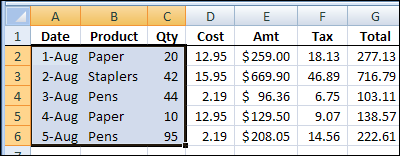
In the screenshot below, the selected cells — A2:C6 — should be unprotected, so users can enter data. The rest of the cells should be protected, so the formulas cannot be changed or deleted.
Step 1: Unlock the Data Entry Cells
By default, all the cells on the worksheet will be locked, if you protect the worksheet. To allow changes to some cells, you have to change the protection setting for those cells.
- On the worksheet that you’re going to protect, select the cells that users will be able to change — cells A2:C6 in this example.
- On the keyboard, press Ctrl + 1 to open the Format Cells dialog box.
- On the Protection tab, remove the check mark from Locked.
- Click OK, to close the dialog box
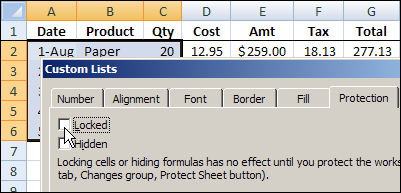
Note: In the screenshot above, you can see that the dialog box name shows as “Custom Lists”, even though it’s the Format Cells dialog box.
It seems to appear if you open the Format Cells dialog box, go to the Protection tab, and then close the dialog box. The next time you press Ctrl+1, the Custom Lists heading is on the Format Cells dialog box.
Step 2: Protect the Worksheet
- Go to the worksheet that you’re going to protect.
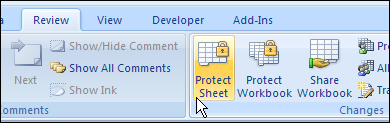
- On the Excel Ribbon, click the Review tab
- Click Protect Sheet.
Watch the Video
To see the steps for allowing changes in some cells on a protected Excel worksheet, watch this short Excel video tutorial.
_________________
Debra – I see a place for the video, but I don’t see the actual video. I do see the video for the article on Monday.
Thanks Bob — it’s fixed now. Everything looked okay in Firefox, but IE8 didn’t seem to like the video embed code.
Hi,
I don’t like protecting sheets by unlocking cells, because users can mess with formulas by cutting and pasting.
I like it better to use “Allow Users to Edit Ranges” (<–name in Excel 2007) functionality, bacause in this approach cells cannot be cut.
If someone knows how to handle these User Edit Ranges in VBA (unlock and lock, define new areas etc.) please share or send a link.
[…] Allow Changes on a Protected Worksheet, Debra Dalgleish shows us how to manually protect a worksheet while allowing changes to specific […]
I have been able to lock/unlock cells and protect worksheet, but my issue is that when worksheet is protected, I am unable to add/edit comments into unlocked cells.
Does anyone have suggestions for getting around and allowing comments to be added.
Carol,
one solution would be enabling ‘objects editing’ under ‘protect sheet’, another, just pasting in a cell carrying a comment. Rgs
thank you very much