
 Do unwanted files open automatically when Excel starts? Perhaps something changed in your computer, and Excel files are opening automatically, and you want to get rid of them. Keep reading, to see where those files might be located, and how to stop them from opening.
Stop Unwanted Files Open Automatically
To stop files that automatically open in Excel 2007 and Excel 2010, you can remove a folder name in the Excel options:
- Click the Office Button, then click Excel Options (In Excel 2010, click the File tab, then click Options)
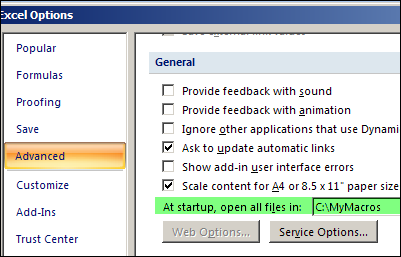
- Click the Advanced category, and scroll down to the General section.
- In the box for ‘At startup, open all files in’, you might see the name of a folder, and its path
- Clear the folder information from that box (or go to that folder and remove the unwanted files).
- Click OK, to close the Excel Options dialog box.
Check the XLSTARTUP Folders
If there was nothing listed in the Startup box, the unwanted files might have been accidentally saved to one of the XLSTART folders.
- C:Program FilesMicrosoft OfficeOffice12XLSTART (for Excel 2007)
- C:Program FilesMicrosoft OfficeOffice14XLSTART (for Excel 2010)
- C:Documents and SettingsUser nameApplication DataMicrosoftExcelXLSTART
In Windows Explorer, go to those folders, and remove the unwanted files, to prevent them from opening automatically when Excel starts.
Check for Add-Ins
Thanks to Sarah, who commented below. She discovered that her unwanted file had been installed as an add-in. Here’s how she fixed it:
“When I moved the file to a different folder, it wouldn’t open but I would get an error every time I opened Excel saying that if couldn’t find that file.
I finally fixed it by going to Options -> Add-Ins -> Manage (Go…) and I saw that file had been created as an add in. From here, I deleted it, and it’s working perfectly.”
Excel 2003 and earlier versions
For earlier versions of Excel, there are instructions in the Contextures Excel FAQs: When I start Excel, why do a million files open up automatically?
More Ways to Prevent Files from Opening
You can also use a command-line switch, or the Esc key, to stop files from opening automatically.
For more details on how to block files from opening automatically, see the Microsoft Knowledge Base article: How to prevent files from opening automatically in Excel.
For help with troubleshooting other problems when starting Excel, see Jan Karel Pieterse’s article: Startup Problems.
_______________
I am on Mac with Excel v16.16.2 and this problem continues. If I start the Excel application, it opens 27 old files without my request and eats up 5GB of RAM on my system. There is no XLStart folder on Mac. I have created an empty folder at Preferences>General>Open files at startup, and still get same result. I have checked the location USER/xxx/Library/ApplicationSupport/Microsoft/Office/Excel and ensured that it is empty, and still get same result. Very frustrating results with this product. Please tell me how to fix this problem.
I went to the finder and typed Startup/in this mac. Open excel file and put a blank xls file in there. When you open the app it still ask ‘Excel saved changes to the file before the application quit unexpectedly.’ say CANCEL.
Just open any file
Go to the other File that keeps opening at the start up
Click File and copy its file location.
exit the file
go to the copied location and delete the File .
Done. Thanks.
did the trick! many thanks!
Fixed it for me Thaks!!
Wowww…. Amazingly worked for me. Thanks everyone
I have unchecked the file in the Add-in section and now the problem is resolved. Many thanks.