
 Do unwanted files open automatically when Excel starts? Perhaps something changed in your computer, and Excel files are opening automatically, and you want to get rid of them. Keep reading, to see where those files might be located, and how to stop them from opening.
Stop Unwanted Files Open Automatically
To stop files that automatically open in Excel 2007 and Excel 2010, you can remove a folder name in the Excel options:
- Click the Office Button, then click Excel Options (In Excel 2010, click the File tab, then click Options)
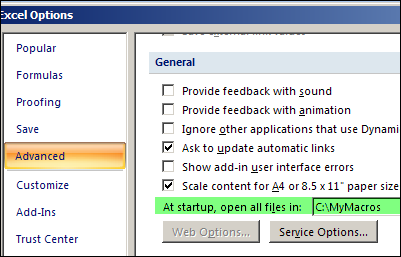
- Click the Advanced category, and scroll down to the General section.
- In the box for ‘At startup, open all files in’, you might see the name of a folder, and its path
- Clear the folder information from that box (or go to that folder and remove the unwanted files).
- Click OK, to close the Excel Options dialog box.
Check the XLSTARTUP Folders
If there was nothing listed in the Startup box, the unwanted files might have been accidentally saved to one of the XLSTART folders.
- C:Program FilesMicrosoft OfficeOffice12XLSTART (for Excel 2007)
- C:Program FilesMicrosoft OfficeOffice14XLSTART (for Excel 2010)
- C:Documents and SettingsUser nameApplication DataMicrosoftExcelXLSTART
In Windows Explorer, go to those folders, and remove the unwanted files, to prevent them from opening automatically when Excel starts.
Check for Add-Ins
Thanks to Sarah, who commented below. She discovered that her unwanted file had been installed as an add-in. Here’s how she fixed it:
“When I moved the file to a different folder, it wouldn’t open but I would get an error every time I opened Excel saying that if couldn’t find that file.
I finally fixed it by going to Options -> Add-Ins -> Manage (Go…) and I saw that file had been created as an add in. From here, I deleted it, and it’s working perfectly.”
Excel 2003 and earlier versions
For earlier versions of Excel, there are instructions in the Contextures Excel FAQs: When I start Excel, why do a million files open up automatically?
More Ways to Prevent Files from Opening
You can also use a command-line switch, or the Esc key, to stop files from opening automatically.
For more details on how to block files from opening automatically, see the Microsoft Knowledge Base article: How to prevent files from opening automatically in Excel.
For help with troubleshooting other problems when starting Excel, see Jan Karel Pieterse’s article: Startup Problems.
_______________
I tried everything above and nothing worked for me (Excel 2010). Here’s what I resorted to. A couple of pre-requisites:
1) You need to have a .xlam (excel add-in) which loads automatically on Excel start-up. I had one anyway (containing all my VBA utilities), but if you don’t then you need to create one. Here’s Chip Perason’s guide: http://www.cpearson.com/excel/createaddin.aspx
2) You need to understand about Application Events. Here’s the Chipmeister again:
http://www.cpearson.com/excel/appevent.aspx
Once you have an Application object which is automatically loaded in memory, then all you need to do is enter the following line of code in the _NewWorkbook(ByVal wb as Workbook) module of the Application object:
If wb.Name = “Book1” Then wb.close False
The first workbook that xl automtically opens always seems to be called Book1, so that takes care of that. And then when you open a new blank workbook later that you actually want, it will be called “Book2” (since Book1 was used before) and it won’t get closed by the above line.
Thanks pcavers best option is yours easy one. Click on the default opening file->save as and capture the location. Open it in a different folder and delete the contents and hoola its done.
In my computer it was fault in regeditor..
Go to: HKEY_USERS\S-1-5-21-3298242413-1472053370-2507520255-13207\Software\Microsoft\Office\14.0\Excel\options
Look in Open11, it shold be /R “C:\Program Files (x86)\Microsoft Office\Office14\Library\Analysis\ATPVBAEN.XLAM”
Thank you pcavers, it worked like a charm.
I had this issue, and resolved it by deleting the unwanted file from this location (as opposed to the one in the article above):
C:\Users\[username]\AppData\Roaming\Microsoft\Excel\
Simply Brilliant.