
You can use data validation to create drop down lists in Excel. With a bit of Excel magic, you can create dependent drop down lists, so the selection in one drop down controls what appears in the next drop down. You’ll see different drop down lists in the same cell!
We’ll take a quick look at how a basic dependent drop down works, then add flexibility by changing the data validation formula.
Select Countries and Cities
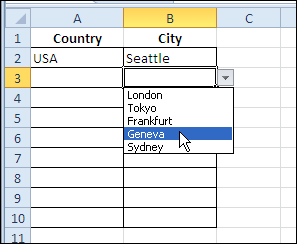
For example, in the worksheet shown below, there’s a drop down to select a country in column A. If you select USA as the country, cities from the USA appear in the Column B drop down.
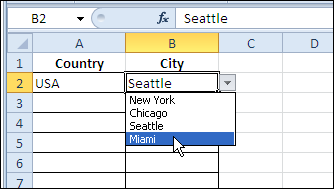
This is created by using the INDIRECT function in the data validation settings for column B:
=INDIRECT(A2)
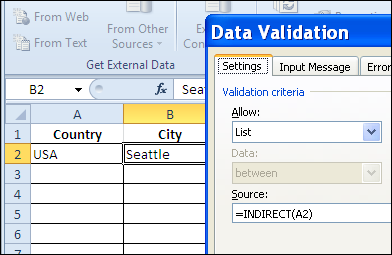
There are city lists in the workbook, and each list is named to match its country name. So, if you select USA in cell A2, the INDIRECT function references the range named USA.
Change the Formula
Currently, the drop down list in column B doesn’t work, unless you first select a country in column A. We’d like to give users the option to select a world city, if they haven’t selected a country in column A.
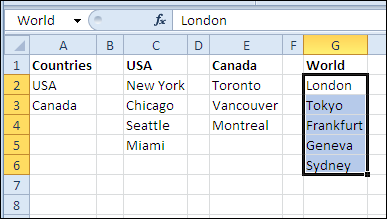
On the Lists worksheet, there’s a range named World, highlighted in the screen shot below.
Just as you can use the IF function on the worksheet, you can use it in a data validation formula. For the data validation cells in column B, we’ll change the formula to the following:
=IF(A2=””,World,INDIRECT(A2))
If cell A2 is blank (equal to an empty string “”), then show the World list. Otherwise, show the list for the country selected in cell A2.
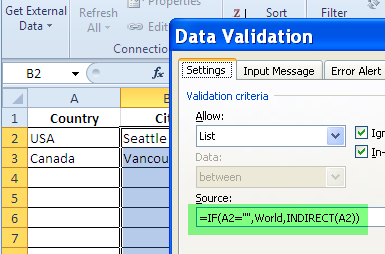
After this change to the data validation formula, if you click on a drop down arrow in column B, and no country is selected in column A, the list of world cities appears.
Watch the Video
To see the steps for creating a basic dependent drop down list, then adding an IF function, watch this Dependent Data Validation video tutorial.
________________
I’ve always struggled to find a good reason to use the INDIRECT function. You’ve not only solved this problem for me, but shown a great trick for drop-down lists. Good stuff.
[…] For detailed instructions see Different Drop Down Lists in Same Excel Cell […]
Debra, many thanks for sharing this! I’ve been looking for a solution exactly as you have shown, and I didn’t know the INDIRECT function. Your post really helped me!
Hi, thanks for your nice post.
Is it possible to allow multiple selections in one cell ? (in your example it should be possible to select multiple cities).
Thanks in advance for your help.
Hi everyone,
I have a real conundrum here. I am trying to create a form which uses drop downs and vlookups but I have hit a brick wall when trying to achieve the following. Can anyone assist please?
I have a drop down which has values such as “Support Staff Outer – 7 – £10000″,”Support Staff Outer – 8 – £20000” and “Teacher Main – 1 – “19539” and so on. I want the next drop down to look up changeable partial text string within the first drop down (eg *Support Staff Main* or *Teacher Main*) and return all table values as another drop down.
My Initial Drop down has the following values
Support Staff Main – 1 – £12266
Support Staff Main – 2 – £12435
Support Staff Main – 3 – £12614
Support Staff Main – 4 – £12915
Support Staff Main – 5 – £13321
Support Staff Outer – 1 – £14844
Support Staff Outer – 2 – £14962
Support Staff Outer – 3 – £15089
Support Staff Outer – 4 – £15368
Support Staff Outer – 5 – £15771
Teacher Main – 1 – £21804
Teacher Main – 2 – £23528
Teacher Main – 3 – £25420
Teacher Main – 4 – £27376
Teacher Main – 5 – £29533
On a separate worksheet sheet I then have a table with these values
Column A
Support Staff Main
Support Staff Main
Support Staff Main
Support Staff Main
Support Staff Main
Support Staff Outer
Support Staff Outer
Support Staff Outer
Support Staff Outer
Support Staff Outer
Teacher Main
Teacher Main
Teacher Main
Teacher Main
Teacher Main
Column B
Support Staff Main – 1 – £12266
Support Staff Main – 2 – £12435
Support Staff Main – 3 – £12614
Support Staff Main – 4 – £12915
Support Staff Main – 5 – £13321
Support Staff Outer – 1 – £14844
Support Staff Outer – 2 – £14962
Support Staff Outer – 3 – £15089
Support Staff Outer – 4 – £15368
Support Staff Outer – 5 – £15771
Teacher Main – 1 – £21804
Teacher Main – 2 – £23528
Teacher Main – 3 – £25420
Teacher Main – 4 – £27376
Teacher Main – 5 – £29533
The formula in the validation would need to be dynamic so that if I drop down “Teacher Main – 3 – £25420” in the first drop down that it would look to the table and return all of the values listed against the table column A equal to “Teacher Main” and return the column B values linked to that in the second drop down. Or if I was to drop down the value of “Support Staff Outer – 3 – £15089” in the first drop down then the second drop down would show values linked to “Support Staff Outer” in the table. Is this possible?
Is it possible to have multiple drop down box in same cell?
because what i really want to happen is like
in the same cell, this is how it would look like
(dropdownlist)-(dropdownlist)-(dropdownlist)
3 dropdown box in one cell.. is this possible?