
You can use data validation to create drop down lists in Excel. With a bit of Excel magic, you can create dependent drop down lists, so the selection in one drop down controls what appears in the next drop down. You’ll see different drop down lists in the same cell!
We’ll take a quick look at how a basic dependent drop down works, then add flexibility by changing the data validation formula.
Select Countries and Cities
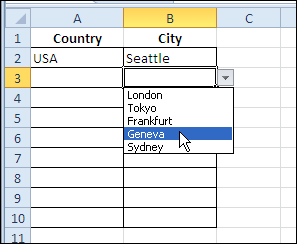
For example, in the worksheet shown below, there’s a drop down to select a country in column A. If you select USA as the country, cities from the USA appear in the Column B drop down.
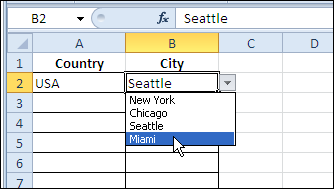
This is created by using the INDIRECT function in the data validation settings for column B:
=INDIRECT(A2)
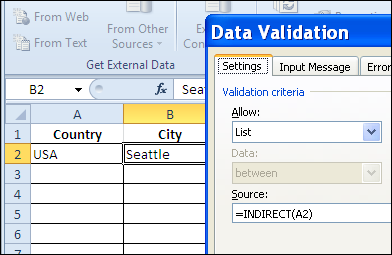
There are city lists in the workbook, and each list is named to match its country name. So, if you select USA in cell A2, the INDIRECT function references the range named USA.
Change the Formula
Currently, the drop down list in column B doesn’t work, unless you first select a country in column A. We’d like to give users the option to select a world city, if they haven’t selected a country in column A.
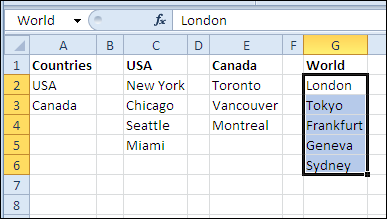
On the Lists worksheet, there’s a range named World, highlighted in the screen shot below.
Just as you can use the IF function on the worksheet, you can use it in a data validation formula. For the data validation cells in column B, we’ll change the formula to the following:
=IF(A2=””,World,INDIRECT(A2))
If cell A2 is blank (equal to an empty string “”), then show the World list. Otherwise, show the list for the country selected in cell A2.
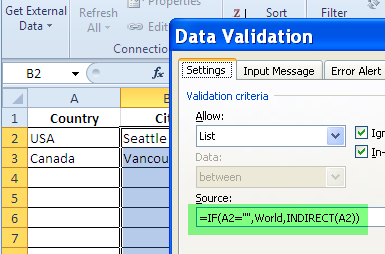
After this change to the data validation formula, if you click on a drop down arrow in column B, and no country is selected in column A, the list of world cities appears.
Watch the Video
To see the steps for creating a basic dependent drop down list, then adding an IF function, watch this Dependent Data Validation video tutorial.
________________
This is partly what I have been looking for. What I need is a way of automatically inserting a value in a cell, which is dependant on the adjacent cell. EG in cell A2, I would enter a value from a drop down list (list defined as ‘ORG’ on my LookUp sheet), then in cell B2, would automatically show the corrseponding code for the entry in A2 (list of codes defined as ‘COD’ on the LookUp sheet.) I am struggling a little.
Tony-
You need to create a defined name that includes both ORG and COD on your LookUp sheet. For example, if ORG is in A1:A10 and COD is in B1:B10, create another name called, say “ORGCOD”, that represents A1:B10.
Then use this in B2 on the main sheet:
=VLOOKUP(A2,ORGCOD,2,0)
Cheers Jason. Will give this a try. Thought VLOOKUP might have been the answer, but was not sure how to go about it. Many thanks.
Hi Jason. Worked at treat, with a little tweaking. I used the simpler LOOKUP function with an error trap (always struggle with the IsError function):
=IF(A2=””,” “,(LOOKUP(A2,ORGCOD,COD))
Thanks for pointing me in the right direction.
Tony,
Just a word of caution with LOOKUP. Your ORG dataset (what Excel Help calls “lookup_vector”) has to be in ascending order or your formula may return a wrong value. My other issue with LOOKUP is that if doesn’t find an exact match, it will select the largest value less than your lookup_value (which may be OK in your situation).
All of this is well-documented in the Excel help file, so take a look.
Knowing this, I always use VLOOKUP and specify exact match (use 0 in 4th argument). In my analyses I always want an exact match and if VLOOKUP can’t find one, then I want to see #N/A.
Very elegant solution.
This is one of the proofs that dynamic process-driven approach to data in Excel(ver. data driven) is absolutely possible.
Thank you for sharing