
You can use data validation to create drop down lists in Excel. With a bit of Excel magic, you can create dependent drop down lists, so the selection in one drop down controls what appears in the next drop down. You’ll see different drop down lists in the same cell!
We’ll take a quick look at how a basic dependent drop down works, then add flexibility by changing the data validation formula.
Select Countries and Cities
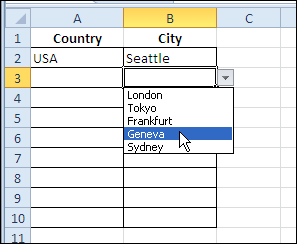
For example, in the worksheet shown below, there’s a drop down to select a country in column A. If you select USA as the country, cities from the USA appear in the Column B drop down.
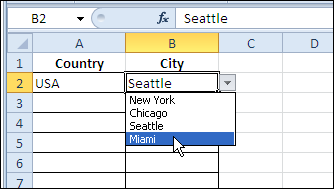
This is created by using the INDIRECT function in the data validation settings for column B:
=INDIRECT(A2)
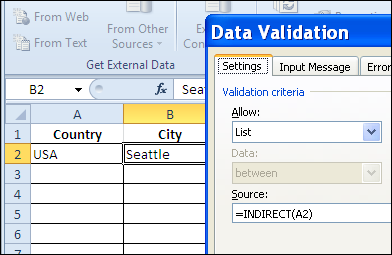
There are city lists in the workbook, and each list is named to match its country name. So, if you select USA in cell A2, the INDIRECT function references the range named USA.
Change the Formula
Currently, the drop down list in column B doesn’t work, unless you first select a country in column A. We’d like to give users the option to select a world city, if they haven’t selected a country in column A.
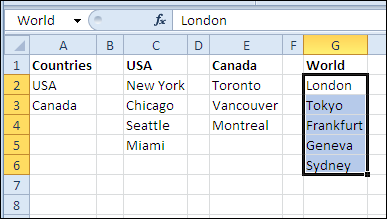
On the Lists worksheet, there’s a range named World, highlighted in the screen shot below.
Just as you can use the IF function on the worksheet, you can use it in a data validation formula. For the data validation cells in column B, we’ll change the formula to the following:
=IF(A2=””,World,INDIRECT(A2))
If cell A2 is blank (equal to an empty string “”), then show the World list. Otherwise, show the list for the country selected in cell A2.
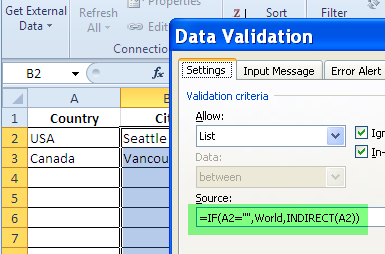
After this change to the data validation formula, if you click on a drop down arrow in column B, and no country is selected in column A, the list of world cities appears.
Watch the Video
To see the steps for creating a basic dependent drop down list, then adding an IF function, watch this Dependent Data Validation video tutorial.
________________
I Have new scenario,
sheet1
Column A Column B
ABC 1
ABC 2
ABC 3
ABC 4
DFG 5
DFG 6
DFG 7
DFG 8
Now in sheet2
Column A
IF
ABC is selected in dropdown list then only the number which are in front of ABC should be displayed in a new dropdown list.
@Piyush, you could use the dependent drop down technique shown here:
http://www.contextures.com/xlDataVal13.html
I have a problem with the basic Indirect validation function! With the example, I have used labelling of the Source data for validation to bring up the drop down list “USA, Canada” etc and then having labelled the other columns as per the city they refer to, used the =INDIRECT(A2) in data validation under “list” to reference the country and bring up the cities. The problem is, the list being shown under cities is still countries – i.e. the source list is simply being repeated and the two lists appear to have no dependency! Why do you think this is happening? I have followed the instructions to the letter!
Please help – I have to get this nailed by Monday next week! Thank you 🙂
What is selected from the drop down list in cell A2? Is it a country name, e.g. USA?
If you check the Name Manager, is there a workbook level name that matches that selection?
Check the address in the Name Manager’s Refers To box for that name — then, go to that range and check the contents.
Something is wrong somewhere!
Thank you for the great, easy to follow tutorials.
I’ve learned a lot through your blog and I can highly recommend it to friends 🙂
On a side-note.
For a while the IF-statement had me stumped. It would create an error, everytime I inserted in one of my worksheets.
On both Excel for Mac 2010 and Office 2010.
As it turned out, those versions don’t accept the ‘,’ as seperator. Instead you need to use ‘;’ 😉
Other than that, flaweless tutorials. The only ones I could find, that have learned me so much about Excel 😀
Thanks a million!
Greetings,
Bran
It is really mind-blowing.
can we do the same in google sheets? if yes please guide me how to do.