
Occasionally, I get calls from clients who don’t understand why their Excel file isn’t working. They’re clicking buttons, or selecting from drop down lists, but none of the usual magic is happening. Is the file broken?
When you open a workbook in Excel 2007, a security warning bar might appear above the worksheet, telling you that macros have been disabled.
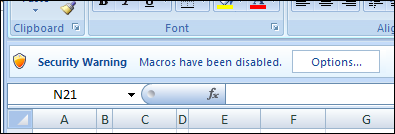
Unfortunately, the security bar blends into the Ribbon a little too well, and if you’ve created the workbook for someone else, they might not even notice the warning.
When I ask my clients with the broken workbooks if they see the warning, usually the answer is yes. A couple of clicks later, the file is working again. It’s annoying though, and makes smart people feel not so smart.
Bypass the Security Warning
For Excel workbooks that you know are safe to open, you can bypass the security warning by putting the files into a trusted folder. It’ll take you a minute or two to set it up, and that little bit of effort will save you countless hours and aggravation.
To set up a trusted folder:
- Click the Office Button on the Ribbon, then click Excel Options.
- In the list of categories, click Trust Center, then click Trust Center Settings.
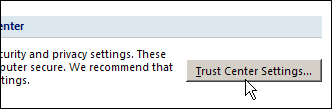
Trust Center Dialog Box
- In the Trust Center dialog box, click Trusted Locations.
- You can see the list of current trusted locations, and buttons to Add New Location, Remove or Modify items in the list.
- Click the Add New Location button
- Click Browse, select the folder that you want to trust, then click OK.
- Your folder is now in the list of trusted locations.
- Click OK to close the Trust Center and Excel Options dialog boxes.
Now, when you open the files from that folder, the macros will be automatically enabled. No more missed Security Warning bar, or mysteriously broken Excel files.
No Macros in the Excel Workbook
If the workbook doesn’t have macros, and you’re seeing a macro warning, follow the instructions here: Remove Excel Macros Security Warning.
__________
Thanks! How annoying that was, and now I have quickly fixed it thanks to your advice!
Debra,
Cannot thank you enough for taking the time to comment this so well. You saved me the continuing agony of trying to work this out on my own. Take care, Joe
I have a workbook with marco (*.xlsm) written within, i need to distribute this workbook to others for use, every time the file is opened, the macro security warning pops up in excel 2010, apart from
1) telling my users to set the overall excel macro security level
2) telling my users to use the trusted center approach
3) I read somewhere about creating self certificate but did not get much to work on for this approach.
is there any other way? thanks
Hi there,
The option is not working for me.
although I have added the location to the trusted center but i am still getting the warning message.
Any other possible solution?
Thanks in advance.
Hi Debra,
I came upon this article while trying to resolve the same annoying problem except with a twist. I’m using Office 2011 on Mac OS X Mountain Lion. I’ve only been a Mac user a little over a year so I’m not sure where to find the trust center (if it still exists). I have a macro in an Excel spreadsheet that I use locally only and would like to avoid the security prompt when opening the document.
Thanks,
Rob
Did you get an answer on this for Excel for Mac 2011? I have the same challenge and cannot find anyway to sign a workbook as trusted.
Thank you. Better than Aspirin. My headache is gone.