
If you’re entering dates on an Excel worksheet, you don’t have to enter each date individually. Just enter the first date, in the top cell. Then, if there is data in the next column, you can use the Fill handle to quickly enter the rest of the dates. See how to AutoFill Excel dates in series or same date, with just a couple of clicks.
Start a Date Series
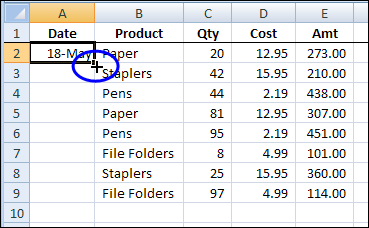
Enter the first date in the date column — cell A2 in this example. Then point to the Fill handle, which is the small black square at the bottom right corner of the selection.
When the pointer changes to a small black plus sign, double-click.
Dates Series
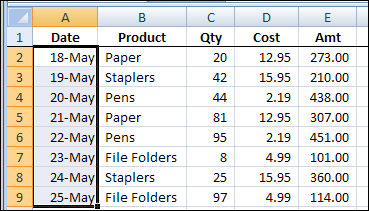
When you double-click the Fill handle, Excel automatically fills the dates down to the first blank cell in the next column.
By default, the dates are entered in a series of 1 day intervals.
Change to Same Date
If you want all the date cells to have the same date, do one more step:
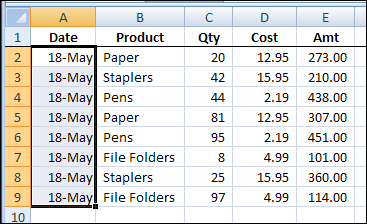
- Keep the range of date cells selected (cells A2:A9 in this example)
- Press Ctrl+D on the keyboard.
That is the keyboard shortcut for Fill Down. When you use that shortcut, Excel copies the date from the active cell (cell A2), into all the selected cells below.
Watch the Video
To see the steps for filling the dates, watch this very short video. The video shows how to create a date series with the Fill handle. Then it shows how to use a keyboard shortcut, to enter the same date in all the selected cells.
I created this with the latest version of Camtasia Studio, which has a new feature that captures keyboard shortcuts, and can show the key combinations in the video.
More Excel Shortcuts
See more Excel keyboard shortcut on my Contextures website. There is an interactive list of shortcuts that you can search and filter. You can also download an Excel workbook with a list of shortcuts.
______
This is no help without data to the right, I want dates without data.
Hi Friends,
If i use shortcut Alt+I+E+S then it is working, but i want to know under which menu series dialog box appears.
Thanks
Bharathi
@Bharathi, Fill in the first date, then select all the cells that you want to fill
On the Excel Ribbon, click the Home tab, then click Fill (at the right end of the Ribbon)
Click Series, to open the dialog box.
Awesome! Thanks
VERY helpful blog. THANK YOU for the pics too!
thanks a bunch
Thank you for the clear instructions, this is exactly what I needed at a glance!