
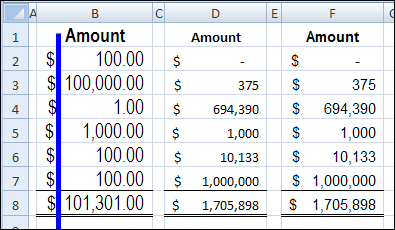
Every now and then I get a workbook from a client with numbers in Accounting format. If all the numbers are the same length, the currency symbols line up nicely. However, if the numbers are different lengths, we have trouble aligning Excel currency symbols.
Currency Symbols Do Not Line Up
For example, in the screen shot below, the $ sign in cell B4 is a bit to the right of the symbol in B5. It’s not much, but it looks sloppy, and some fonts show the effect more obviously than others. I added the blue line to make it easier to see the variations in column B.
Trying to Fix It
I’ve spent way too much time trying to fix the problem, with custom formatting, different fonts, and yelling. Even fist shaking didn’t help — very odd!
So, I learned to live with the problem, and tried to convince the client to use Currency format instead. The dollar signs aren’t supposed to line up in that format, so it’s much less stressful.
Finding the Solution
Finally, this weekend, after another attempt at lining up the dollar signs, I found the solution to the wobbly Accounting symbols. I checked the horizontal alignment for the cells, and discovered that my client had formatted them as Right aligned.
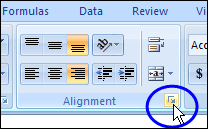
I clicked the button at the bottom right of the Alignment group on the Ribbon’s Home tab, to open the Format Cells dialog box.
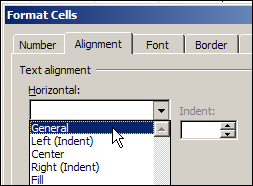
Then, on the Alignment tab, I changed the Horizontal alignment to General, and clicked OK.
Problem Solved
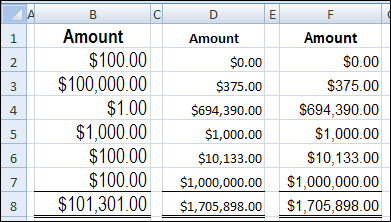
Miraculously, all the dollar signs lined up, without a single wobble, for the different font and sizes.
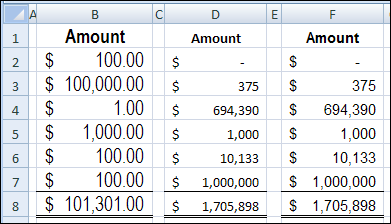
I’m not sure why the right alignment had been applied earlier, because numbers would automatically align to the right. Anyway, the alignment is the first thing I’ll check, the next time I have trouble with wandering currency symbols.
And if you already knew how to fix this problem, you should have told me years ago!
______________
Debra,
I found two mouse solutions that appear to be faster than yours. The first if you’re already on the Home tab of the ribbon is to select the Align Right Text button to turn it on (if it isn’t already) and then press it again to turn it off. This forces text alignment to General. The other solution that is faster for me is if the cells are highlighted (and wouldn’t they be if you’re going to change the alignment?) is to right-click and select center in the mini-toolbar and then deselect center. This also forces alignment to General.
Thanks Dave, those mouse solutions do seem to be faster!
Debra – I’m just glad you and your clients are going to move away from the currency format. That format drives me nuts! The dollar sign is so close to the number that it takes me extra effort to focus on just the value.
Thank you. Thank you. This has been driving me mad too and yet the solution is so simple.
Wow thank you for finding the solution to this. I can now cross this off as one of those Excel quirks that has driven me nuts for years. And I work in finance!
You’re welcome! Glad this information helped you, and those numbers line up now.