
Every now and then I get a workbook from a client with numbers in Accounting format. If all the numbers are the same length, the currency symbols line up nicely. However, if the numbers are different lengths, we have trouble aligning Excel currency symbols.
Currency Symbols Do Not Line Up
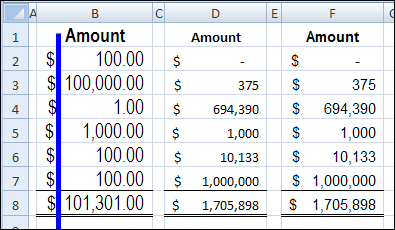
For example, in the screen shot below, the $ sign in cell B4 is a bit to the right of the symbol in B5. It’s not much, but it looks sloppy, and some fonts show the effect more obviously than others. I added the blue line to make it easier to see the variations in column B.
Trying to Fix It
I’ve spent way too much time trying to fix the problem, with custom formatting, different fonts, and yelling. Even fist shaking didn’t help — very odd!
So, I learned to live with the problem, and tried to convince the client to use Currency format instead. The dollar signs aren’t supposed to line up in that format, so it’s much less stressful.
Finding the Solution
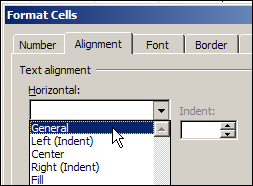
Finally, this weekend, after another attempt at lining up the dollar signs, I found the solution to the wobbly Accounting symbols. I checked the horizontal alignment for the cells, and discovered that my client had formatted them as Right aligned.
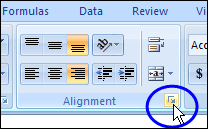
I clicked the button at the bottom right of the Alignment group on the Ribbon’s Home tab, to open the Format Cells dialog box.
Then, on the Alignment tab, I changed the Horizontal alignment to General, and clicked OK.
Problem Solved
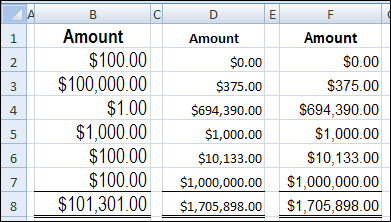
Miraculously, all the dollar signs lined up, without a single wobble, for the different font and sizes.
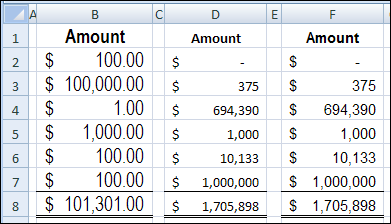
I’m not sure why the right alignment had been applied earlier, because numbers would automatically align to the right. Anyway, the alignment is the first thing I’ll check, the next time I have trouble with wandering currency symbols.
And if you already knew how to fix this problem, you should have told me years ago!
______________
Regarding the following procedure from your blog article…
“I clicked the button at the bottom right of
the Alignment group on the Ribbon’s Home tab,
to open the Format Cells dialog box.”
You can do this more quickly (in my estimation) by simply right clicking the selected cell or cells, selecting “Format Cells…” from the popup menu that appears and then clicking the Alignment tab on the dialog box.
Thanks! Still works in 2020.
Still works in 2024! 🙂
… or just press CTRL+1 🙂
Rick, I’m a big fan of shortcuts, and right-clicks, but in this case the Ribbon button works faster for me.
Dominik, thanks, that shortcut would help if you already have your hands on the keyboard.
@Debra… I guess the reason the right click is faster for me is it still takes me about 15 seconds just to find the Alignment Tab on that damn Ribbon 😉
@Rick — whatever it takes to get through the day! 😉
Thank you!
I have been having this problem for sometime now and had given up on trying to solve it. Now, having gone through your post, I can deal with it effectively. 🙂
Cheers,
Sumit