
There’s a sample Excel workbook on my Contextures website that uses a bit of Excel VBA to automatically add new items to an Excel data validation drop down list.
Add New Item to List
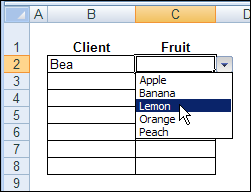
For example, if the drop down list shows Apple, Banana and Peach, you can type Lemon in the data validation cell.
Then, as soon as you press the Enter key, Lemon is added to the named range that the data validation list is based on.
The source list is sorted too, so that Lemon appears between Banana and Peach.
Read the Instructions
Someone emailed me last week, and asked if I would explain how the Excel VBA code works.
It rained (and even snowed a little) on Friday, so it was a good day to stay in, and work on a new page for the website.
If you’re interested in setting up a similar file, you can wander over to my Contextures website, and read Excel Data Validation – Add New Items.
Watch the Video
Here’s a short video that demonstrates the file, and briefly explains how the code works.
You can watch this, if it’s too early in the day to read about Excel VBA code.
Download the Sample File
If you’d rather just play with the file, and figure it our for yourself, you can download the workbook from my Contextures website.
Go to the sample workbooks page, and in the data validation section, look for DV0021 – Update Multiple Validation Lists
It’s in Excel 2003 format, and contains macros. You can enable macros if you want to test the code.
___________
Is it possible to restrict the target range to column 2? I’m running a different code on another set of cells with data validation. When I’m working with the second set of DV cells the code errors out at
If Intersect(Target, rngDV) Is Nothing Then GoTo exitHandlerI tried adding this:
If Target.Column 2 Then GoTo exitHandlerWhen that didn’t work I changed this:
If Target.Row > 4 Thento:
If Target.Column = 2 Thenbut it still errors out.
Thanks for all your great help, all the time!
(I hope I tagged the code properly)
Charlene, if you’re trying to restrict this to column 2, then the following should work:
If Target.Column = 2 Then
Or, if you want something different to happen in columns 2 and 4, you could use Select Case:
Select Case Target.Column
Case 2
‘column 2 code here
Case 4
‘column 4 code here
End Select
Works perfectly: If Target.Column = 2 Then
Thanks Debra!
One of the greatest webs to learn Excel and VBA….Thanks…Please keep going on….
Very instructive … would it be possible to also add a means so that all entries are captilized?
I did try to insert in the code for both the working sheet and the list sheet the following:
Target = UCase(Target) … but it kicked up and error?