
There’s a sample Excel workbook on my Contextures website that uses a bit of Excel VBA to automatically add new items to an Excel data validation drop down list.
Add New Item to List
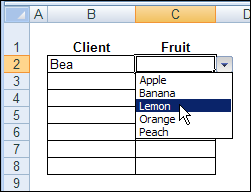
For example, if the drop down list shows Apple, Banana and Peach, you can type Lemon in the data validation cell.
Then, as soon as you press the Enter key, Lemon is added to the named range that the data validation list is based on.
The source list is sorted too, so that Lemon appears between Banana and Peach.
Read the Instructions
Someone emailed me last week, and asked if I would explain how the Excel VBA code works.
It rained (and even snowed a little) on Friday, so it was a good day to stay in, and work on a new page for the website.
If you’re interested in setting up a similar file, you can wander over to my Contextures website, and read Excel Data Validation – Add New Items.
Watch the Video
Here’s a short video that demonstrates the file, and briefly explains how the code works.
You can watch this, if it’s too early in the day to read about Excel VBA code.
Download the Sample File
If you’d rather just play with the file, and figure it our for yourself, you can download the workbook from my Contextures website.
Go to the sample workbooks page, and in the data validation section, look for DV0021 – Update Multiple Validation Lists
It’s in Excel 2003 format, and contains macros. You can enable macros if you want to test the code.
___________
[…] This article at Contextures shows how to automatically add a new item to the list. […]
This post is more than just adding items to a validation list, it is an excellent tutorial in VBA techniques and wonderful example of elegant programming.
The number of lessons learnt here are too numerous to mention.
Thank you very much for this post
Excelent as always. You should do a video on how you make these videos.
Great way to learn! Excellent Tutorial! It is very much appreciated!
Now, how do we modify it to “Add New Items” to Dependant Drop Down Lists?
Cheers!
Awesome….
Is it possible using formula instead a macro. I don’t know much about macro.
Thank you
Just one related Q
In your tutorial ‘validation combo box click’ you provide additional code allowing tab and enter.
I get an error on the sample file when I tab but not when I ENTER, any ideas what the problem could be?