
How can you make it easy for people to enter and edit data in Excel, but keep them away from the data storage worksheet?
Last year, I posted a Worksheet Data Entry Form in Excel, where users could enter and view Excel data. It was based on a worksheet data entry form that Dave Peterson created.
I’ve created a new version, where users can enter, view and edit the Excel data.
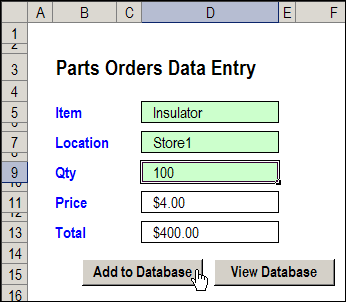
Version 1: Add New Records
In Dave’s original worksheet data entry form, users could add records on the data entry worksheet, and click a button to go to the database sheet, and review or edit the order records.
Version 2: View Existing Records
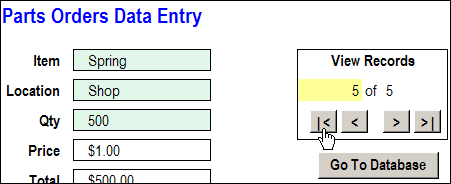
In version 2, I added a few buttons to Dave’s workbook, to allow users to scroll through the existing records.
With the navigation buttons, you could go to the first, previous, next or last record, or type a record number, to go to a specific record.
Version 3: Update Existing Records
In the latest version of the Excel Worksheet Data Entry form, I’ve added an update feature.
As in the previous version, there are data validation drop down lists, to select Item and Location.
The Price calculation is based on a VLOOKUP formula, and the Total formula multiplies the quantity by the price.
After you select a record, you can change its data, then click the Update button to copy those changes to the database.
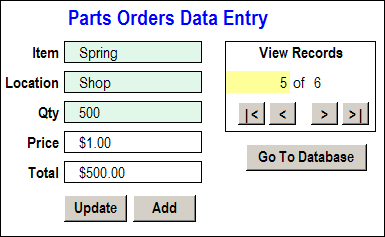
For example, in the record shown above, if you discovered that there was an error, you could change the quantity from 500 to 200. The Total formula would automatically recalculate, to show the new total of $200.00.
Then, click the Update button, and the revised quantity and total would appear in that record on the database sheet.
The Update Code
Before updating the database record, the Update code checks to see of all the data entry cells are filled in. If they aren’t, a warning message appears, and the macro stops running. This prevents you from accidentally overwriting an existing record with blank cells.
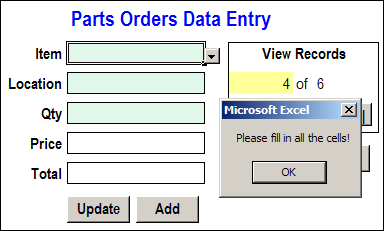
If all the data entry cells are filled in, the code:
- writes the current date and time in the applicable row of the database
- adds the User Name from the Excel application
- copies the data to the database
- clears the data entry cells
Then, with a cleared data entry sheet, you can go on to add, view and edit other records, or save and close the workbook.
Download the Sample File
The zipped sample workbook, in Excel 2003 format, can be downloaded from the Contextures website: Worksheet Data Entry Form
___________
How would you take out the automatic date, time and the user name?
Chris, in the UpdateLogWorksheet macro, in the second ‘With historyWks’ section, delete the first 5 rows:
With .Cells(nextRow, “A”)
.Value = Now
.NumberFormat = “mm/dd/yyyy hh:mm:ss”
End With
.Cells(nextRow, “B”).Value = Application.UserName
and change the next line to:
oCol = 1
Thank you so much! I figgured it was that but I didn’t know about the oCal = 1
O.K. I have another question.
How would I save the information to another workbook on a network rather then the inputdata sheet?
Thanks!
Chris
Chris, I don’t have an example of saving the data to another workbook. You could post your question in the Excel programming newsgroup, and someone may be able to help.
http://www.microsoft.com/office/community/en-us/FlyoutOverview.mspx#2
Thank you for your help. I will do that.