
On Monday I described the horrible side effects of Christmas cookies, and posted an Excel Weight Loss Tracker workbook. Now, here is an Excel Calorie Counter to add to your tool kit.
Weight Loss Tracker
As Dick Kusleika pointed out in the comments for the Weight Loss Tracker, simply downloading the workbook doesn’t have any effect on your weight. Apparently it takes a bit of effort, including dietary changes and maybe some <gasp> exercise. Can’t Microsoft invent something to make weight loss easier? I don’t even care if it has menus or a Ribbon!
Excel Calorie Counter Food Data
Bill Gates isn’t answering my phone calls, so I created an Excel Calorie Counter that I can use in the meantime. As soon as Bill sends me something better, I’ll let you know.
Here’s a 1-minute video that shows how the Excel Calorie Counter works. There are written steps below the video.
Building the Calorie Counter
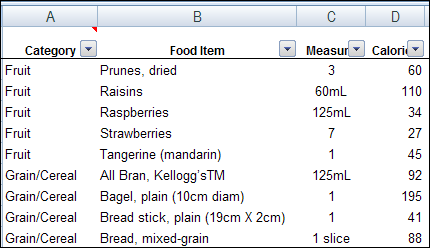
To start, I copied some food data from the Health Canada website. I created a list of foods in an Excel workbook, with categories, food items, measurements and calorie counts.
You can add items to the list, and sort the list by category when you’re finished adding food items.
Metric Measurements
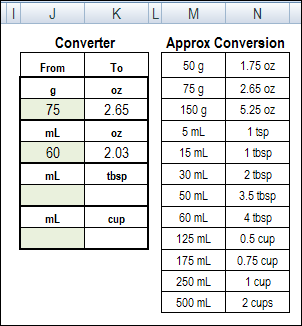
The measurements are metric, so I added an approximate conversion list too, in case you don’t speak metric. There’s also a table where you can do your own conversions, by typing a number in the green cells. The CONVERT function calculates the amount in the adjacent white cell.
Add More Columns to the Food Lookup Table
The food lookup table in the sample file only has calories list. If you want to add more columns to the lookup table, such as fat or carbs, you’ll also need to change the named range for the lookup table.
- In Excel 2007, click the Formulas tab, and click Name Manager (In Excel 2003, click Insert | Name | Define)
- In the list of names, click on FoodLookup
- In the Refers To box, at the bottom, change the number of columns, from 3, to the number of columns in your revised table.
=OFFSET(FoodList!$B$1,1,0,COUNTA(FoodList!$B:$B)-1,3)
- Click the check mark at the left, to confirm the change, and click Close
Also, see below, for adding more columns to the Daily Calorie Counter
The Daily Calorie Counter
In the main sheet, named FoodEntry, you can enter the date, your target calorie count, and all the foods that you eat. There are only 22 rows for data entry, so that should help limit your food intake!
In the green data entry cells, there are drop down lists, created with Excel’s data validation. The Meal/Snack and Category source lists are stored in named ranges on the Lists sheet.
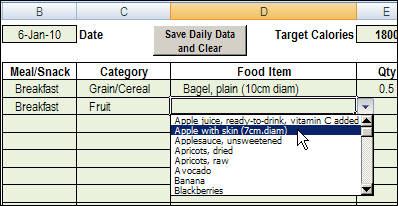
There’s a dependent data validation drop down list in the Food Item column, based on the Category that you select. This list comes from the FoodList sheet, so it’s important to keep the FoodList sheet sorted by category. Otherwise, the wrong items might appear in the Food Item drop down list.
Add the Quantity
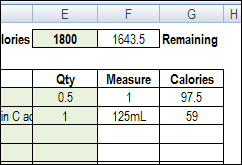
After you select a food item, its measurement appears, and you can enter the quantity that you ate, based on that measurement. For example, if the measurement is 125mL, and you ate 250mL, type 2 as the quantity.
Once the quantity is entered, the total calories for that food item are calculated.
NOTE: If you can’t find a specific food, just type it in the cell, and enter the calorie count manually. Or, add the food item to the lookup table on the FoodList worksheet.
Add More Columns to the Daily Calorie Counter
The Daily Calorie Counter in the sample file only has calories listed. If you added more columns to the lookup table, such as fat or carbs, you’ll also need to add those columns to the Daily Calorie Counter sheet.
- On the FoodEntry sheet, insert extra columns to the right of column G
- Select cells G4:G26, and drag to the right, creating an extra column for each of your new columns
- The heading cells should automatically fill in, based on the headings on the Food Lookup table.
- Select cell G5, and change the formula, so it includes the heading cells for all the columns in your food lookup table. In the sample file, the headings are in $B$1:$D$1. With one additional column, you would change that to $B$1:$E$1
=IF($D5=””,””,$E5*VLOOKUP($D5,FoodLookup,MATCH(H$4,FoodList!$B$1:$D$1,0),0))
- Copy the revised formula down to the last row, and right, to the last column.
Also, see below, for adding more columns to the Calorie Counter Data.
Storing the Calorie Counter Data
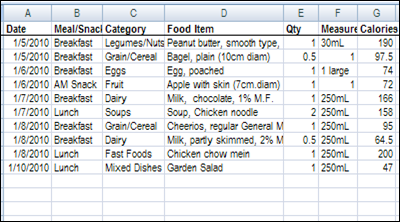
After you’ve finished eating for the day, or at the start of the next day, you can move all the data to the Calorie Counter database. Just click the “Save Daily Data and Clear” button at the top of the FoodEntry sheet.
The daily data is copied, as values, to the DailyRecord worksheet, and stamped with the date that you entered on the FoodEntry sheet.
Add More Columns to the Calorie Counter Data
The Calorie Counter Data in the sample file only has calories listed. If you added more columns to the lookup table, such as fat or carbs, you’ll also need to add those columns to the Calorie Counter Data sheet.
- On the DailyRecord sheet, type the same new column headings, in the same order, that you added to the food lookup table,
Tweak the Save Daily Data Macro
When you click the “Save Daily Data” button on the Daily Calorie Counter sheet, all the data is copied to the Calorie Counter Data sheet. You’ll tweak the macro that button runs, so it copies your new columns too.
- Right-click the “Save Daily Data” button, and click Assign Macro
- Click the Edit button
- In the following line of code, increase the 2 to include all your new columns. Currently, only 2 columns, F:G, will be updated in the macro.
- Set rCalc = rEntry.Offset(0, 4).Resize(rEntry.Rows.Count – 1, 2)
- Find the following line of code, and change its the heading reference, to match the revised formula in cell G4:
- rCalc.Columns(2).Formula = _
“=IF($D5=””””,””””,$E5*VLOOKUP($D5,FoodLookup,MATCH(G$4,FoodList!$B$1:$D$1,0),0))”
- rCalc.Columns(2).Formula = _
- Copy the line of code (above) that you just modified, and paste in another copy of the code, for each new column. For example, if you added one additional column, you would copy and paste that code once.
- Revise each copied line of code, so it shows the next column number, and the cell reference for the heading in that column. For example, if there is one new column (H), and the lookup table headings are B1:E1, here is the revised copied code:
- rCalc.Columns(3).Formula = _
“=IF($D5=””””,””””,$E5*VLOOKUP($D5,FoodLookup,MATCH(H$4,FoodList!$B$1:$E$1,0),0))”
- rCalc.Columns(3).Formula = _
Summarizing the Calorie Counter Data
The stored data is in a dynamic range named FoodRecord, and there’s a pivot table based on that named range. When you click the button to save your daily records, the pivot table is automatically updated.
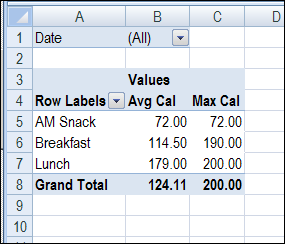
I’ve add a few fields to the pivot table, to get you started on a report. You can add more fields, or rearrange things, to get the report structure that you’d like.
Download the Sample Excel Calorie Counter
You can download the latest version of the calorie counter on my Contextures website. It is in the Excel Sample Files page, in the User Forms section: UF0016 – Excel Calorie Counter With Recipe Calculator. For instructions on how to use the latest version, see this blog post: Excel Recipe Nutrients Calculator
PLEASE NOTE: As I mentioned on Monday, I’m not a medical professional, so use this workbook for entertainment purposes only. The calorie counts are from Health Canada, so the ingredients and calorie counts might be different where you live. Check the product labels for accurate numbers.
And some of the calorie counts might be incorrect – I’m pretty sure the actual calories for wine and cookies are much lower than the Health Canada estimates. 😉
_______
Thank you so much for a great spreadsheet. So easy to use and manipulate – even to meet Australian needs. Love it! 🙂
Hi Debra,
I have added columns to my FoodEntry sheet and am trying to fix the Save Daily Data macro.
I am not finding the rows listed in the blog post to alter.
For data entered, I have:
COL E: quantity
COL F: measure
COL G:M : My nutrition counts
When I click the Save Daily Data button, it is only transferring up to COL K.
Here is the coding that is showing in mine:
Sub AddData()
‘developed by contextures.com
Dim lRow As Long
Dim lRowStart As Long
Dim lRowNew As Long
Dim lRowEnd As Long
Dim lCols As Long
Dim lColsIn As Long
Dim lColsC1 As Long
Dim lRows As Long
Dim lColStart As Long
Dim wsData As Worksheet
Dim wsEntry As Worksheet
Dim rEntry As Range
Dim rInput As Range
Dim rCalc1 As Range
Dim rCalc2 As Range
Set wsData = wsRecord
Set wsEntry = wsInput
lRowStart = wsEntry.Range(“InputStart”).Row
lColStart = wsEntry.Range(“InputStart”).Column
lRowEnd = wsEntry.Range(“TotalRow”).Row – 2
lRows = lRowStart = lRowEnd
lCols = 10
lColsIn = 4
lColsC1 = 1
Set rEntry = wsEntry.Range(wsEntry.Cells(lRowStart + 1, lColStart), wsEntry.Cells(lRowEnd, lColStart + lCols – 1))
Set rInput = rEntry.Resize(rEntry.Rows.Count, lColsIn)
Set rCalc1 = rInput.Offset(0, lColsIn).Resize(rInput.Rows.Count, lColsC1)
Set rCalc2 = rInput.Offset(0, lColsIn + lColsC1).Resize(rInput.Rows.Count, lCols – lColsIn – lColsC1)
rEntry.Select
rInput.Select
rCalc1.Select
rCalc2.Select
lRow = wsData.Cells(Rows.Count, 1).End(xlUp).Row + 1
With wsEntry
If .Range(“FoodDate”).Value = “” Then
MsgBox “Please enter a date”
.Range(“FoodDate”).Activate
GoTo exitHandler
End If
rEntry.Copy
wsData.Cells(lRow, 2).PasteSpecial Paste:=xlPasteValues, _
Operation:=xlNone, SkipBlanks:=False, Transpose:=False
lRowNew = wsData.Cells(Rows.Count, 2).End(xlUp).Row
wsData.Range(wsData.Cells(lRow, 1), wsData.Cells(lRowNew, 1)).Value _
= wsEntry.Range(“FoodDate”).Value
.Range(“FoodDate”).ClearContents
rInput.ClearContents
rCalc1.Formula = _
“=IF($D5=””””,””””,VLOOKUP($D5,FoodLookup,MATCH(F$4,FoodList!$B$1:$M$1,0),0))”
rCalc2.Formula = _
“=IF($D5=””””,””””,$E5*VLOOKUP($D5,FoodLookup,MATCH(G$4,FoodList!$B$1:$M$1,0),0))”
.Range(“FoodDate”).Activate
End With
errHandler:
MsgBox “Could not copy data to database.”
GoTo exitHandler
End Sub
Dear Debra 🙂
I’m making my own “diet plan” based on on eating less calories (300, 400, 500 or 600 cal)/day. The idea is to kill in total 20 kg respectively in 514, 386, 309 and 257 days.
400.0 cal = 51.8 gr
1000.0 gr = 7716.2 cal
Overweight: 20.0 kg Diet time: 386 days
For this purpose I find in your website an useful Exec-file (ExcelCalorieCounter2007Recipe.zip) having on missing data about “beer bottle unit” having no information of the size of the bottle. After browsing the web I guess that the bottle size is 341 ml. Hope you can add this data on the Excel-file.
All my best for your projects 🙂
Mario Hakulinen
World citizen
Fuzhou, Fujian, South-China
This link is a good example to “visualize” what 200 calories means:
http://www.boredpanda.com/what-200-calories-look-like/