
A common pivot table question is “How can I create a pivot table from data that’s on separate sheets in my workbook?
Sometime people have a workbook set up with a separate sheet for each region, or for each salesperson.
Eventually, they want to pull all the data together, and create a summary report in a pivot table, from multiple sheets.
Multiple Consolidation Ranges
Excel has a feature (well hidden Excel 2007) that lets you do this, using Multiple Consolidation Ranges.
A pivot table created this way has limited features, and isn’t much use in summarizing Excel data.
I usually recommend that you move all the data onto one worksheet, if it will fit, or store it in a table in Access, then use that as the source for the pivot table.
Create a Union Query
Another solution is to create a Union query from the separate tables, and use that as the source data.
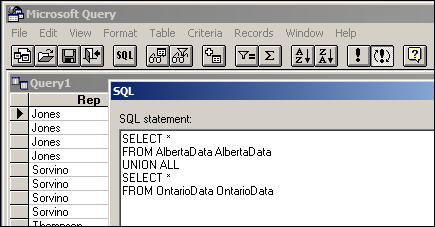
Normal Pivot Table
With this solution, you’ll end up with a normal pivot table, with none of the limitations. However, it’s a bit tedious to set up, especially if you have more than a couple of tables.
Automate the Union Query
Instead of setting this up manually, you can use the code in a sample file from Excel MVPs, Kirill Lapin (KL), with amendments by Héctor Miguel Orozco Diaz. (You might remember Héctor’s innovative Filter Pivot Table Source Data example, posted earlier this year.)
To adjust their sample code to work in your file, you’d replace the sheet names in the CreateConnection code.
To go to the CreateConnection code, right-click on the “Create Empty Table” button, and click Assign Macro, then click Edit.
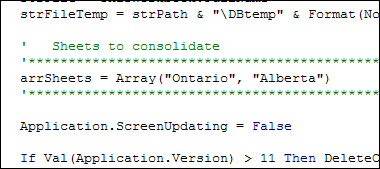
You can also adjust the location where the pivot table will be added. This line is further down in the CreateConnection code.
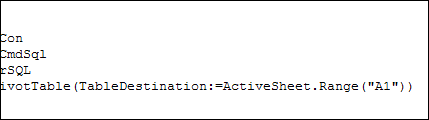
After those small changes, save the code changes. Then go back to Excel, click the button on the worksheet, and a summary pivot table will be automatically created.
Download the Sample File
Thanks Kirill and Héctor, for making a complicated task easier. You can download their sample file from the Contextures website: PT0023 – Pivot Table from Multiple Sheets
(Also, please check the update section below, for a newer version of the file)
Update — December 2011
The solution described in this article was created as a conceptual prototype and targeted mainly advanced VBA users. The code has minimal error handling and compatibility checks.
Given the massive response from all kinds of users willing to adopt this solution in their own applications, we would like suggest a similar solution based on ADO.
Advantages:
- No need for temporary file generation
- The code is faster and less prone to errors
Disadvantages:
- No manual refresh of the PivotTable
- Need to rebuild connection from the scratch to update the cache with new data
Download the ADO Sample File
You can download the new ADO version of the file from the Contextures website: PT0024 – Pivot Table from Multiple Sheets – ADO version
Update — August 28, 2012
In the comments below, Kirill posted code that will automatically detect the sheet names. The blog formatting changed his minus sign to a long dash, and also deleted the Less Than Greater Than operator. Here is the correct code, with Kirill’s instructions:
In the code, replace this line:
' Sheets to consolidate
'*****************************************************************************
arrSheets = Array("310_BWATTS_P Pastujova", "310_BWATTS_Maria Sanchez")
'*****************************************************************************
with the following code:
' Sheets to consolidate
'*****************************************************************************
Dim ws As Worksheet
ReDim arrSheets(0)
For Each ws In ThisWorkbook.Worksheets
  If ws.Name <> ActiveSheet.Name Then
    arrSheets(UBound(arrSheets)) = ws.Name
    ReDim Preserve arrSheets(UBound(arrSheets) + 1)
  End If
Next ws
ReDim Preserve arrSheets(UBound(arrSheets) - 1)
'*****************************************************************************
________________
@ajm
I haven’t done the testing, but I seem to recall that calculated named ranges would not be recognised by the JET SQL. So if your named ranges contain a formula like =A1:INDEX(D:D,COUNTA(A;A)), then chances are that this is the problem. If that is the case, try to change the formula by a plain range reference (e.g. $A$1:$D$100) and, if it works, then the workaround for you would be to read the dynamic range’s address into a string variable in VBA and then concatenate it into the SQL string variable.
thanks for the quick respons KL. I did see Andrew’s initial query and your response above, and have my ranges named accordingly; that is, by plain range references. I then thought maybe it was because my sheet names each have a space in them, so I added a second word to each of your sheet names in the sample workbook. that still worked, so it wasn’t the sheet names. I have just had another crack at it. Initially, i made the two ranges in your sample workbook into Named Ranges called “SalesResults”; the code worked perfectly. Now my ranges are non contiguous, so I inserted a column here and there in the data on both sheets and then amended the range references to include only the original data from the tables on each tab. Result: Ontario$NewBusiness could not be found.
I don’t suppose you would have a work around for this problem?
ajm
@Kirill
I ma having the same issue as mark and connot fix. I have my formula listed as arrSheets = Array(“Scrap”,”Zinc”). Please advise on how to fix. Tank you in advance!
Need a macro for generating a 2 pivot tables and consolidate this output in to different sheets in the same file
I’m a bit of a novice in vba but looks like this would be immensely helful with some reporting I’m doing but can’t seem to get the code to work. I get a “Runtime error 1004, too many fields defined” at this line in the code:
Set PT = .CreatePivotTable(TableDestination:=ActiveSheet.Range(“A16?))
when “Creating Empty Table” and can’t seem to figure out the problem. Ultimately I will be consolidating several (~20+) worksheets with thousands of rows each but have reduced the number of worksheets to 2 and rows & columns to what would seem manageable but still get the error. Am running 2003. Any thoughts would be greatly appreciated.
Hi Ed
Did you fix the problem? I have the same issue and can’t get it to work!
What a Fantastic code. Thanks KL for sharing it.
Thanks also to the others for commenting it. I tested it and it works great!
I implemented it at my work.
A small problem: I try to refresh the testpivot by a macro instead of right click and refresh but I am not successfull:
ActiveSheet.PivotTables(“TestPivot”).PivotCache.Refresh doesn’t work. Neither ActiveWorkbook.PivotCaches(1).Refresh.
Even if I record a workable refreshing action, replaying the macro doesn’t work… In some case I get the error teh connection for viewing your linked Microsoft Excel Worksheet was lost..
Any idea? Thanks in advance for any help.
Kind regards
Philippe