
A common pivot table question is “How can I create a pivot table from data that’s on separate sheets in my workbook?
Sometime people have a workbook set up with a separate sheet for each region, or for each salesperson.
Eventually, they want to pull all the data together, and create a summary report in a pivot table, from multiple sheets.
Multiple Consolidation Ranges
Excel has a feature (well hidden Excel 2007) that lets you do this, using Multiple Consolidation Ranges.
A pivot table created this way has limited features, and isn’t much use in summarizing Excel data.
I usually recommend that you move all the data onto one worksheet, if it will fit, or store it in a table in Access, then use that as the source for the pivot table.
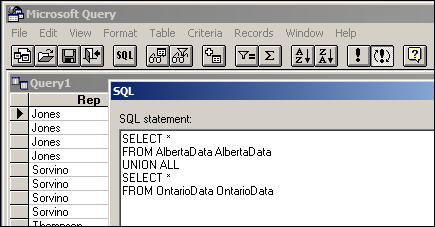
Create a Union Query
Another solution is to create a Union query from the separate tables, and use that as the source data.
Normal Pivot Table
With this solution, you’ll end up with a normal pivot table, with none of the limitations. However, it’s a bit tedious to set up, especially if you have more than a couple of tables.
Automate the Union Query
Instead of setting this up manually, you can use the code in a sample file from Excel MVPs, Kirill Lapin (KL), with amendments by Héctor Miguel Orozco Diaz. (You might remember Héctor’s innovative Filter Pivot Table Source Data example, posted earlier this year.)
To adjust their sample code to work in your file, you’d replace the sheet names in the CreateConnection code.
To go to the CreateConnection code, right-click on the “Create Empty Table” button, and click Assign Macro, then click Edit.
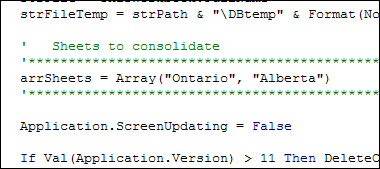
You can also adjust the location where the pivot table will be added. This line is further down in the CreateConnection code.
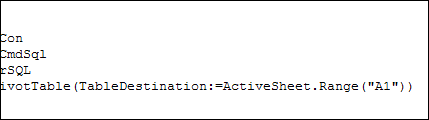
After those small changes, save the code changes. Then go back to Excel, click the button on the worksheet, and a summary pivot table will be automatically created.
Download the Sample File
Thanks Kirill and Héctor, for making a complicated task easier. You can download their sample file from the Contextures website: PT0023 – Pivot Table from Multiple Sheets
(Also, please check the update section below, for a newer version of the file)
Update — December 2011
The solution described in this article was created as a conceptual prototype and targeted mainly advanced VBA users. The code has minimal error handling and compatibility checks.
Given the massive response from all kinds of users willing to adopt this solution in their own applications, we would like suggest a similar solution based on ADO.
Advantages:
- No need for temporary file generation
- The code is faster and less prone to errors
Disadvantages:
- No manual refresh of the PivotTable
- Need to rebuild connection from the scratch to update the cache with new data
Download the ADO Sample File
You can download the new ADO version of the file from the Contextures website: PT0024 – Pivot Table from Multiple Sheets – ADO version
Update — August 28, 2012
In the comments below, Kirill posted code that will automatically detect the sheet names. The blog formatting changed his minus sign to a long dash, and also deleted the Less Than Greater Than operator. Here is the correct code, with Kirill’s instructions:
In the code, replace this line:
' Sheets to consolidate
'*****************************************************************************
arrSheets = Array("310_BWATTS_P Pastujova", "310_BWATTS_Maria Sanchez")
'*****************************************************************************
with the following code:
' Sheets to consolidate
'*****************************************************************************
Dim ws As Worksheet
ReDim arrSheets(0)
For Each ws In ThisWorkbook.Worksheets
  If ws.Name <> ActiveSheet.Name Then
    arrSheets(UBound(arrSheets)) = ws.Name
    ReDim Preserve arrSheets(UBound(arrSheets) + 1)
  End If
Next ws
ReDim Preserve arrSheets(UBound(arrSheets) - 1)
'*****************************************************************************
________________
@Mark: This means ypor variable arrSheets contains inexistent worksheet names or indices.
The names on the sheets are identical to what I inserted into the program. I am not sure what you mean by indices.
@Mark: You can refer to a sheet by name or by index ( e.g.: Worksheets(“Sheet1?) or Worksheets(1)). Please show the part of the code that assigns sheet names to the variable arrSheets()
The code looks like this:
arrSheets = Array(“OTC”,”IMWM”,”RTR”,”PTP”,”FTS”)
I have got it to work. Is there a way to insert the pivot table on a sheet other than the “activesheet”?
hi debra et al, I am trying to get your code to work inside another workbook. I am attempting to consolidate two named ranges (both have the same name at sheet level). however, when the code gets to the line
Set PT = .CreatePivotTable(TableDestination:=ActiveSheet.Range(“A3”))within the createconnection macro. it spits up a run time error 1004 stating that the object ‘ImportData$NewBusiness’ could not be found. Could it be that the macro is looking for this named range within the temporary file created or is it more likely to be because my named ranges, while having the same column headings, are not positioned in the same place on each worksheet. ie on the first of the two worksheets, the named range starts at A1 and on the second sheet, it starts at C1. Neither range is contiguous. any ideas?