
In my workbooks, I sometimes add buttons to run macros. Usually, they’re for navigation to the next or previous sheet, or to run a macro that’s specific to the contents of the worksheet.
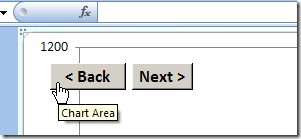
In this example, I’ve got two macros in the workbook – one that takes you to the next sheet in the workbook, and one that takes you to the previous sheet.
So, if you’re on the second sheet, you can click the Next button to go to the third sheet. Or, click the Back button to go to the first sheet.
Update: I’ve added a video, about halfway down the page, to show the steps.
Add a Button
- On the Ribbon, click the Developer tab
- Note: If the Developer tab isn’t visible, click the Office Button, then click Excel Options. Click the Popular category, then add a check mark to Show Developer tab in the Ribbon.
- In the Controls group, click Insert, to see the controls from the Form toolbar and the Control Toolbox.
- In the Form Controls section, click Button.
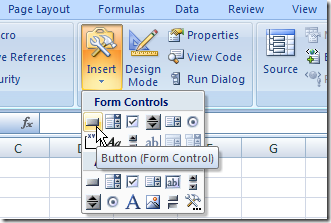
- Click on the worksheet to add a button, or drag on the worksheet to add a button of a specific size.
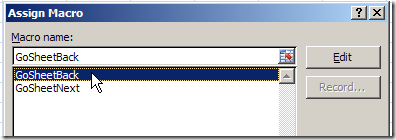
- In the Assign Macro dialog box that opens automatically, click on the name of a macro to select it, then click OK
Format the Button
While the button is still selected, you can change its caption and add some formatting.
- To change the button’s caption, select the existing text, and type a caption to replace it. The border around the button will have diagonal lines when you’re editing the text
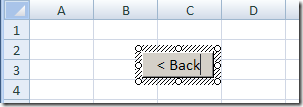
- Click on the border of the button, to select it. The outline should change to a dotted pattern, as you can see in the next screenshot.
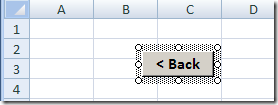
- On the Ribbon’s Home tab, use the font formatting buttons, such as Bold and Font Size, to change the appearance of the button.
Use the Buttons
After you’ve added the Back button, repeat the steps to create a Next button. Then, copy the two buttons to any worksheets or chart sheets in the workbook.
To move through the sheets, click either the Back or Next button on any sheet.
Video: Add Worksheet Navigation Buttons
This video shows how to add the buttons, and align them. Then it shows how to copy the buttons to other worksheets.
NOTE: This video does NOT show the steps for writing the Excel macros. Those are in the sample file that you can download.
The Navigation Code
Here’s the code that I used to make the buttons select the next or previous sheet.
Sub GoSheetNext()
Dim wb As Workbook
Dim lSheet As Long
Set wb = ActiveWorkbook
lSheet = ActiveSheet.Index
With wb
  If lSheet = .Sheets.Count Then
    .Sheets(1).Select
  Else
    .Sheets(lSheet + 1).Select
  End If
End With
End Sub
'=================================
Sub GoSheetBack()
Dim wb As Workbook
Dim lSheet As Long
Set wb = ActiveWorkbook
lSheet = ActiveSheet.Index
With wb
  If lSheet = 1 Then
    .Sheets(.Sheets.Count).Select
  Else
    .Sheets(lSheet - 1).Select
  End If
End With
End Sub
Get the Sample File
To get an Excel sample file with buttons to navigate to the previous or next worksheet, go to the Worksheet Macro Buttons page on my Contextures site. The zipped Excel file is in xlsm format, and contains macros.
Update: There is a newer version of the code on this Add Navigation Buttons blog post.
________________
Hi Ron de Bruin,
8th July was my birthday… 🙂
Debra – A little behind on my blog reading, but just did the macro button one. That means I followed your steps and actually created a workbook with the macros assigned to a button. Thank you! I always wondered how to do that, but never had a driving need.
Thanks Bob! Glad to hear that you tried it, and were successful.
[…] How to Run an Excel Macro With a Worksheet Button […]
[…] How to Run an Excel Macro With a Worksheet Button Share and Enjoy: […]
I have made a user form with a next button.How do i modify the next code for cells (next record)instead of using the sheet as in your code