
In Excel, you can create a drop down Data Validation list, so it’s easy to enter valid items in a cell.
Usually, the list of valid items is stored in the same workbook, but it’s possible to set up a drop down from a list in another workbook — as long as the other workbook is open.
The instructions are below, and watch the video to see the steps. The demo uses Excel 2010, and it’s the same in Excel 2007, except that there is an Office button, instead of a File tab.
Drop Down from a List in Another Workbook
Important Note: For the data validation to work, the workbook that contains the list must be open, in the same instance of Excel. Users will have to open both the workbooks — the one with the drop down lists, and the workbook with the original source list.
The following instructions are for Excel 2007 and later. On my website, there are similar instructions to create a data validation list from a different workbook in Excel 2003.

Create the Source List
In this example, you have a workbook named DataValWb.xlsx, which contains a list of customer names. This list is in a range named CustName. (For instructions on creating a named range, refer to Naming Ranges.)
Create a Named Reference to the Source List
Next, you’ll create named range in the workbook where the drop down list will be added.
- Open the workbook that contains the source list — DataValWb.xlsx in this example.
- Open the workbook in which you wish to use the list in Data Validation, or create a new workbook.
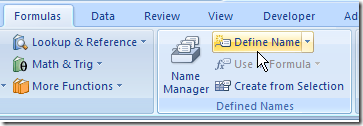
- On the Ribbon, click the Formulas tab, then click Define Name.
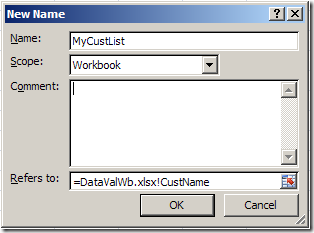
- Type a name for the List, e.g. MyCustList
- From the Scope drop down, select Workbook
- Click in the Refers to box — this is where you’ll type a reference to the named range in the source workbook
- Type an equal sign, then the source workbook name and extension. Do NOT include any square brackets in the name. For example:
=DataValWb.xlsx - OR, if the workbook name includes spaces, start and end the name with an apostrophe. For example: ‘DataVal May10.xlsx’
- Next, type an exclamation mark — !
- Finally, type the range name in the source workbook
- The completed reference should look like this:
=DataValWb.xlsx!CustName
OR =’DataVal May10.xlsx’!CustName
- Click OK
Create the Dropdown List
- Select the cells in which data validation will be set.
- On the Ribbon, click the Data tab, then click Data Validation
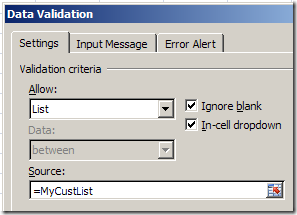
- In the Allow box, choose List
- In the Source box, type an equal sign, then the list name that you just created, e.g.: =MyCustList
- Click OK
Use the Data Validation List
Remember, to use the data validation drop down list, both workbooks must be open.
- Open both workbooks — the one with the drop down lists, and the workbook with the original source list.
- Select an item from the data validation drop down list.
Watch the Video
Watch this video to see the steps for creating a drop down from a list in another workbook. You’ll see how to set up the named ranges, and the drop down lists. The demo is in Excel 2010.
________________________________
Paul, glad you were able to get this working. In the article, I did mention that the other workbook has to be open — it’s in bold, in the sentence under the first screenshot. Maybe I’ll add that as a note, at the end of the instructions too, to make sure that everyone see it.
You could record a macro as you open the other workbook. Then, add that code to the Workbook_Open event code, for the workbook with the data validation drop downs.
Hi Deborah, I assumed you meant that both workbooks had to be open in the same instance of excel whilst setting up the link. It wasn’t clear that the link would then essentially break when the source workbook is closed.
I’m not sure how I would add the macro to the Workbook_Open event code – would this have to be done in VBA? Can you give me an example of how you would do this or point me in the direction of a tutorial?
Many thanks!
CAN U HAVE 10 SHARED WORKBOOKS USING A SINGLE SOURCE WORKBOOK, FOR A DROPDOWN MENU;
BUT I NEED TO HAVE LIKE 5 BOOKS OPEN AT A TIME FROM DIFFERENT COMPUTERS OVER A NETWORK. PLUS EACH ONE NEEDS TO HAVE A FUNCTIONING DROPDOWN OPTION.
CAN THIS BE DONE?
Please tell me about data validation in excel 2007
Not sure if Lokesh’s post is spam or not, but here is a page I created on Data Validation in Excel 2007 and will work in Excel 2010.
http://bohr.wlu.ca/cp212/201005/excel_data_validation.htm
Thanks Rick, and I’m not sure what Lokesh wants to know, because this blog post showed the steps in Excel 2007.
And nothing has really changed from earlier versions, except the command is on the Ribbon now, instead of the menu bar.