
In Excel, you can create a drop down Data Validation list, so it’s easy to enter valid items in a cell.
Usually, the list of valid items is stored in the same workbook, but it’s possible to set up a drop down from a list in another workbook — as long as the other workbook is open.
The instructions are below, and watch the video to see the steps. The demo uses Excel 2010, and it’s the same in Excel 2007, except that there is an Office button, instead of a File tab.
Drop Down from a List in Another Workbook
Important Note: For the data validation to work, the workbook that contains the list must be open, in the same instance of Excel. Users will have to open both the workbooks — the one with the drop down lists, and the workbook with the original source list.
The following instructions are for Excel 2007 and later. On my website, there are similar instructions to create a data validation list from a different workbook in Excel 2003.

Create the Source List
In this example, you have a workbook named DataValWb.xlsx, which contains a list of customer names. This list is in a range named CustName. (For instructions on creating a named range, refer to Naming Ranges.)
Create a Named Reference to the Source List
Next, you’ll create named range in the workbook where the drop down list will be added.
- Open the workbook that contains the source list — DataValWb.xlsx in this example.
- Open the workbook in which you wish to use the list in Data Validation, or create a new workbook.
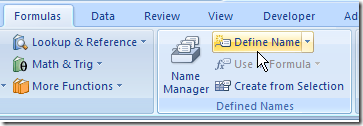
- On the Ribbon, click the Formulas tab, then click Define Name.
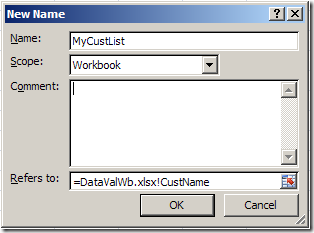
- Type a name for the List, e.g. MyCustList
- From the Scope drop down, select Workbook
- Click in the Refers to box — this is where you’ll type a reference to the named range in the source workbook
- Type an equal sign, then the source workbook name and extension. Do NOT include any square brackets in the name. For example:
=DataValWb.xlsx - OR, if the workbook name includes spaces, start and end the name with an apostrophe. For example: ‘DataVal May10.xlsx’
- Next, type an exclamation mark — !
- Finally, type the range name in the source workbook
- The completed reference should look like this:
=DataValWb.xlsx!CustName
OR =’DataVal May10.xlsx’!CustName
- Click OK
Create the Dropdown List
- Select the cells in which data validation will be set.
- On the Ribbon, click the Data tab, then click Data Validation
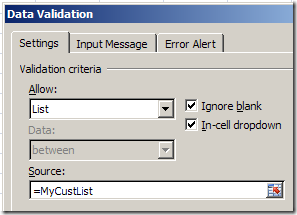
- In the Allow box, choose List
- In the Source box, type an equal sign, then the list name that you just created, e.g.: =MyCustList
- Click OK
Use the Data Validation List
Remember, to use the data validation drop down list, both workbooks must be open.
- Open both workbooks — the one with the drop down lists, and the workbook with the original source list.
- Select an item from the data validation drop down list.
Watch the Video
Watch this video to see the steps for creating a drop down from a list in another workbook. You’ll see how to set up the named ranges, and the drop down lists. The demo is in Excel 2010.
________________________________
I use this method to share some works with some workers. Would you be so kind to explain how exclude any worker after using Combo Box (Excel 2007!)
It simply does not work in excel 2007, I have tried this many times but still it does not!
Are we going backwards with office 2007?
Pat, it works for me in Excel 2007. What happens when you try it? Do you get an error message?
In the help facilities it does stipulate that validation cannot be done with an external workbook! The only way round is to create a macro to open this external workbook, hide it, to pick up the data from (list).
I have been working with vb, vba, access, excel for 18 years!
Yes Pat, you’re right, this technique only works if the workbook with the original list is open too.
I actually saved my DataValWb.xlsx in the “xlstart” folder so i dont have to open it every time.
Good idea!
I was struggling to make this work Pat until you revealed that both w0rkbooks have to be opened. You would think the original author would have noted this. Anyway, how do you trigger your macro? Could it be made to run automatically when the workbook is opened? I don’t want to have to issue intructions to click a button if I can help it.