
After I create formulas in Excel, sometimes I want to lock in the results of those formulas, so I use the Paste Values command.
For example, I might use the RAND function to create a set of random numbers. After creating them, I don’t want them to change every time the sheet calculates.
Ribbon Commands
Here’s how I’d use the Ribbon commands to replace formulas with values.
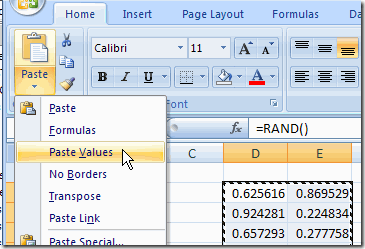
- Select the cells that contain the formulas
- On the Ribbon’s Home tab, click the Copy command
- On the Ribbon’s Home tab, click the lower half of the Paste command, to open the list of options
- Click Paste Values
Old Commands
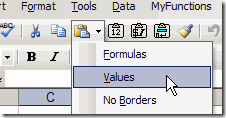
The steps are similar in earlier versions of Excel, but the commands are on the Standard toolbar, and the arrow is to the right of the Paste button.
Use Mouse Shortcut Menu
An even quicker way to paste values is by using a mouse shortcut:
- Point to the border of the selected range, and the pointer should change to a four-headed arrow.
- Press the right mouse button, and drag the cells slightly to the right.
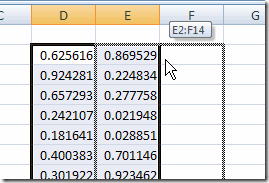
Use Mouse Shortcut Menu - Keep pressing the right mouse button, and drag the cells back to their original location.
- Release the right mouse button and a shortcut menu will appear.
- Click on Copy Here as Values Only.
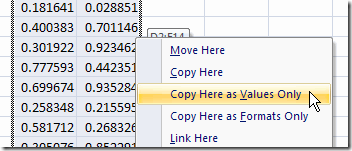
The formulas are replaced by the values of their results.
Video: Mouse Shortcut Paste Values
This technique is a bit tough to explain, so if the written explanation didn’t make sense, here’s a very short video and I made.
____________________
Nice tip, I learned this one from Bob Umlas at the Excel User Conference last year.
If you use the mouse, then putting PasteValues on the right-click menu works well, (you can miss out the “wiggle”). You can run the VBA code once and it stays in your menu. (I don’t know if this will work for Excel2007, it works in my Excel2000). I also have PasteSpecial and PasteFormats on that menu, but I can’t remember the button IDs.
Sub AddPasteValues()
Application.CommandBars(“Cell”).Controls.Add Type:=msoControlButton, ID _
:=370, Before:=5
Application.CommandBars(“Row”).Controls.Add Type:=msoControlButton, ID _
:=370, Before:=5
Application.CommandBars(“Column”).Controls.Add Type:=msoControlButton, ID _
:=370, Before:=5
End Sub
I found this tip in a comment from “James” on DDoE:
http://www.dailydoseofexcel.com/archives/2005/10/15/mouse-shortcuts/
As in the video, double click on the right bottom corner of the cell to auto fill the column is new to me – and brilliant. Debra, the added value from the videos is excellent. Keep them coming, please.
I have a Paste Values key on my personalized menus. Like the Paste buton, it goes grey when cutcopymode is off, meaning nothing to paste.
2 WAYS in OFFICE 2007
FIRST
Alt + H + V + V
SECOND
1. Select the cells that contain the formulas
2. On the Ribbon’s Home tab, click the Copy command
3. On the Ribbon’s Home tab, click the lower half of the Paste command, to open the list of options
4. Click Paste Values
this is website is very best
This works as hell. Have assigned it to Ctrl Shift V.
Makes it all very easy
ctrl x = cut
ctrl c = copy
ctrl v = paste
ctrl-shift v = paste values
A simple macro; just ‘recorded’ by preperforming the Alt ESV trick…
Selection.PasteSpecial Paste:=xlPasteValues, Operation:=xlNone, SkipBlanks _
:=False, Transpose:=False
End Sub