
After I create formulas in Excel, sometimes I want to lock in the results of those formulas, so I use the Paste Values command.
For example, I might use the RAND function to create a set of random numbers. After creating them, I don’t want them to change every time the sheet calculates.
Ribbon Commands
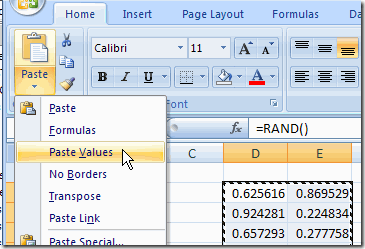
Here’s how I’d use the Ribbon commands to replace formulas with values.
- Select the cells that contain the formulas
- On the Ribbon’s Home tab, click the Copy command
- On the Ribbon’s Home tab, click the lower half of the Paste command, to open the list of options
- Click Paste Values
Old Commands
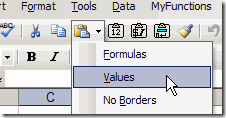
The steps are similar in earlier versions of Excel, but the commands are on the Standard toolbar, and the arrow is to the right of the Paste button.
Use Mouse Shortcut Menu
An even quicker way to paste values is by using a mouse shortcut:
- Point to the border of the selected range, and the pointer should change to a four-headed arrow.
- Press the right mouse button, and drag the cells slightly to the right.
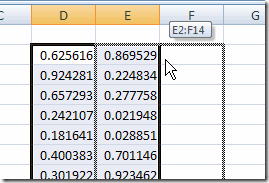
Use Mouse Shortcut Menu - Keep pressing the right mouse button, and drag the cells back to their original location.
- Release the right mouse button and a shortcut menu will appear.
- Click on Copy Here as Values Only.
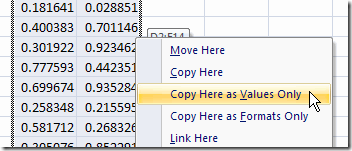
The formulas are replaced by the values of their results.
Video: Mouse Shortcut Paste Values
This technique is a bit tough to explain, so if the written explanation didn’t make sense, here’s a very short video and I made.
____________________
Of course, if you’re using MacXL, you can also assign a keyboard shortcut to the Paste Values command.
One setup I use is CMD-v for Paste, CTRL-v for Paste Values, CMD-OPT-v for Paste Function, and CTRL-OPT-v for Paste Formatting, and CMD-Shift-v for Paste Special…
I have the the following attached to Ctrl+m (make values)
Sub MakeValues()
Dim cRng as Range
Application.ScreenUpdating = False
Application.Calculation = xlCalculationManual
If Selection.Areas.Count > 1 Then
For Each cRng In Selection
cRng.Value = cRng.Value
Next cRng
Else
Selection.Copy
Selection.PasteSpecial Paste:=xlPasteValues
Application.CutCopyMode = False
End If
Application.ScreenUpdating = True
Application.Calculation = xlCalculationAutomatic
End Sub
I can’t decide which is quicker:
1) Pressing CTRL+C, then move the mouse up to the paste icon in the toolbar, click the down arrow next to it, then click Values, -OR-
2) Pressing CTRL+C, then right-click the selected area, click Paste Special, click the Values radio button, then click OK.
Moving the mouse all the way to the top toolbar seems to take too much time compared to using the Paste Special window that’s next to my selected data.
You can tell I don’t like moving the pointer all over the screen to do a paste values…
Still, love the tips!
Wait! I figured out what you meant by right-clicking on the selected cells, then “wiggling” the four-headed arrow to the right and then back to the left (the original selection) and clicking Copy Here as Values Only.
Oh, slick!
For efficiency, it’s hard to beat Ctrl+C, followed by Alt+ESV and Enter. Those are the hotkeys for Edit – Paste Special – Values. I must have entered those keystrokes 100,000 times in my life.
It still works in Excel 2007, but Alt+HVV (no Enter) is even more efficient. However, I will probably never break the habit.
Thank you soo much
u have posted a very good info
abot paste special. . .
thank you
razi
J.E., Sam, and John, thanks for adding your shortcuts. I use Ctrl+C and Ctrl+V to copy and paste, but haven’t tried keyboard shortcuts for paste values.
And Bill, this tip is hard to explain, so I added a little video to show how it works. Your description of a “wiggle” is pretty accurate!