
In Outlook, as you start typing a name in the To box, a drop down list may appear, showing names of people to whom you’ve previously sent an email.
Here’s how you can remove old addresses from Outlook drop down list, in Outlook for Windows or Outlook.com.
Old Email Addresses
Sometimes those names are out of date, and the list includes old email addresses.
In my Outlook drop down lists there are multiple entries for some people – a current address and one or more older addresses.
When sending email to those people, I waste time trying to remember which address is the correct one.
I’d like to get rid of the old items in the list, so the correct addresses are the only ones left.
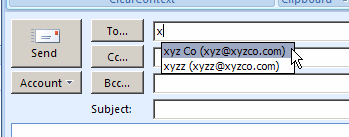
Remove the Old Addresses — Outlook for Windows
If you’re using Outlook for Windows (not Outlook.com), follow these steps to remove one of the suggested email addresses from the list.
- Create a new email message
- Start typing a name in the To box
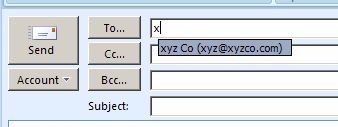
- When the drop down list appears, click the down arrow (or up arrow) key on your keyboard, to move to the name that you want to delete.
- On the keyboard, click the Delete key.
Now when you start typing the name, the deleted names don’t appear.
Manage Suggested Addresses — Outlook.com
If you’re using Outlook.com, the above suggestion will not work — you can’t remove individual address in Outlook.com.
However, you can follow these steps to manage the suggested email address list.
With this technique, only names from your contact list appear, instead of everyone you’ve ever communicated with in Outlook.com.
- In Outlook.com, click the Settings icon (a gear wheel), at the top right of the screen.
- In the drop down list, click Options
- In the Customizing Outlook.com section, click Advanced privacy settings.
- In the Auto-complete suggestions section, select “Only suggest people in my contact list” .
- Click Save, then click the Outlook.com link, at the top left of the screen, to return to the main page.
Now when you start typing the name, only the names from your contact list appear.
_________________
I suspect the problem for people like me is that the instructions only work for stand-alone Outlook. They don’t apparently work for outlook.com, the successor to hotmail – or at least I haven’t found a way to make them work. The close box doesn’t exist in my dropdown menus and hitting delete also fails to remove the offending address.
I assume that no one has found the solution to this issue in Outlook.com!
That’s amazing!! Thanks for the tip. I know this is an incredibly simple fix but it is NOT intuitive. Thanks for sharing, now I won’t accidentally send rude and provocative emails to the wrong people anymore!
Lance
August 8, 2013 at 7:49 am · Reply
I suspect the problem for people like me is that the instructions only work for stand-alone Outlook. They don’t apparently work for outlook.com, the successor to hotmail – or at least I haven’t found a way to make them work. The close box doesn’t exist in my dropdown menus and hitting delete also fails to remove the offending address.
I’m having them same problem Nothing is working. I on windows 7 and google chrome. Please help….thank you
I also couldn’t get names to delete. I followed all the instructions above, no joy. What did work was the following.
1. Top left hand side, right beside the word Outlook, there is a little down arrow. Click on it.
2. In the drop down menu, select People.
3. On the left hand side are all your contacts, check the little box on the left of the name.
4. On the menu bar at the top of the page, click Delete.
5. Confirm the delete.
6. Celebrate!
Instructions DO NOT WORK for Outlook.
Really annoying to have to look at all the old addresses…and be careful when you SEND!